
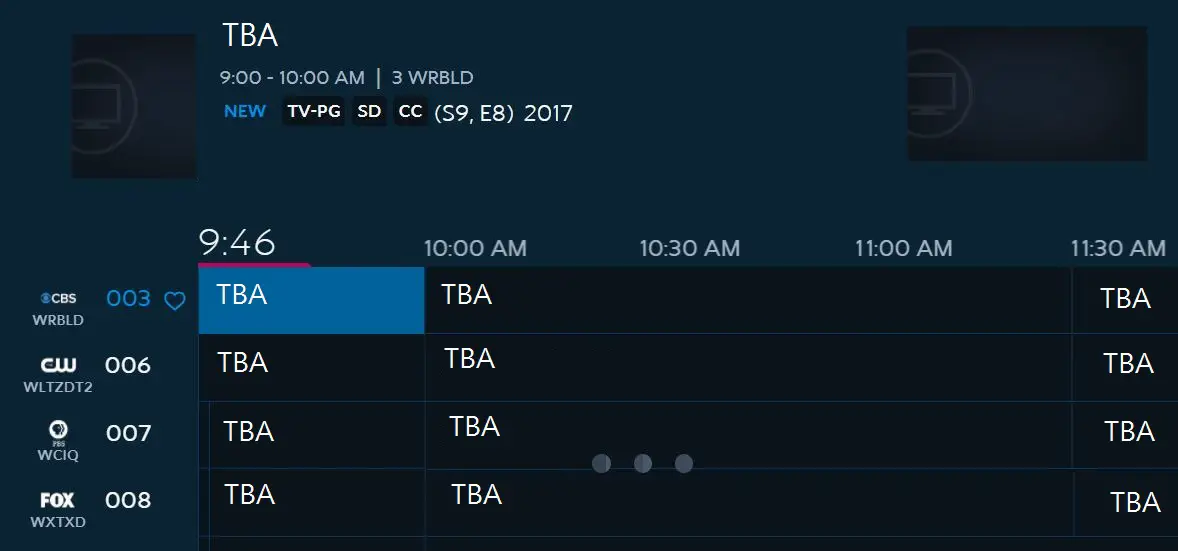
If you can’t get Spectrum TV to work, try resetting your cable box by unplugging it and plugging it back in. Additionally, check that all connections are secure and that the cable or satellite receiver is turned on.
You can also try troubleshooting the Spectrum TV app by restarting your device and checking for updates. Another option is to visit Spectrum’s website, go to the Your Services tab, select the TV option, and choose the equipment you want to work with.
If these steps don’t resolve the issue, consider contacting Spectrum customer support for further assistance.
1. Basic Troubleshooting Steps
Having trouble getting Spectrum TV to work? Don’t worry, follow these troubleshooting steps to get your cable up and running in no time.
Basic Troubleshooting Steps
Having trouble getting your Spectrum TV to work? Don’t worry, we’ve got you covered. Before you pick up the phone and call customer support, try these basic troubleshooting steps to see if you can resolve the issue on your own.
Check The Connection Cables:
- Make sure that all the cables connecting your Spectrum TV receiver are securely plugged in.
- Check for any loose or damaged cables that may be causing a poor connection.
- Ensure that the HDMI or coaxial cable is connected to the correct input on your TV.
Restart Your Spectrum Tv Receiver:
- Sometimes, all it takes is a simple restart to get your Spectrum TV back up and running.
- Unplug the power cord from the back of the receiver and wait for about 30 seconds.
- Plug the power cord back in and wait for the receiver to power up. This process can take a few minutes, so be patient.
Verify The Status Of Your Spectrum Account:
- Check to see if your Spectrum account is active and in good standing.
- Visit the Spectrum website and log in to your account to ensure that there are no issues or outstanding payments.
Check For Outages In Your Area:
- It’s possible that there may be a service outage in your area, which could be affecting your Spectrum TV.
- Visit the Spectrum website or contact customer support to check for any reported outages.
- If there is an outage, you’ll need to wait for Spectrum to resolve the issue.
By following these basic troubleshooting steps, you may be able to get your Spectrum TV working again without having to wait for technical support. If none of these steps resolve the issue, don’t hesitate to reach out to Spectrum customer support for further assistance.
2. Troubleshooting Spectrum Tv App Issues
Experiencing issues with the Spectrum TV app and can’t get it to work? Follow Spectrum’s troubleshooting guide on their website to reset your receiver or try these troubleshooting tips provided by Reviews. org. If you’re still having problems, you can contact Spectrum’s customer support for further assistance.
Having issues with your Spectrum TV app? Don’t worry, we’ve got you covered. Here are some troubleshooting tips to get your app up and running smoothly again:
- Ensure that your device meets the system requirements: Before diving into troubleshooting, make sure that your device meets the minimum requirements to run the Spectrum TV app. Check the app’s official website or documentation for the specific system requirements.
- Update the Spectrum TV app to the latest version: Outdated app versions can often cause compatibility issues and glitches. Check for any available updates in your device’s app store and make sure to download and install the latest version of the Spectrum TV app.
- Clear cache and data for the Spectrum TV app: Accumulated cache and data can sometimes interfere with the app’s performance. Go to your device’s settings, find the app settings for the Spectrum TV app, and clear the cache and data. This might vary depending on your device, but typically you can find these options under the “Storage” or “Apps” section in your settings.
- Disable any VPN or proxy services: VPNs and proxy services can sometimes cause conflicts with the Spectrum TV app, preventing it from working correctly. Disable any active VPN or proxy services on your device and try accessing the app again.
By following these troubleshooting steps, you should be able to resolve most issues with the Spectrum TV app. If the problem still persists, you may want to reach out to Spectrum’s support team for further assistance.
Remember, keeping your app updated, clearing cache and data, and ensuring your device meets the system requirements are simple yet effective ways to maintain the optimal performance of your Spectrum TV app.
3. Advanced Troubleshooting Techniques
If you’re experiencing issues with getting Spectrum TV to work, there are advanced troubleshooting techniques you can try. Resetting your cable box, checking for secure connections, and accessing Spectrum’s troubleshooting guide can help resolve the problem.
Reset Your Spectrum Tv Receiver To Factory Settings:
- Sometimes, performing a factory reset on your Spectrum TV receiver can resolve any issues you may be experiencing. Here’s how you can do it:
- Press and hold the power button on your Spectrum TV receiver until it turns off.
- Unplug the power cord from the back of the receiver.
- Wait for a few minutes and then plug the power cord back in.
- Press the power button on your receiver to turn it back on.
- Your receiver will now be reset to its factory settings, and you can try accessing Spectrum TV again.
Check For Software Updates On Your Tv Or Streaming Device:
- Software updates can often fix bugs and improve the performance of your TV or streaming device. To check for software updates, follow these steps:
- Go to the settings menu on your TV or streaming device.
- Look for the “Software Update” or “System Update” option.
- Select it and choose the “Check for Updates” option.
- If there are any updates available, follow the on-screen instructions to install them.
- After the update is complete, restart your TV or streaming device and try launching Spectrum TV again.
Use A Different Hdmi Cable Or Port:
- Sometimes, issues with your HDMI cable or port can prevent Spectrum TV from working properly. Here’s what you can do:
- Disconnect the HDMI cable from your TV and Spectrum TV receiver.
- Inspect the cable for any visible damage or bent pins.
- If the cable looks fine, try using a different HDMI port on your TV.
- Alternatively, you can also try using a different HDMI cable.
- Once you have connected the HDMI cable to a different port or used a different cable, try accessing Spectrum TV to see if the issue is resolved.
Contact Spectrum Customer Support For Further Assistance:
- If none of the above troubleshooting techniques work, it’s best to reach out to Spectrum customer support for further assistance. They have a dedicated team of experts who can help you troubleshoot and resolve the issue you’re facing with Spectrum TV. To get in touch with Spectrum customer support, you can:
- Visit the Spectrum website and look for the “Contact Us” or “Support” section.
- Call their customer support helpline, which is available 24/7.
- Explain the issue you’re experiencing and follow the instructions given by the customer support representative.
- They will guide you through the troubleshooting process and provide the necessary solutions to get your Spectrum TV up and running again.
Credit: www.reddit.com
Frequently Asked Questions On Can’T Get Spectrum Tv To Work
How Do I Reset My Spectrum Tv?
To reset your Spectrum TV, follow these steps: 1. Press the Menu button on your remote. 2. Navigate to the Settings or Help section. 3. Look for the option to Reset or Restart your receiver. 4. Select the option and follow the on-screen instructions.
Remember to unplug and plug back in your cable box if needed.
How Do I Get My Spectrum Cable To Work On My Tv?
To get your Spectrum cable to work on your TV, you can try these troubleshooting tips: 1. Make sure your cable or satellite receiver is turned on and the connections are secure. 2. Try resetting your cable box by unplugging it and plugging it back in.
3. Check if your Spectrum TV app needs to be updated or reinstall it. 4. Restart your device and check for any software updates. 5. If the issue persists, you can contact Spectrum support for further assistance.
Why Is My Spectrum Not Working On My Samsung Tv?
If your Spectrum is not working on your Samsung TV, try the following troubleshooting steps: 1. Restart your Samsung TV and Spectrum cable box. 2. Check that all connections are secure. 3. Ensure that your cable or satellite receiver is turned on.
4. If the issue persists, reset your cable box by unplugging and plugging it back in. 5. For further assistance, visit the Spectrum website for troubleshooting tips.
Why Is My Cable Box On But No Picture?
If your cable box is on but there is no picture, make sure your cable or satellite receiver is turned on and all connections are secure. If the issue persists, try unplugging the cable box and plugging it back in.
Conclusion
If you’re one of the many people struggling to get Spectrum TV to work, you’re not alone. It can be frustrating when you’re ready to sit down and enjoy your favorite shows, only to be met with technical difficulties. Luckily, there are some troubleshooting tips that can help get your Spectrum TV up and running smoothly.
First, ensure that all of your connections are secure and that your cable or satellite receiver is turned on. If you’re still not getting a picture, try resetting your cable box by unplugging it and plugging it back in. Additionally, visiting Spectrum’s website and going to the Your Services tab can offer further troubleshooting options.
If you’re using the Spectrum TV app, it may be helpful to restart your device, check for updates to the app, or uninstall and reinstall the app if necessary. Sometimes the app may not recognize that you’re on the Spectrum network, so double-check your connections.
Overall, troubleshooting your Spectrum TV issues can often be resolved with a few simple steps. By following these suggestions, you’ll be back to enjoying your favorite shows in no time.