
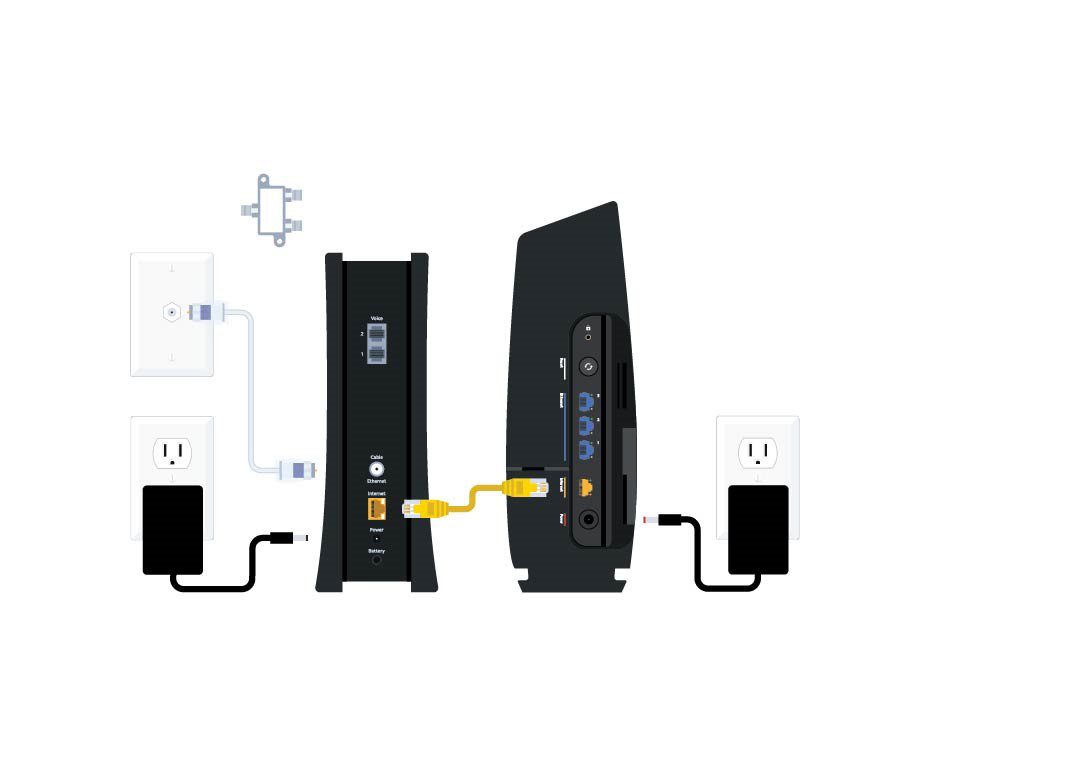
To access your Spectrum router, open a web browser on your PC and enter the IP address 192.168.1.1 in the search bar.

Credit: www.pcguide.com
Understanding Spectrum Router Login Credentials
To access your Spectrum router, open a web browser and enter the default IP address (usually 192. 168. 1. 1) in the search bar. Then, enter the default login credentials (username: admin, password: admin) to log in and customize your router settings.
Understanding Spectrum Router Login Credentials helps you take control of your network.
Default Login Credentials For Spectrum Routers:
- For most Spectrum routers, the default web access username is admin, and the password is also admin.
- These default login credentials are provided by Spectrum and are commonly used to access the router settings.
- It is recommended to change these default credentials to ensure the security of your network.
How To Retrieve The Default Login Credentials:
- If you have changed the default login credentials and forgotten them, you can reset the router to its factory settings.
- To reset the Spectrum router, locate the small reset button usually found on the back or bottom of the router.
- Use a pointed object like a pen or paperclip to press and hold the reset button for about 10-15 seconds until the router restarts.
- After the reset, the router will revert to its default settings, including the default login credentials (admin/admin).
- Remember to change the default credentials again after regaining access to the router settings.
Remember, it is important to always use strong, unique passwords to secure your router and protect your network from unauthorized access.
Accessing Your Spectrum Router Settings
To access your Spectrum router settings, open a web browser on your PC and enter the IP address “192. 168. 1. 1” in a new tab. From there, you can log in and make changes to your router’s settings to customize your network preferences.
:
To access your Spectrum router settings, follow these steps:
- Connecting to the Router Web Interface:
- Open a web browser on your computer or mobile device.
- In the address bar, type the default IP address of your Spectrum router. (Note: The default IP address can be found in the router’s user manual or on the manufacturer’s website.)
- Press Enter to access the login page of your router.
- Locating Your Router’s IP Address:
- On your computer, open the Command Prompt or Terminal.
- Type “ipconfig” (Windows) or “ifconfig” (Mac) and press Enter.
- Look for the “Default Gateway” or “Router” entry. This is your router’s IP address.
Remember to use the default login credentials (username and password) provided by Spectrum to log in to your router’s web interface. If you have changed the login details and cannot remember them, you may need to reset your router to factory settings.
Once logged in, you can explore the different settings and options available in your Spectrum router’s web interface. These settings may include network security, parental controls, Wi-Fi settings, and more. Make sure to save any changes you make to ensure they take effect.
Accessing your Spectrum router settings is essential for managing and optimizing your home network. With just a few simple steps, you can customize your router settings according to your needs and improve your online experience.
Configuring Spectrum Router Settings
To access your Spectrum router settings, open a web browser on your PC and enter the IP address 192. 168. 1. 1 in a new tab. Log in using the default username and password, which is typically “admin” for both.
From there, you can configure and customize your router settings.
Whether you’re setting up a new Spectrum router or just looking to update your network settings, configuring your Spectrum router is a simple process. By accessing the router settings, you can change your wireless network name (SSID), update your wireless network password, and manage network security settings.
Below, we’ll guide you through each of these steps.
Changing Wireless Network Name (Ssid)
To change your wireless network name (SSID), follow these steps:
- Access your Spectrum router settings by typing your router’s IP address into a web browser.
- Log in to your router using the default username and password (admin/admin).
- Once logged in, navigate to the wireless settings section.
- Locate the field labeled “SSID” or “Network Name” and enter your desired name.
- Save the changes to apply the new network name.
Updating Wireless Network Password
To update your wireless network password, follow these steps:
- Access your Spectrum router settings by typing your router’s IP address into a web browser.
- Log in to your router using the default username and password (admin/admin).
- Navigate to the wireless settings section.
- Look for the field labeled “Password” or “Network Key” and enter your new password.
- Save the changes to apply the new password.
Managing Network Security Settings
To manage your network security settings, follow these steps:
- Access your Spectrum router settings by typing your router’s IP address into a web browser.
- Log in to your router using the default username and password (admin/admin).
- Navigate to the security settings section.
- Here, you can enable or disable features such as firewall protection and network encryption.
- Make any desired changes and save the settings to apply them.
Configuring your Spectrum router settings is crucial for better network management and security. By following the steps outlined above, you can easily change your wireless network name, update your password, and manage network security settings to ensure a smooth and secure internet experience.
Troubleshooting Spectrum Router Access Issues
Having trouble accessing your Spectrum router? Find the default login details and step-by-step instructions on how to access your router settings. Ensure your computer is connected to the router and check for any connectivity issues.
If you’re having trouble accessing your Spectrum router or experiencing any issues while trying to sign in to the router interface, there are a few troubleshooting steps you can try to resolve the problem. Below are some common issues you may encounter and solutions to help you successfully access your Spectrum router.
Unable To Sign In To The Router Interface:
- Ensure that you are using the correct login credentials. For most Spectrum routers, the default username is “admin” and the password is also “admin.”
- If you have changed the default login credentials and cannot remember them, you may need to perform a factory reset on your router. Typically, you can do this by pressing and holding the reset button on the back of the router for about 10-15 seconds.
- Double-check your network connectivity. Make sure you are connected to the router’s network either through an Ethernet cable or Wi-Fi before attempting to sign in.
Ethernet Connection Issues:
- Verify that the Ethernet cable is securely connected to both your computer and the Spectrum router. Sometimes, loose or faulty connections can prevent access to the router’s interface.
- Try using a different Ethernet cable to rule out the possibility of a damaged cable causing the issue.
- Restart your computer and the router. Sometimes, a simple reboot can help resolve connection issues.
Ip Address Configuration Troubleshooting:
- Check that your computer’s IP address is on the same subnet as the Spectrum router. To do this:
- On Windows: Open the Command Prompt, type “ipconfig,” and press Enter. Look for the “Default Gateway” IP address, which should match the IP address of your router.
- On Mac: Go to the Apple menu, select “System Preferences,” then click on “Network.” In the network settings, find the “Router” or “Gateway” IP address, which should match the IP address of your router.
- If your computer’s IP address is not on the same subnet as the router, you may need to manually configure the IP settings. Consult your router’s manual or contact Spectrum support for assistance with this.
Remember, if you’re still experiencing difficulties accessing your Spectrum router, it’s always a good idea to reach out to their customer support for further assistance. They can provide more specific troubleshooting steps tailored to your situation.
Frequently Asked Questions For How Do I Access My Spectrum Router
What Is The Default Login For Spectrum Router?
The default login for a Spectrum router is admin for both the username and password.
How Do I Access My Router Settings?
To access your router settings, follow these steps: 1. Open a web browser on your computer. 2. Type in the IP address of your router (usually 192. 168. 1. 1) in the address bar. 3. Press Enter. 4. You will be prompted to enter a username and password.
Enter the default username and password (usually admin for both). 5. Once logged in, you can access and modify your router settings.
Why Can’T I Access My Spectrum Router?
If you can’t access your Spectrum router, check your computer’s Ethernet connection and make sure your IP address matches the router’s subnet.
How Do I Change My Router Settings?
To change your router settings, open a web browser on your PC and enter the IP address (usually 192. 168. 1. 1) in a new tab. Log in using the default username and password (usually both “admin”). Once logged in, you can make the necessary changes to your router settings.
Conclusion
To access your Spectrum router, you can follow a few simple steps. Firstly, open a web browser on your PC and type in the IP address “192. 168. 1. 1”. This will take you to the login page for your router.
Next, enter the default username and password, which is usually “admin” for both. Once logged in, you can access and modify various settings to optimize your router’s performance. If you are unable to access your router, there could be a few reasons why.
Check that your computer’s IP address is on the same subnet as the router. Additionally, ensure that the Ethernet connection between your computer and the router is working properly. Troubleshooting these issues should help you regain access. Remember, managing your router’s settings allows you to customize your network according to your needs.
Understanding the available settings can greatly enhance your router’s performance and security. So don’t hesitate to explore and make any necessary changes.