
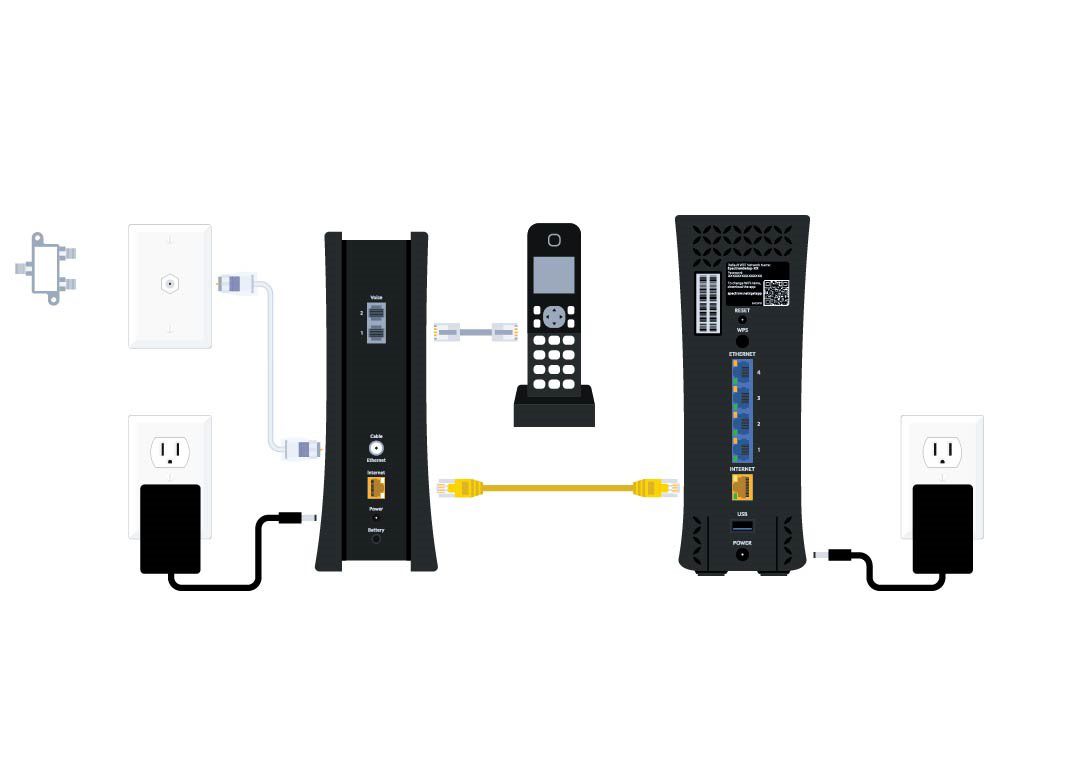
To set up Spectrum Internet, you can choose self-installation and follow a step-by-step guide provided in a self-installation kit. This kit can be picked up in-store or delivered to you at no extra charge.
All you need is an active coaxial cable outlet in the room where you want to place the modem. With the kit and the installation guide, you can get your internet connection up and running in just a few minutes.
In today’s digital age, having a reliable internet connection is crucial. Whether you’re setting up a new home or looking to switch service providers, Spectrum Internet offers a convenient and easy self-installation option. By following a simple step-by-step guide, you can have your internet connection set up in no time. This eliminates the hassle of waiting for an installation appointment and allows you to take control of getting your family connected. We will guide you on how to set up Spectrum Internet through self-installation. So let’s get started and enjoy fast and reliable internet at your fingertips.
Gathering The Requirements
To set up Spectrum Internet, you can choose the self-installation option. Simply pick up your kit or have it delivered to your home at no extra charge. With a step-by-step installation guide, you can easily connect your modem and get your family connected in minutes.
Checking For Availability In Your Area
- Visit the Spectrum website and enter your address to check if Spectrum Internet is available in your area.
- If Spectrum Internet is available, you can proceed with setting it up. If not, you may need to explore other internet service providers in your area.
Order The Spectrum Self-Install Kit
- If you are eligible for self-installation, you can order a Spectrum self-install kit.
- The kit will contain all the necessary equipment and instructions needed to set up your Spectrum Internet connection.
- You can either pick up the kit in-store or have it delivered to your address at no extra charge.
Ensure You Have The Required Equipment
- Before setting up Spectrum Internet, make sure you have the following equipment:
- Spectrum self-install kit: This will be provided to you either in-store or through mail.
- Coaxial cable: Ensure you have an active coaxial cable outlet in the room where you plan to set up the modem.
- Modem: The self-install kit will include a modem, which is essential for establishing your internet connection.
- WiFi router: If you want to set up a wireless network, make sure you have a WiFi router compatible with Spectrum Internet.
- Ethernet cables: These cables are needed to connect the modem and WiFi router to your computer or other devices.
Now that you have gathered the requirements, you are ready to set up Spectrum Internet and enjoy high-speed connectivity in your home.
Setting Up The Modem
To set up Spectrum Internet, you can choose the self-installation option. Simply pick up your kit from a store or have it mailed to you for free. Follow the step-by-step installation guide for a quick and easy setup in just minutes.
Connecting The Modem To Your Computer Or Wifi Router:
- Connecting via Ethernet cable:
- Connect one end of the Ethernet cable to the modem’s Ethernet port.
- Connect the other end of the Ethernet cable to the Ethernet port on your computer or WiFi router.
- Make sure the connections are secure.
- Connecting via WiFi:
- Make sure your computer or WiFi router is turned on and within range of the modem.
- Find the WiFi network name (SSID) and password, which can be found on the modem.
- On your computer or WiFi router, search for available WiFi networks and select the one that matches the WiFi network name (SSID) on the modem.
- Enter the password when prompted and wait for the connection to be established.
Setting Up Your Spectrum Account:
- Visit the Spectrum website or open the Spectrum app.
- Click on the “Sign Up” or “Create Account” button.
- Follow the on-screen instructions to enter your personal information, such as your name, address, and contact details.
- Provide the required information to verify your identity and create your account.
Creating Your Username And Password:
- Once your account is created, you will be prompted to create a username and password.
- Choose a unique and secure username that you will easily remember.
- Create a strong password that includes a combination of uppercase and lowercase letters, numbers, and special characters.
- Make sure to keep your username and password confidential to protect your account.
Now that you have successfully set up your Spectrum modem, you can enjoy high-speed internet connectivity. Remember to keep your account details safe and secure to ensure a smooth and secure browsing experience.
Connecting To The Internet
To set up Spectrum Internet, you can opt for self-installation. Simply pick up your kit in-store or have it mailed to you at no additional charge. With a step-by-step guide, you’ll have your internet connection up and running in just minutes.
Connecting The Modem To Your Phone
To connect the modem to your phone, follow these steps:
- Locate the phone jack in your home.
- Take one end of the phone cord and plug it into the phone jack.
- Connect the other end of the phone cord into the appropriate port on the modem.
Connecting The Modem To The Wifi Router
To connect the modem to the WiFi router, follow these steps:
- Take an Ethernet cable and connect one end to the Ethernet port on the modem.
- Connect the other end of the Ethernet cable to the WAN port on the WiFi router.
- Make sure the router and modem are powered on.
Connecting A Wireless Device To The Wifi Network
To connect a wireless device to the WiFi network, follow these steps:
- Enable the WiFi feature on your device (such as a laptop, smartphone, or tablet).
- Look for available wireless networks and select the one that matches your WiFi network name (SSID).
- Enter the WiFi network password when prompted.
Customizing The Wifi Network Name And Password
To customize the WiFi network name and password, follow these steps:
- Open a web browser on a device connected to the WiFi network.
- Enter the router’s default gateway IP address into the browser’s address bar.
- Log in to the router’s admin interface using the provided username and password.
- Locate the WiFi settings section and change the network name (SSID) and password to your desired preferences.
You are now ready to enjoy your Spectrum internet connection! Keep in mind that these instructions may vary slightly depending on the specific modem and router models you have. For further assistance, refer to the user manual or contact Spectrum customer support.
Troubleshooting Common Issues
Setting up Spectrum Internet is a breeze with the self-installation option. Simply pick up your kit in-store or have it mailed to you, and follow the step-by-step guide. No need to wait for a technician, as you can get connected in just a few minutes.
If you’re facing issues with your Spectrum Internet, don’t worry, we’ve got you covered! Here are some common problems users face and their solutions:
No Internet Connection
- Check the cables: Ensure that all cables connecting your modem and router are properly plugged in and secure.
- Power cycle the modem and router: Turn off the devices, wait for a few minutes, and then turn them back on. This can help resolve temporary connectivity issues.
- Test other devices: If the internet isn’t working on one device, check if it’s working on other devices in your home. If it is, the issue may lie with the problematic device.
- Contact Spectrum support: If the problem persists, reach out to Spectrum support for further assistance.
Slow Internet Speed
- Perform a speed test: Use an online speed test tool to check your internet speed. If the results are consistently slower than what you’re paying for, you may need to troubleshoot.
- Check for background downloads and uploads: Make sure there are no large downloads or uploads happening on your network that could be consuming bandwidth.
- Move closer to the router: If you’re experiencing slow speeds on wireless devices, try moving closer to the router for a stronger signal.
- Update your devices: Ensure that your connected devices and router firmware are up to date, as outdated software can affect internet speed.
- Consider upgrading your plan: If you consistently require faster speeds, it may be worth considering upgrading to a higher-tier plan.
Wifi Connectivity Issues
- Check WiFi settings: Make sure that WiFi is enabled on your device and that you’re connected to the correct network.
- Restart your devices: Sometimes, a simple restart of your devices can resolve WiFi connectivity issues.
- Move closer to the router: If the WiFi signal is weak, try moving closer to the router to improve the connection.
- Reduce interference: Other electronic devices, such as cordless phones and microwaves, can interfere with WiFi signals. Keep them away from your router.
- Change WiFi channel: If there are multiple WiFi networks in your area, changing the channel on your router’s settings can help avoid congestion.
By following these troubleshooting steps, you should be able to resolve most common Spectrum Internet issues. If you’re still experiencing difficulties, don’t hesitate to contact Spectrum support for further assistance.

Credit: hometheaterreview.com
Frequently Asked Questions Of How Do I Set Up Spectrum Internet
Can I Set Up Spectrum Internet Myself?
Yes, you can set up Spectrum Internet yourself by following a step-by-step installation guide provided with the self-installation kit.
What Do You Need To Self-Install Spectrum Internet?
To self-install Spectrum Internet, you need a Spectrum self-install kit and an active coaxial cable outlet. Follow the step-by-step guide included in the kit to get connected in minutes.
How Do I Set Up Internet At Home?
To set up internet at home, follow these steps: 1. Pick up or receive a self-install kit from Spectrum. 2. Connect your modem to your computer or WiFi router. 3. Enter your account number and security code. 4. Create a username and password.
5. Connect the modem to your phone or WiFi router. 6. Customize your WiFi network name and password. 7. Connect your wireless device to the WiFi network. 8. Test your internet connection. That’s it! You’re now ready to enjoy Spectrum internet at home.
How Do I Setup My New Router Spectrum?
To set up your new Spectrum router, follow these steps: 1. Connect your modem to your computer or WiFi router. 2. Locate your account number and security code. 3. Create your username. 4. Access your account information. If you opt for self-installation, you can pick up a kit in-store or have it mailed to you at no extra charge.
You will need a Spectrum self-install kit and an active coaxial cable outlet in the room where you want to place the modem. Follow the step-by-step installation guide provided to get connected in minutes.
Conclusion
Setting up Spectrum Internet is a breeze with their self-installation option. By opting for self-installation, you can save time and money and get connected in no time. Spectrum provides a step-by-step installation guide that makes the process easy for anyone to follow.
Whether you choose to pick up the installation kit in-store or have it mailed to your home, you’ll have everything you need to get started. You’ll need an active coaxial cable outlet in the room where you want to place the modem, and Spectrum provides all the necessary equipment in the self-installation kit.
With just a few simple steps, you’ll be able to connect your modem to your computer or WiFi router and create your username. Plus, Spectrum offers additional self-installation guides for setting up WiFi and voice services. Don’t wait for a technician to come to your house; take control and set up Spectrum Internet yourself.
It’s fast, easy, and convenient.