
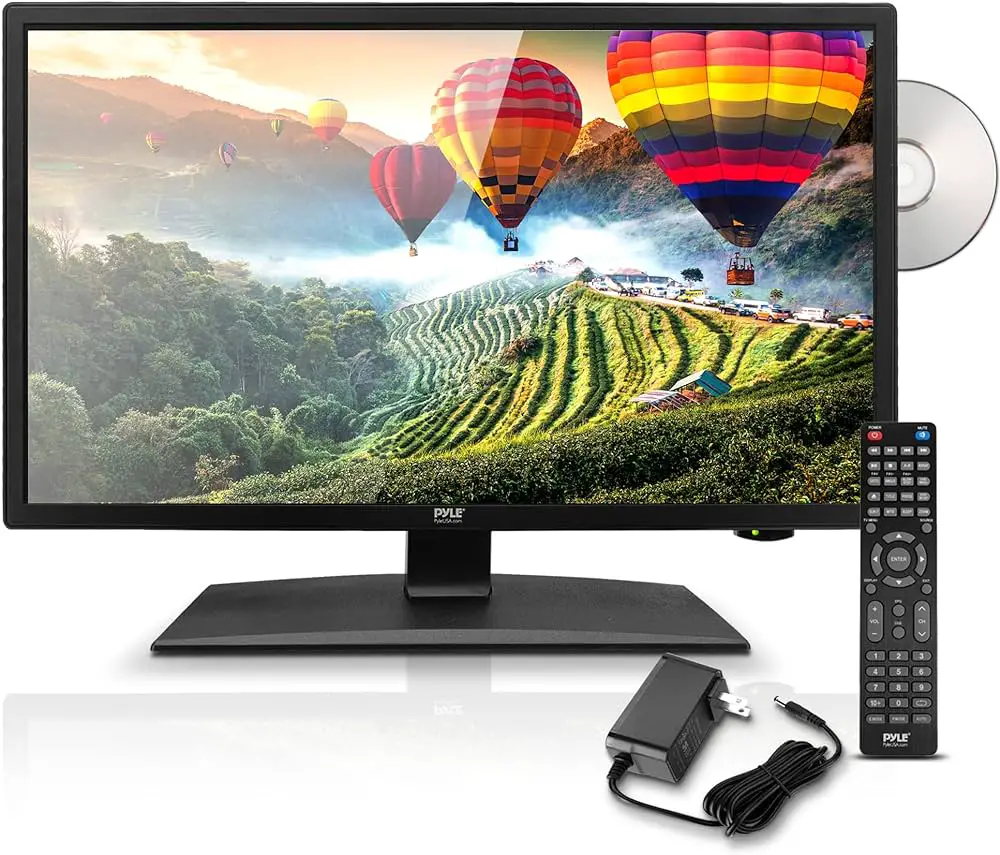
To connect a Spectrum remote to a TV, press and hold the “TV” button, then input the manufacturer’s code for your TV using the remote. Ensure the TV turns off to confirm successful programming.
Synchronizing your Spectrum remote with your TV allows for seamless control and enhanced viewing experience. By following a few simple steps, you can efficiently connect your Spectrum remote to your TV, enabling you to navigate channels and adjust settings with ease.
This guide will provide you with clear instructions on how to sync your Spectrum remote to your TV, making it convenient to access your favorite shows and movies. Whether you’re a new Spectrum customer or need to reprogram your remote, this process is straightforward and user-friendly.
Preparing Your Spectrum Remote
When it comes to using your Spectrum remote to control your TV, making sure it’s properly connected and programmed is essential. Preparing your Spectrum remote is the first step in ensuring seamless integration with your TV. Here, we’ll guide you through the necessary steps to prepare your Spectrum remote for programming.
Different Models Of Spectrum Remotes
Spectrum offers various models of remotes, each designed to work with specific TV models. Before you begin the programming process, it’s important to identify which model of Spectrum remote you have. The most common models include the Spectrum 210 and Spectrum 110 remotes, each with its own unique features and capabilities.
Necessary Materials For Programming
Before programming your Spectrum remote, gather the necessary materials to ensure a smooth setup process. You’ll need the Spectrum remote, fresh batteries, and access to your TV and its user manual. Additionally, make sure you have a clear line of sight between the remote and the TV to avoid any interference during the programming process.
Identifying Your Tv Brand
Prior to programming your Spectrum remote, it’s crucial to identify the brand of your TV. This information will help you input the correct programming codes into the remote, ensuring that it can correctly communicate with your specific TV model. Refer to your TV’s user manual or look for the brand name on the TV itself to determine the manufacturer.
Spectrum Remote Battery Installation
One of the first steps when setting up your Spectrum remote is installing the batteries. Proper battery installation ensures smooth functioning of the remote, allowing you to enjoy seamless control of your TV. Below are the steps to insert batteries and ensure their proper orientation in your Spectrum remote.
Steps To Insert Batteries:
- Locate the battery compartment on the back of your Spectrum remote.
- Slide the cover of the battery compartment to open it.
- Insert the batteries into the compartment, ensuring the correct polarity (+ and -) as indicated inside the compartment.
- Close the cover of the battery compartment securely.
Ensuring Proper Battery Orientation:
It’s crucial to ensure the proper orientation of the batteries to avoid any malfunction of the remote. Always align the positive (+) and negative (-) ends of the batteries according to the diagrams shown inside the battery compartment. Incorrect battery orientation can lead to poor performance of the remote.
How To Connect Spectrum Remote To Your Tv
Connecting your Spectrum remote to your TV is an essential step to ensure a seamless entertainment experience. Whether you prefer the convenience of the direct code entry method or the efficiency of the auto-search method, this guide will walk you through the steps to successfully connect your Spectrum remote to your TV.
Direct Code Entry Method
The direct code entry method allows you to manually input a specific code to pair your Spectrum remote with your TV. This method provides a quick and straightforward way to establish communication between the two devices. Follow these steps to connect your Spectrum remote to your TV using the direct code entry method:
- Turn on your TV and Spectrum receiver.
- Press and hold the TV and Select buttons on your Spectrum remote simultaneously until the status LED blinks twice.
- Enter the provided manufacturer’s code for your TV using the number pad on the remote.
- If the code is entered correctly, the status LED on the remote will flash twice, indicating a successful pairing.
Auto-search Method
The auto-search method eliminates the need to input specific codes manually. Instead, it allows the remote to search for the correct code that corresponds to your TV. Utilize the following steps to connect your Spectrum remote to your TV using the auto-search method:
- Turn on your TV and Spectrum receiver.
- Press and hold the TV and Select buttons on your Spectrum remote simultaneously until the status LED blinks twice.
- Press the Channel Up button repeatedly until the TV turns off.
- Once the TV turns off, press the Select button to save the code. The status LED will blink twice to confirm the pairing.
Credit: www.cnet.com
Easy Steps For Seamless Control
Looking to connect your Spectrum remote to your TV seamlessly? Follow these easy steps for a hassle-free process. Just sync your remote with your TV using the provided code, and you’ll be in control in no time.
Verifying The Successful Connection
After following the easy steps to connect your Spectrum remote to your TV, it’s important to verify that the connection was successful. The verification process is simple and ensures that your remote control is functioning as expected.
Troubleshooting Common Issues
If you encounter any issues during the connection process, don’t worry. There are common troubleshooting steps you can take to resolve these problems and ensure seamless control of your TV with the Spectrum remote.
Connecting your Spectrum remote to your TV is a straightforward process that can be completed in just a few simple steps. By following these easy steps, you can enjoy seamless control of your TV with your Spectrum remote.
- Ensure your TV and Spectrum receiver are both powered on.
- Press and hold the ‘Setup’ button on your Spectrum remote until the status LED light changes from red to green.
- Enter the manufacturer’s code for your TV using the keypad on the remote. If you don’t know the code, you can find it in the Spectrum remote control user manual.
- If the LED light blinks green twice, the code was successfully entered. If not, repeat the process with a different code until the LED blinks green twice.
- Test the remote to ensure it’s controlling your TV as expected.
If you followed these steps and your remote is successfully controlling your TV, congratulations! You have successfully connected your Spectrum remote.
However, if you encounter any issues during the connection process, refer to the troubleshooting section below for assistance.
Customizing Remote Settings
Customizing remote settings allows you to enhance your viewing experience by personalizing the functionality of your Spectrum remote. From adjusting the volume control to programming the remote to control other devices, you have the flexibility to tailor the remote to meet your specific needs.
Adjusting Volume Control
Adjusting the volume control on your Spectrum remote is a simple yet vital customization to ensure that you can easily manage the audio levels while watching your favorite shows or movies. To adjust the volume control:
- Press the “VOL” button on the remote.
- Use the arrow buttons to increase or decrease the volume to your preferred level.
- Press the “OK” or “SELECT” button to confirm the setting.
Programming Remote To Control Other Devices
Programming your Spectrum remote to control other devices enables you to consolidate your remote controls, simplifying the overall entertainment system experience. To program your remote to control other devices:
- Identify the manufacturer’s code for the device you want to control, which can be found in the remote’s manual or on the Spectrum website.
- Press and hold the “TV” or “AUX” button on the remote until all mode buttons illuminate.
- Enter the manufacturer’s code using the numeric keypad on the remote.
- Test if the remote successfully controls the device and, if not, repeat the programming steps with the next available code.
Enhancing User Experience
When it comes to maximizing your TV viewing experience, optimizing your Spectrum remote for seamless operation is essential. Enhancing your user experience involves using advanced features such as the Master Power function to control multiple devices and accessing your favorite channels quickly. Let’s explore these features to elevate your entertainment experience.
Using The Master Power Feature
The Master Power feature of your Spectrum remote allows you to simultaneously power on or off your TV and other connected devices, such as your cable box or sound system. By programming this feature, you can simplify your entertainment setup, making it more convenient to start or end your viewing sessions.
- Press and hold the [PROG] button until the [POWER] button illuminates.
- Enter the corresponding code for your TV brand using the remote’s number pad.
- Press [POWER] to save the code and confirm the remote’s functionality.
Accessing Favorite Channels Quickly
With Spectrum remote setup, you can create a personalized list of favorite channels, making it effortless to access the content you love. This feature eliminates the hassle of navigating through numerous channels, ensuring quick and easy access to your preferred programs.
- Press the [GUIDE] button to display the on-screen guide.
- Navigate to the desired channel and select it.
- Press and hold the number associated with the channel until the [OK] button blinks twice, indicating successful programming.
By leveraging these functionalities, you can optimize your Spectrum remote for efficient and enjoyable TV viewing, tailored to your preferences.
Frequently Asked Questions Of How To Connect A Spectrum Remote To Tv
How Do I Program My Spectrum Remote To My Tv?
To program your Spectrum remote to your TV, first, press and hold the “Setup” button. Then, enter the TV manufacturer’s code. If done correctly, the device will power off. Press the “Power” button to turn the TV back on, and the remote is now programmed.
What Should I Do If My Spectrum Remote Is Not Working With The Tv?
If your Spectrum remote isn’t working with your TV, start by ensuring the batteries are correctly placed and functional. Then, reprogram the remote by following the setup instructions provided by Spectrum. If issues persist, consider contacting Spectrum’s customer support for further assistance.
Can I Use My Spectrum Remote To Control Other Devices Besides The Tv?
Yes, Spectrum remotes can typically be programmed to control other devices, such as DVD players or sound systems. By using the remote’s programming feature and entering the corresponding codes for the devices, you can expand the remote’s functionality to manage multiple entertainment components seamlessly.
What Should I Do If I’ve Lost My Spectrum Remote’s Manual With The Programming Codes?
In case you’ve misplaced the manual containing Spectrum remote’s programming codes, you can visit Spectrum’s official website. Alternatively, you can reach out to Spectrum’s customer service for assistance in retrieving the necessary programming codes to configure your remote with your TV.
Conclusion
Connecting a Spectrum remote to your TV is a simple process. By following the steps outlined in this guide, you can easily pair your remote and start enjoying your favorite shows in no time. With a few simple button presses, you can have your remote synced to your TV and ready for use.
Remember to refer back to this guide if you encounter any difficulties in the future.