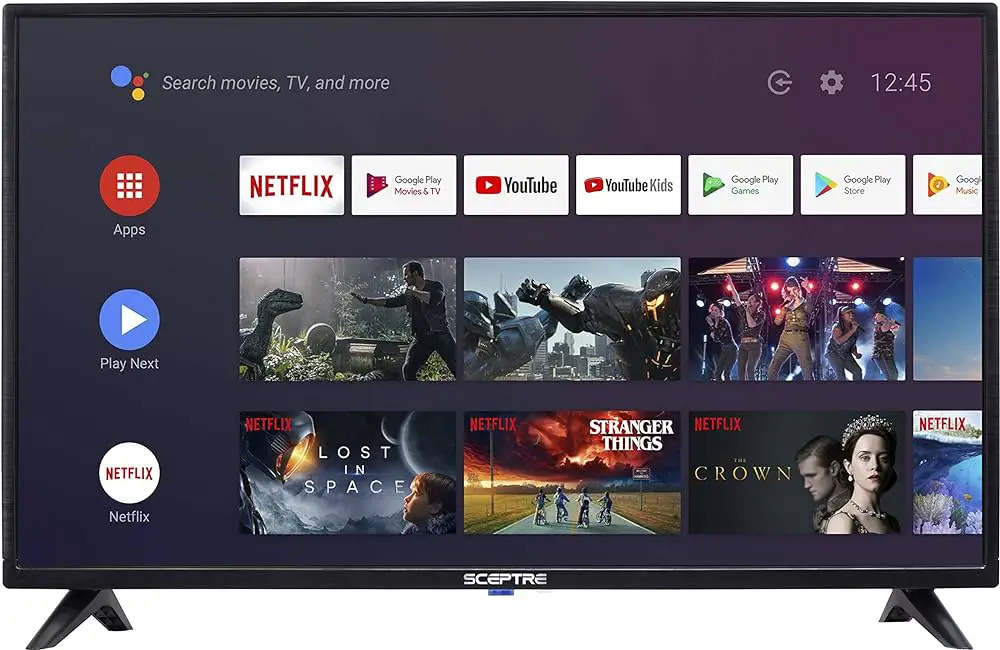
To download the Spectrum app on your Vizio TV, press the VIA button on your remote, select the Connected TV Store, choose the app you want to add, and then select Install App. If your Vizio TV has a built-in Chromecast feature, you can also cast the Spectrum app from your smartphone.
Credit: www.spectrum.net
Compatibility Of Spectrum App With Vizio Tv
Learn how to download the Spectrum app on your Vizio TV easily. With step-by-step instructions, you can enjoy all your favorite shows and movies on your Vizio TV using the Spectrum app. No need to miss out on any content with this simple guide.
Models:
- The Spectrum app is compatible with certain models of Vizio TVs. However, it is important to check if your specific Vizio TV model supports the Spectrum app before attempting to download it.
- Not all Vizio TVs are compatible with the Spectrum app, so it is important to ensure that your TV model is one of the supported models.
- Spectrum has provided a list of compatible Vizio TV models on their official website. You can refer to this list to see if your TV model is included.
- If your Vizio TV model is not listed as compatible, it means that the Spectrum app cannot be downloaded or used on your TV.
Requirement Of Built-In Chromecast (Smartcast) Feature For Easy Casting:
- The built-in Chromecast feature, also known as SmartCast, is a requirement for easy casting of the Spectrum app on Vizio TVs.
- With the SmartCast feature, you can seamlessly stream content from your smartphone or tablet to your Vizio TV, including the Spectrum app.
- If your Vizio TV has the SmartCast feature, you can easily cast the Spectrum app from your smartphone to your TV with just a few taps.
- However, if your Vizio TV does not have the SmartCast feature, you will not be able to cast the Spectrum app wirelessly.
How To Check If The Tv Has This Feature:
- To check if your Vizio TV has the built-in Chromecast (SmartCast) feature, you can follow these steps:
- On your Vizio TV remote, press the VIA button to access the SmartCast platform.
- Look for the SmartCast icon or the Chromecast icon on the screen.
- If you see either of these icons, it means that your TV has the built-in Chromecast (SmartCast) feature.
- You can also check the specifications or user manual of your Vizio TV to confirm if it has the SmartCast feature.
- If your Vizio TV does not have the built-in Chromecast (SmartCast) feature, you will not be able to cast the Spectrum app wirelessly. However, you can still access the Spectrum app through other compatible devices, such as streaming devices or gaming consoles, connected to your TV.
Steps To Download Spectrum App On Vizio Tv
To download the Spectrum app on your Vizio TV, press the VIA button on your remote and select the Connected TV Store. From there, you can browse and install the Spectrum app among other available apps. Enjoy streaming your favorite shows and movies on your Vizio TV with Spectrum!
To enjoy streaming your favorite shows and movies on your Vizio TV, follow these simple steps to download the Spectrum App. Get your popcorn ready and let’s get started!
Step 1: Turn On The Vizio Tv And Ensure It Is Connected To The Internet
Before downloading any app, make sure your Vizio TV is turned on and connected to the internet. You can do this by connecting your TV to Wi-Fi or using an ethernet cable for a stable connection. Now, let’s move on to the next step.
Step 2: Press The Via Button On The Remote Control
Locate the VIA button on your Vizio TV remote control. This button will take you directly to the Vizio Internet Apps (VIA) platform, where you can access various apps, including the Spectrum App.
Step 3: Select The Connected Tv Store Option From The Bottom Dock Of The Screen
Once you have pressed the VIA button on your remote control, navigate to the bottom dock of the screen. Look for the option called “Connected TV Store” and select it. This will take you to the app store where you can find and install the Spectrum App.
The Connected TV Store is a significant feature on Vizio TVs as it provides a centralized platform to access a wide range of apps. It simplifies the app installation process and ensures that you can easily find and download your favorite apps, such as the Spectrum App.
Step 4: Explore The Available Options For App Installation
Once you are in the Connected TV Store, you will see various options for app installation. These options may include “All Apps,” “Latest,” “Featured,” or “Categories. ” Take a moment to explore the available options to find the Spectrum App.
Step 5: Find The Spectrum App From The App Store And Select It
Using the navigation buttons on your remote control, find the Spectrum App from the app store. You can use the search function or browse through the categories to locate it. Once you have found the Spectrum App, select it to proceed to the next step.
Step 6: Click On The Install App Button To Initiate The Download And Installation Process
After selecting the Spectrum App, you will see an option to “Install App. ” Click on this button to initiate the download and installation process. The speed of the download may vary depending on your internet connection, so be patient as it installs.
Step 7: Wait For The Installation To Complete, And Then Access The Spectrum App From The App Tray Or Homepage
Once the installation is complete, you can access the Spectrum App from the app tray or the homepage of your Vizio TV. Simply locate the app and select it to start using Spectrum’s streaming services.
That’s it! You have successfully downloaded the Spectrum App on your Vizio TV. Now you can sit back, relax, and enjoy your favorite shows and movies with just a few clicks on your remote control. Happy streaming!
Alternative Methods To Download Spectrum App On Vizio Tv
Looking for alternative methods to download the Spectrum app on your Vizio TV? If your TV has built-in Chromecast, you can easily cast the app from your smartphone. Otherwise, you can explore other options to enjoy the Spectrum app on your Vizio TV.
If you own a Vizio TV and want to download the Spectrum app, there are alternative methods you can try. Below, we will discuss two options for downloading the Spectrum app on your Vizio TV:
Option 1: Casting The Spectrum App From A Smartphone To Vizio Tv Using Chromecast
- Make sure your Vizio TV has a built-in Chromecast (SmartCast) and that your smartphone is connected to the same Wi-Fi network as your TV.
- Open the Spectrum app on your smartphone.
- Look for the Chromecast icon in the app and tap on it.
- The app will search for available devices, and when your Vizio TV appears, tap on it to cast the app.
- The Spectrum app will then start playing on your Vizio TV.
Option 2: Installing The Spectrum App Using Third-Party App Stores
- Some third-party app stores, like APKMirror or Aptoide, may have the Spectrum app available for download.
- You can visit the website of the third-party app store and search for the Spectrum app.
- Once you find it, download the APK file.
- Enable the option to install apps from unknown sources in your Vizio TV settings.
- Use a USB drive to transfer the downloaded APK file to your TV.
- On your Vizio TV, open the file manager and navigate to the location of the APK file.
- Select the file and follow the on-screen prompts to install the Spectrum app.
It’s important to note that using third-party app stores comes with potential risks, such as downloading malicious apps. It is recommended to only download apps from trusted sources and exercise caution when downloading from third-party app stores.
By using either of these alternative methods, you can download the Spectrum app and enjoy your favorite content on your Vizio TV.
Tips And Troubleshooting
Learn how to download the Spectrum app on your Vizio TV with our helpful troubleshooting tips. Easily access and enjoy your favorite Spectrum TV channels and programming right from your Vizio TV. Follow our step-by-step guide to get the Spectrum app up and running on your device.
Provide Tips For A Smooth App Download And Installation Process:
- Make sure your Vizio TV is connected to the internet before attempting to download the Spectrum app.
- Ensure that your TV’s firmware is up to date. If not, update it before proceeding with the app installation.
- Double-check that your Vizio TV is compatible with the Spectrum app. Verify this information from Vizio’s official website or the app developer’s website.
- If you are unable to find the Spectrum app on your TV’s app store, try searching for it using the search function within the app store.
- If you still can’t find the app, it’s possible that it may not be available for your specific TV model. In such cases, consider using alternative methods like casting or streaming the app from another device.
Address Common Issues Faced During The Installation:
- Slow or interrupted download: If you experience slow download speeds or the download gets interrupted, try restarting your internet router and TV. This can often resolve connectivity issues that may be affecting the download process.
- Error messages during installation: If you encounter error messages while installing the Spectrum app, check for any available updates for both the app and your TV’s operating system. Updating the software can often fix compatibility issues that lead to errors.
- Insufficient storage space: If your TV’s internal memory is running low, you may not be able to install new apps. Consider deleting unnecessary apps or moving them to an external storage device to free up space.
Offer Troubleshooting Steps To Resolve Any Encountered Problems:
- Clear cache and data: If the Spectrum app is not functioning properly, clearing the cache and data can often resolve issues. Go to the settings menu on your TV, locate the app settings, and select the option to clear cache and data. Restart the TV and try launching the app again.
- Restart your TV and modem: Restarting both your TV and internet modem can help resolve any temporary glitches affecting the app’s performance.
- Check for app updates: Make sure you have the latest version of the Spectrum app installed. Visit the app store on your TV and check for available updates. Updating the app can fix bugs and improve overall performance.
- Contact Spectrum support: If you have tried all the troubleshooting steps and are still experiencing issues, it’s best to contact Spectrum’s customer support for further assistance. They can provide specific guidance tailored to your situation.
By following these tips and troubleshooting steps, you should be able to download and install the Spectrum app on your Vizio TV without any major issues. Enjoy accessing your favorite shows and movies with ease! Hopefully, this guide has been helpful in getting you started with the Spectrum app on your Vizio TV.
Happy streaming!
Frequently Asked Questions Of How To Download Spectrum App On Vizio Tv
How Do I Download Apps To My Vizio Tv?
To download apps to your Vizio TV, follow these steps: 1. Press the VIA button on your remote. 2. Select “Connected TV Store” from the dock at the bottom of the screen. 3. Choose “All Apps,” “Latest,” “Featured,” or “Categories” to find the app you want.
4. Select the app and click “Install App. “
Does Vizio Carry The Spectrum App?
Yes, Vizio carries the Spectrum app, allowing you to easily access it on your Vizio TV.
How Do I Download The Spectrum App On My Vizio Tv?
To download the Spectrum app on your Vizio TV, press the VIA button on your remote. Then, select Connected TV Store from the dock at the bottom of the screen. Choose All Apps, Latest, Featured, or Categories to find the Spectrum app, and select Install App to download it.
Can I Get The Spectrum App On My Older Vizio Tv Without Chromecast?
Yes, you can still get the Spectrum app on your older Vizio TV even if it doesn’t have built-in Chromecast. Since Chromecast supports the Spectrum app, you can simply cast it from your smartphone to your TV if your Vizio model is one of the latest with built-in Chromecast.
Conclusion
To download the Spectrum app on your Vizio TV, follow these simple steps. First, press the VIA button on your remote control. Then, select the Connected TV Store from the bottom dock of the screen. From there, you can choose to browse through the All Apps, Latest, Featured, or Categories sections to find the Spectrum app.
Once you’ve found it, select the Install App option. If your Vizio TV has a built-in Chromecast (SmartCast) feature, you can also cast the Spectrum app from your smartphone to your TV. However, if your TV is older and lacks this feature, there are alternative methods available.
By following these steps, you can easily download and enjoy the Spectrum app on your Vizio TV. Whether you want to stream your favorite shows, movies, or live TV, the Spectrum app provides a convenient and user-friendly experience. So go ahead and enhance your entertainment options with the Spectrum app on your Vizio TV today.