

To login to your Spectrum router, enter the IP address “192.168.1.1” in your browser’s address bar, then enter the default username and password “admin” for both fields. Once logged in, you can access and customize your router’s settings.
Welcome to our guide on how to login to a Spectrum router. When it comes to accessing your Spectrum router settings, you’ll need to follow a few simple steps. By logging in to your router, you can make changes to your network settings, set up WiFi security, and more.
We’ll provide you with a step-by-step guide on how to login to your Spectrum router to access all of its features. So, without further ado, let’s get started!
Why Is It Important To Login To Your Spectrum Router?
Logging into your Spectrum router is important as it allows you to access and modify your network settings, set up WiFi security, and troubleshoot any connection issues. By logging in, you can ensure that your router is functioning optimally and tailor your network settings to suit your needs.
When it comes to using your Spectrum router, logging in is essential for several reasons. By accessing your router’s settings, you can ensure a secure network connection, access advanced features, and optimize its performance. Let’s dive deeper into each of these benefits:
Ensure A Secure Network Connection:
- Change default login credentials: By logging in, you can change the default username and password, enhancing the security of your network.
- Set up a strong Wi-Fi password: Protect your network from unauthorized access by creating a strong and unique password.
- Enable network encryption: Logging in lets you enable encryption protocols like WPA2, which secures your Wi-Fi network and prevents potential hackers.
Access Advanced Features And Settings:
- Customize network settings: Logging in allows you to customize various network settings, such as IP addresses, DNS settings, and guest network options.
- Manage connected devices: You can view and control the devices connected to your network, ensuring only authorized devices have access.
- Enable parental controls: Take advantage of parental control features to restrict content or set internet access schedules for your children.
Optimize Router Performance:
- Firmware updates: By logging in, you can check for firmware updates from Spectrum, ensuring your router runs smoothly and securely.
- Adjust channel settings: Optimizing Wi-Fi channels can improve network performance and reduce interference from neighboring networks.
- Monitor network traffic: Logging in gives you access to network monitoring tools, allowing you to identify bandwidth-hogging devices and manage network congestion.
By logging into your Spectrum router, you can take control of your network’s security, access advanced settings, and optimize performance. Ensure a reliable and secure internet experience for all your connected devices. Remember to always keep your login credentials safe and regularly update them for added security.
Logging Into Your Spectrum Router
To login to your Spectrum router, simply open a web browser, input the IP address for your router (usually 192. 168. 1. 1), and enter your username and password (default is usually admin). From there, you can access and customize your router settings.
To access your Spectrum router’s settings and features, you need to log in to its web interface. Here is a step-by-step guide to help you with the login process:
Step 1: Connect To Your Spectrum Network
Make sure you are connected to your Spectrum network before proceeding with the login process. Ensure that your device is connected either via Ethernet or Wi-Fi.
Step 2: Open A Web Browser
Launch a web browser on your device. Supported browsers include Google Chrome, Mozilla Firefox, and Microsoft Edge.
Step 3: Enter The Router’S Ip Address
In the address bar of your web browser, enter the IP address of your Spectrum router. Typically, the default IP address is 192. 168. 1. 1 or 192. 168. 0. 1. Press Enter to proceed.
Step 4: Enter Your Login Credentials
On the login page that appears, enter your Spectrum router’s username and password. In most cases, the default username and password are both set as “admin”. However, if you have changed these credentials in the past, use the updated login information.
Step 5: Access Advanced Settings And Features
Once you have successfully logged in, you can now access the advanced settings and features of your Spectrum router. This allows you to customize your network settings, manage connected devices, set up parental controls, and much more.
Remember to ensure the security of your Spectrum router by regularly updating your login credentials and enabling strong passwords.
With these simple steps, you can easily log in to your Spectrum router and take full control of your network. Take advantage of the advanced features offered by Spectrum to optimize your internet experience.
Troubleshooting Router Login Issues
If you’re experiencing troubles logging into your Spectrum router, follow these steps: Open a web browser and enter the default IP address (usually 192. 168. 1. 1) in the search bar. Enter the default username (admin) and password (admin) to access the settings.
From there, you can troubleshoot and make any necessary adjustments.
:
If you’re experiencing issues with logging into your Spectrum router, don’t worry – there are several troubleshooting steps you can try to resolve the problem. Below, we’ve outlined two common login issues and the steps you can take to fix them:
Issue 1: Forgot Router Login Password
If you’ve forgotten your router login password, don’t panic. Follow these steps to reset it:
- Locate the reset button on your Spectrum router. It is usually a small hole labeled “Reset” on the back or bottom of the router.
- Insert a paperclip or a small, pointed object into the reset hole and hold it down for about 10-15 seconds.
- Release the reset button and wait for the router to restart. This process may take a couple of minutes.
- Once the router has restarted, the default login credentials should be restored. Use “admin” for both the username and password to log in to your router’s admin page.
If resetting the password doesn’t work, you can reach out to Spectrum support for further assistance. They can guide you on how to recover or change the password.
Issue 2: Unable To Access Router Admin Page
If you’re unable to access your router’s admin page, here are a few troubleshooting steps you can try:
- Restarting the router: Sometimes a simple restart can fix the issue. Disconnect the power cable from the router, wait for about 10-15 seconds, and then reconnect the cable. Allow the router to fully restart and then try accessing the admin page again.
- Performing a factory reset: If restarting the router didn’t solve the problem, you can perform a factory reset. Locate the reset button on your router, usually a small hole labeled “Reset.” Use a paperclip or a small pointed object to press and hold the reset button for about 10-15 seconds. After releasing the button, the router will reset back to its default settings. Note that this will erase any customized settings, so you will need to reconfigure your network after the reset.
If neither of these steps resolves the issue, it may be time to contact Spectrum support for further assistance.
Remember, troubleshooting router login issues can sometimes vary depending on the make and model of your router. The steps provided here are general guidelines, but it’s always a good idea to refer to your router’s user manual or contact your internet service provider for specific instructions.
By following these troubleshooting steps, you should be able to resolve most router login issues and regain access to your Spectrum router’s settings.
Tips For Optimizing Your Spectrum Router
Easily optimize your Spectrum router by following these simple tips. Learn how to login to your Spectrum router, change your WiFi name and password, connect your router, and resolve issues accessing the admin page. And don’t forget to reset your router if you’ve forgotten your login credentials.
:
Changing the default SSID and password of your Spectrum router can help improve security and make your network less vulnerable to unauthorized access. Here are a few reasons why you should consider changing this information:
- Enhanced security: Using the default credentials makes it easier for hackers to gain access to your network. By changing the SSID (network name) and password, you create a unique identifier for your network, making it harder for unauthorized users to connect.
- Personalization: Changing the default SSID to a name that reflects your personality or household can make it easier for you to identify your network among others in your area.
- Ease of use: Creating a strong password ensures that only authorized devices can connect to your network, preventing potential performance issues caused by too many devices sharing bandwidth.
Updating Router Firmware:
Updating your Spectrum router’s firmware is essential for maintaining the security and performance of your network. Here’s why you should regularly check for firmware updates:
- Bug fixes and security enhancements: Router manufacturers often release firmware updates to address vulnerabilities and other security issues. By keeping your router’s firmware up to date, you can protect your network from potential threats.
- Improved performance: Firmware updates may also include optimizations that can enhance the speed and stability of your network. By updating regularly, you can take advantage of these improvements and ensure a smooth online experience.
Setting Up A Guest Network:
Setting up a guest network on your Spectrum router comes with several advantages:
- Enhanced privacy and security: By providing a separate network for guests, you can prevent them from accessing sensitive information or devices connected to your main network. This reduces the risk of unauthorized access and potential data breaches.
- Bandwidth management: A guest network allows you to allocate a specific portion of your available bandwidth to your guests, ensuring that your own devices always have priority and a seamless internet experience.
- Flexibility: With a guest network, you can welcome visitors to your home or office without sharing your main network’s login credentials. This allows you to maintain control and keep your network secure.
Enabling Parental Controls:
Enabling parental controls on your Spectrum router offers several benefits, especially if you have children or want to regulate internet access in your home or office:
- Content filtering: Parental controls allow you to block access to inappropriate websites and content based on pre-set categories or manually defined rules. This ensures a safe online experience for anyone using your network.
- Time management: Set restrictions on when devices can connect to the internet or how much time they can spend online. This enables you to enforce productive habits or limit excessive screen time.
- User-specific settings: Parental controls let you customize restrictions for each individual connected device, tailoring access permissions to suit different family members’ needs.
Adjusting Network Settings For Optimal Performance:
Optimizing your Spectrum router’s network settings can significantly enhance the performance and stability of your internet connection. Here are some key adjustments to consider:
- Channel selection: Changing the wireless channel can help mitigate interference from other nearby networks, leading to faster and more stable connections.
- Bandwidth allocation: Prioritize bandwidth for specific devices or applications that require more speed and stability, such as gaming consoles or video streaming devices.
- Quality of Service (QoS): Enable QoS settings to prioritize certain types of network traffic over others, ensuring a smoother experience for bandwidth-intensive activities like video streaming or online gaming.
- Firewall settings: Adjust the firewall settings on your router to strike a balance between security and network performance. Fine-tuning these settings can help guard against threats while maintaining optimal connection speeds.
Optimizing your Spectrum router using these tips can help you maximize the performance, security, and stability of your network. Take the time to implement these adjustments, and you’ll reap the benefits of a smoother online experience for all connected devices.
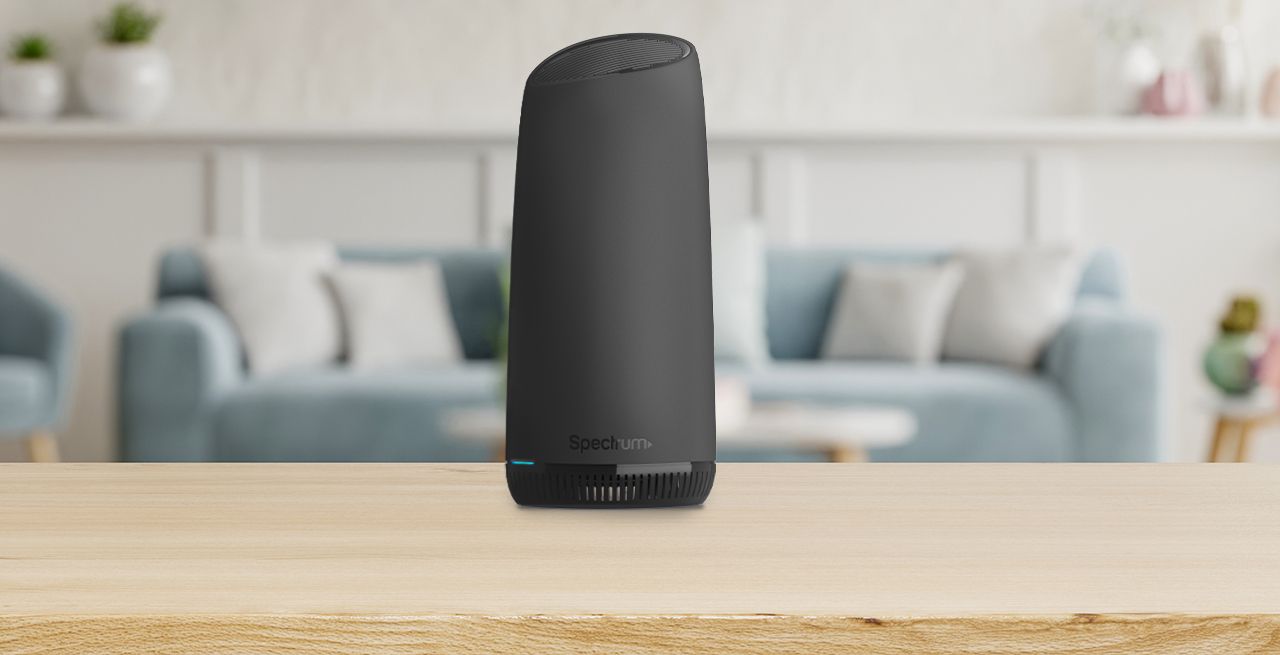
Credit: corporate.charter.com
Frequently Asked Questions Of How To Login Spectrum Router
What Is The Default Login For Spectrum Router?
The default login for a Spectrum router is “admin” for both the username and password.
How Do I Connect My Spectrum Router?
To connect your Spectrum router, follow these steps: 1. Connect an Ethernet cable from the router’s ethernet port to the internet port on the back of the router. 2. Plug the power cable into the router and an electrical outlet. 3.
Wait a few minutes for the Online status light on the router to turn solid. 4. You are now connected to your Spectrum router. Note: If you can’t access the router admin page, try restarting your router or performing a factory reset.
How Do I Log Into My Spectrum Wave 2 Router?
To log into your Spectrum wave 2 router, open a web browser on your computer and enter the IP address “192. 168. 1. 1”. Use the default username and password, which is “admin” for both.
Why Can’T I Access My Router Admin Page?
If you can’t access your router admin page, try restarting your router or performing a factory reset.
Conclusion
To successfully login to your Spectrum router, follow these simple steps. Firstly, identify the default web access username and password for your specific router model. Typically, the username is “admin” and the password is also “admin. ” Once you have this information, open a web browser on your computer and enter the router’s IP address, usually “192.
168. 1. 1,” in the address bar. You’ll then be prompted to enter the username and password. After successfully logging in, you can adjust and manage your router settings, including network configurations and WiFi security features. If you ever forget your login credentials, you can reset your Spectrum router to its default settings, which will revert the admin login to the default as well.
Remember to customize your WiFi name and password for added security. So, stay connected and enjoy seamless internet connectivity with Spectrum!