
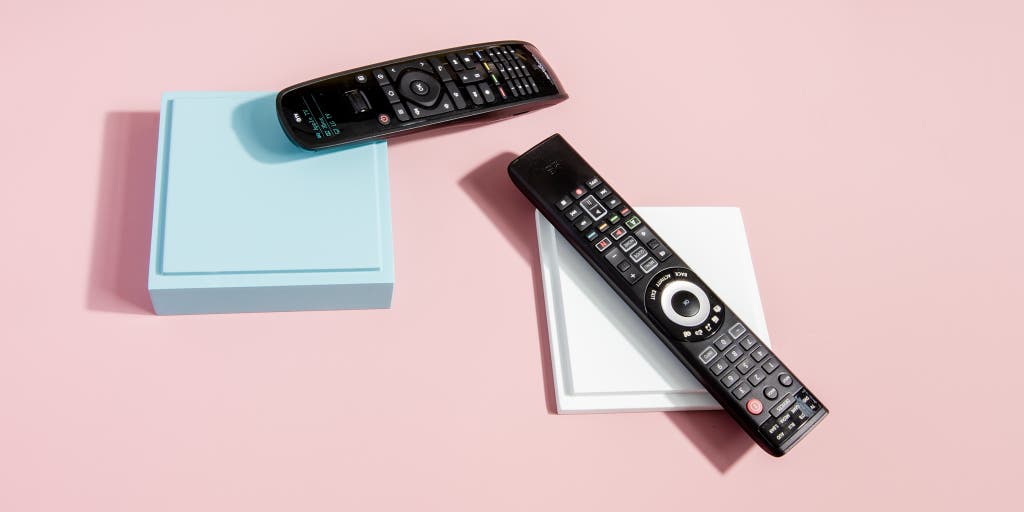
To program a new Spectrum remote, hold the Menu and OK buttons together until the input button blinks twice, then enter the corresponding code for your TV. Once programmed successfully, test the remote to ensure it is working correctly.
Introduction And Battery Installation
To program a new Spectrum remote, begin by installing the batteries. Then, follow the steps provided to successfully program the remote and enjoy seamless control over your TV.
Install Batteries In The Spectrum Remote:
- Open the battery compartment on the back of the remote.
- Insert the batteries, making sure to match the positive and negative terminals.
- Close the battery compartment securely.
That’s it! Your Spectrum remote is now ready to use.
Programming The Spectrum Remote For Tv
Learn how to program the new Spectrum remote for your TV without any hassle. With step-by-step instructions and easy-to-follow guidelines, setting up your remote has never been easier. Say goodbye to complicated programming and hello to seamless control over your TV.
To make your Spectrum remote work with your TV, follow these simple steps:
Find The Code For Your Tv Model:
- Locate the manual that came with your TV and check if it provides the code for programming a universal remote.
- If you don’t have the manual, you can visit the manufacturer’s website and search for the code using the model number of your TV.
- Another option is to use the Spectrum Remote Control Support page on their website, which provides a list of TV models and their corresponding codes.
Enter The Code Into The Remote:
- Turn on your TV and press the “TV” button on your Spectrum remote.
- Look for the “Setup” or “Program” button on your remote and press it.
- Enter the code for your TV using the number buttons on the remote.
- If the code is accepted, the LED light on the remote will blink twice.
Test The Remote To Control Your Tv:
- Aim the remote at the TV and press the “Power” button.
- If the TV turns on or off, the programming was successful.
- Test other buttons on the remote, such as volume and channel control, to ensure they work properly.
- If the remote doesn’t control your TV as expected, repeat the steps and try a different code for your TV model.
With these simple instructions, you’ll be able to program your Spectrum remote to work with your TV effortlessly. Enjoy the convenience of controlling your TV without having to juggle multiple remotes!
Programming Other Devices With The Spectrum Remote
Learn how to program your new Spectrum remote to control other devices, such as your TV, cable box, or Roku. Follow the step-by-step guide to easily sync your remote and enjoy seamless control over all your devices.
Programming The Remote For Cable Box:
- To program the Spectrum remote for your cable box, please follow these steps:
- Press the “Menu” button on your remote.
- Select “Settings” and then choose “Remote Control.”
- From the options provided, select “Program Remote.”
- Follow the on-screen instructions to program your remote.
Programming The Remote For Streaming Devices:
- If you want to program the Spectrum remote to control your streaming devices such as Roku or Smart TV, here’s how:
- Press the “Home” button on your remote.
- Navigate to “Settings” and select “Remote Control.”
- Choose “Program Remote” and follow the prompts on the screen.
- Select the appropriate streaming device from the list of options provided.
Programming The Remote For Other Audio-Visual Devices:
- In addition to cable boxes and streaming devices, you can also program the Spectrum remote to control other audio-visual devices. Here’s how:
- Press and hold the “Aux” button on your remote until all other buttons light up.
- Enter the corresponding manufacturer’s code for your device using the number buttons on the remote.
- Press the “Power” button to test if the remote is properly programmed.
- If the device turns on or off, the programming was successful. If not, try a different manufacturer’s code.
Remember, with your Spectrum remote, you can easily program it to control various devices, making it more convenient to use. Whether it’s your cable box, streaming devices, or other audio-visual equipment, programming the remote ensures you can operate everything from one central device.

Credit: www.amazon.com
Exploring Spectrum Remote Features
Learn how to program your new Spectrum remote and unlock its full potential! With easy steps and clear instructions, you’ll be able to control your TV volume, navigate the Spectrum guide, and access special options with ease. Say goodbye to complicated remotes and hello to a seamless TV viewing experience.
The Spectrum remote is a versatile and convenient device that allows you to control various features of your TV and other devices. In this section, we will explore some of the key features of the Spectrum remote, including volume control, navigating the Spectrum Guide, and accessing special options and features.
Volume Control On The Remote:
- Adjusting the volume on your TV is made easy with the Spectrum remote. Simply use the dedicated volume buttons located on the remote to increase or decrease the volume.
- Whether you want to enjoy your favorite movie at a low volume or jam out to your favorite songs at a higher volume, the Spectrum remote puts control right at your fingertips.
- The Spectrum Guide is an intuitive feature that allows you to easily navigate through the available channels and programs. With the Spectrum remote, you can effortlessly browse through the guide using the arrow keys.
- Whether you are searching for a specific channel, checking program listings, or exploring on-demand options, the Spectrum remote makes it easy to find what you’re looking for.
Accessing Special Options And Features:
- The Spectrum remote offers access to a range of special options and features that enhance your viewing experience. From accessing closed captions and subtitles to adjusting the aspect ratio and screen resolution, the remote provides convenient shortcuts for these settings.
- Additionally, the Spectrum remote allows you to switch between inputs, adjust picture settings, and access other advanced features of your TV or connected devices.
The Spectrum remote is designed to simplify your TV viewing experience. With its user-friendly features and easy navigation, controlling your TV and accessing special options has never been easier. Whether you’re adjusting the volume, navigating through the Spectrum Guide, or exploring special features, the Spectrum remote puts you in control.
Troubleshooting And Additional Tips
Easily program your new Spectrum remote by following these troubleshooting and additional tips. Just press and hold the Menu and OK buttons simultaneously until the input button blinks twice, then enter the provided codes and test your remote for proper functionality.
Common Issues With Programming The Remote:
- The remote is not responding to any commands
- The remote is not able to control certain functions on the TV or cable box
- The remote is not syncing with the TV or cable box
- The remote is controlling multiple devices at the same time
- The remote is not able to change the volume on the TV
Resetting The Remote To The Cable Box:
To reset the remote to the cable box, you can follow these steps:
- Press and hold the “Setup” button on the remote for about 3 seconds until the LED light on the remote turns green.
- Enter the code “982” on the remote’s keypad.
- Press the “AUX” button on the remote.
- Press the “Setup” button again to finish the reset process.
Additional Tips For Optimizing Remote Functionality:
- Make sure the remote has fresh batteries to ensure optimal performance.
- Keep the remote within a reasonable range of the TV or cable box for it to work properly.
- Clear any obstructions or interference that may be blocking the signal between the remote and the device.
- If the remote still isn’t working, try reprogramming it using the correct codes for your TV or cable box.
- Consult the user manual or online resources for any specific troubleshooting instructions for your remote model.
Remember, troubleshooting the remote may vary depending on the specific model and brand. If you encounter any issues that cannot be resolved, it is best to reach out to Spectrum’s customer support for further assistance.
Frequently Asked Questions On How To Program New Spectrum Remote
How Do I Program My Spectrum Remote To Control My Tv Volume?
To program your Spectrum remote to control your TV volume, follow these steps: 1. Turn on your TV. 2. Press and hold the “Menu” and “OK” buttons on your Spectrum remote simultaneously. 3. Wait for the input button on the remote to blink twice.
4. Enter the code for your TV using the remote’s keypad. 5. Test the remote by adjusting the volume on your TV. 6. If the volume control doesn’t work, repeat the steps using a different code for your TV. 7.
Once the volume control is functioning properly, you can program the remote to control other devices if desired.
How Do I Sync My Cable Remote To My Tv?
To sync your cable remote to your TV, follow these steps: 1. Turn on your TV. 2. Press and hold the “Menu” and “OK” buttons on your cable remote simultaneously. 3. Release the buttons when the input button blinks twice. 4.
Enter the code provided for your TV. 5. Test your remote to ensure it controls your TV properly. That’s it! Your cable remote should now be synced with your TV.
How Do I Reset My Spectrum Remote To My Cable Box?
To reset your Spectrum remote to your cable box, follow these steps: 1. Press and hold the “Menu” and “OK” buttons on your Spectrum remote at the same time. 2. Keep holding the buttons until the input button blinks twice. 3.
Enter the code for your cable box. 4. Test your remote to ensure it’s working properly. That’s it! Your Spectrum remote should now be reset to your cable box.
How Do I Program My Remote?
To program your remote: 1. Find the codes for your device. 2. Press and hold the device button on the remote. 3. Enter the code using the number keypad. 4. Test your remote to ensure it is programmed correctly.
Conclusion
Overall, programming a new Spectrum remote is a relatively simple process that allows you to fully control your TV. By following the step-by-step instructions provided, you can easily set up your remote to control the volume, channels, and other functions of your TV.
Additionally, you have the option to program your remote to control other devices, such as a cable box or DVR. This ensures that you have a seamless and convenient experience when using your Spectrum remote. Remember to ensure that your batteries are properly installed and to write down any codes that may be required during the programming process.
With a few easy steps, you can enjoy the full functionality of your Spectrum remote and personalize it to suit your preferences. Say goodbye to juggling multiple remotes and hello to streamlined control with your new Spectrum remote.