
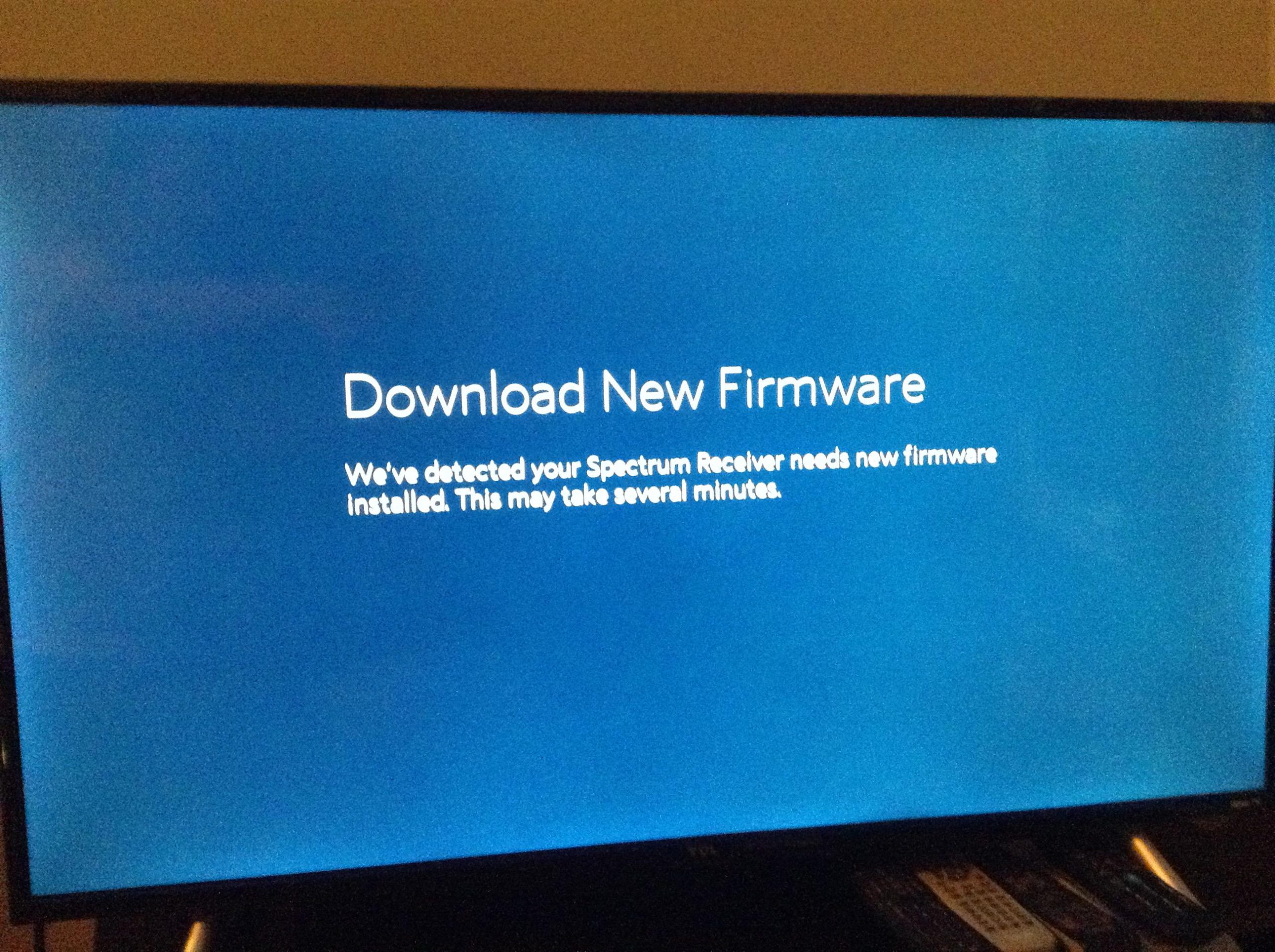
To update the router firmware on Spectrum, first, check the manufacturer’s official website for available upgrades. Then, navigate to the firmware upgrade or update tab in your router’s settings and follow the instructions provided to download and install the latest firmware update.
Updating the firmware of your Spectrum router is crucial in ensuring optimal performance and security. By keeping your router software up to date, you can unlock new features, fix bugs, and safeguard against potential vulnerabilities. In this guide, we will walk you through the steps to update your Spectrum router firmware, helping you enhance your internet experience.
So, let’s dive in and learn how to keep your router firmware updated on Spectrum.
Why Updating Router Firmware Is Important
Updating router firmware for Spectrum is vital to ensure optimal performance and security. By regularly checking for firmware updates on the manufacturer’s website, you can easily download and install the latest features and enhancements for your router, keeping your network safe and efficient.
Enhances Security And Protection Against Vulnerabilities:
- Regularly updating your router firmware is crucial for enhancing the security of your network. Firmware updates often include patches and fixes for known vulnerabilities, protecting your router from potential attacks.
- Firmware updates also ensure that your router is equipped with the latest security features, reducing the risk of unauthorized access and potential data breaches.
- By keeping your router firmware up to date, you can stay one step ahead of hackers and protect your personal information and sensitive data.
Improves Router Performance And Stability:
- Updating your router firmware can significantly improve its performance and stability. Firmware updates often include optimizations and bug fixes, which can enhance the overall speed and reliability of your router’s connection.
- These updates can also address common issues such as network drops, slow internet speeds, and intermittent connection problems.
- By regularly updating your router firmware, you can ensure that you are getting the best possible performance from your router, providing a smoother and more seamless online experience.
Enables Access To New Features And Functionalities:
- Firmware updates often introduce new features and functionalities to your router, allowing you to take advantage of the latest advancements in networking technology.
- These updates can include improvements in Wi-Fi speed, range, and network management capabilities.
- By updating your router firmware, you can unlock additional features and functionalities that can enhance your online experience, such as advanced parental controls, guest network support, and better compatibility with newer devices.
Updating your router firmware is crucial for enhancing security, improving performance, and accessing new features. Regularly checking for firmware updates and applying them promptly can ensure that your router remains up to date and optimized for the best possible performance.
Don’t neglect this important task to keep your network safe and efficient.
Checking If Your Spectrum Router Needs An Update
To determine if your Spectrum router needs an update, visit the manufacturer’s website and search for your router’s model number to see if any firmware updates are available. If not, it may be time to consider upgrading your router for optimal performance.
If you’re experiencing issues with your Spectrum router, it may be time to update the firmware. Keeping your router’s firmware up to date is important as it ensures that you have the latest security patches and performance enhancements. Here’s how you can check if your Spectrum router needs an update:
Locate The Router Model Number:
- Look for a sticker on the back or bottom of your router. The model number is usually listed here.
- If you can’t find a sticker, check the user manual or the manufacturer’s website for instructions on locating the model number.
Visit The Manufacturer’S Website For Firmware Updates:
- Once you have the model number, visit the manufacturer’s website.
- Look for a support or downloads section.
- Enter the model number in the search bar to find firmware updates specific to your router.
Check For Available Updates For Your Specific Router Model:
- After locating the firmware updates page for your router model, check if there are any available updates.
- If there are updates, download the latest firmware version.
- Make sure to read any instructions provided by the manufacturer before updating the firmware.
- Follow the manufacturer’s guidelines to install the firmware update on your Spectrum router.
Remember, keeping your router’s firmware up to date is essential for optimal performance and security. Regularly checking for updates ensures that you have the latest features and protection against potential vulnerabilities.
Updating The Firmware On Your Spectrum Router
To update the firmware on your Spectrum router, first, check the availability of router upgrades on the manufacturer’s official website. Then, navigate to the firmware upgrade or update tab in your router’s settings and follow the instructions provided to install the latest firmware update.
In order to keep your Spectrum router running smoothly and secure, it’s important to regularly update its firmware. Firmware updates often include bug fixes, security patches, and new features that can improve your router’s performance. If you’re not sure how to update your Spectrum router’s firmware, follow these simple steps:
Access The Router’S Web Configuration Page
- Open a web browser on a device connected to your Spectrum router.
- Type the IP address of the router into the address bar. The default IP address for Spectrum routers is usually “192.168.1.1” or “192.168.0.1”.
- Press Enter to access the router’s web configuration page.
- Enter your router’s login credentials. If you haven’t changed them, the default username and password are usually “admin” or “user”.
- Once logged in, look for the Firmware or Update section in the navigation menu or settings page.
Download The Latest Firmware Update From The Manufacturer’S Website
- Visit the website of your router’s manufacturer.
- Look for a support or downloads section on the website.
- Enter your router’s model number to search for available firmware updates.
- Download the latest firmware update for your specific router model.
Upload The Update And Restart The Router
- Return to the router’s web configuration page.
- Navigate to the Firmware or Update section again.
- Click on the “Browse” or “Choose File” button to choose the firmware file you downloaded.
- Select the firmware file and click on the “Upload” or “Apply” button.
- Wait for the firmware update process to complete. This may take a few minutes.
- After the update is applied, restart your Spectrum router to ensure the changes take effect.
Updating your Spectrum router’s firmware is a simple yet crucial task to keep your network secure and ensure optimal performance. By following these steps, you can easily update your router’s firmware and enjoy the latest features and improvements. Remember to regularly check for firmware updates to stay up-to-date with the latest advancements for your Spectrum router.
Troubleshooting Common Issues During Firmware Update
To troubleshoot common issues during a firmware update for Spectrum routers, follow these steps: 1) Check if firmware updates are available on the manufacturer’s website, 2) Access your router’s IP address in a web browser, 3) Enter login details, 4) Locate the firmware or update section, 5) Download the latest firmware update, 6) Upload the update and reboot the router.
Keep your router firmware up to date for optimal performance.
Power Cycle The Router Before Attempting The Update:
- Power cycling the router can help resolve any temporary glitches or conflicts that may be preventing the firmware update from being successful.
- To power cycle your router, simply unplug it from the power source and wait for about 30 seconds before plugging it back in.
- This will effectively restart the router and clear any temporary issues that might be hindering the update process.
Ensure Stable Internet Connection During The Update Process:
- It is crucial to have a stable and uninterrupted internet connection while updating the router firmware.
- A poor or unstable internet connection can cause the firmware update to fail or result in incomplete installation.
- Make sure that you are connected to a reliable network and that there are no ongoing issues with your internet service provider.
- Avoid downloading large files or streaming heavy content during the update process to ensure a smooth and uninterrupted connection.
Disable Any Firewall Or Security Software That May Block The Update:
- Firewalls or security software on your computer or network may sometimes interfere with the firmware update process.
- These security measures might block the necessary connections or prevent the update files from being downloaded.
- Temporarily disable any firewall or security software on your device before attempting the firmware update.
- Remember to re-enable these security measures once the update process is complete to ensure the continued protection of your network.
Contact Spectrum Support If You Encounter Any Difficulties:
- If you encounter any difficulties or errors during the firmware update process, it is advisable to contact Spectrum support for assistance.
- Spectrum support technicians are trained to deal with any technical issues related to their routers and can provide step-by-step guidance to resolve the problem.
- They may be able to troubleshoot the problem remotely or provide instructions on how to manually update the firmware if necessary.
- Do not hesitate to seek their help if you are experiencing any difficulties during the update process.
Credit: www.routerfreak.com
Frequently Asked Questions Of How To Update Router Firmware Spectrum
Does Spectrum Update Router Firmware Automatically?
Yes, Spectrum updates router firmware automatically through their system when needed.
Can I Update Spectrum Modem Firmware?
Yes, you can update Spectrum modem firmware by visiting the manufacturer’s official website and checking for available updates.
How Do I Know If My Spectrum Router Needs An Update?
To know if your spectrum router needs an update, visit the manufacturer’s website and check for firmware updates for your router’s model number. If updates are available, download and install them, if not, it’s time to upgrade your router.
How Do I Manually Update My Router Firmware?
To manually update your router firmware, follow these steps: 1. Type your router’s IP address into your web browser. 2. Enter your login information. 3. Locate the Firmware or Update section. 4. Download the latest firmware update from your router manufacturer’s website.
5. Upload the update and reboot the router.
Conclusion
Updating your router’s firmware is essential for ensuring optimal performance and security. By regularly updating the firmware, you can access the latest features and bug fixes, improve network stability, and protect your network from potential vulnerabilities. It’s a simple process that can be done through your router’s web interface by accessing the firmware or update section and downloading the latest update from the manufacturer’s website.
Remember to back up your router settings before initiating the update to avoid any potential data loss. Additionally, you can check for firmware updates on the manufacturer’s website using your router’s model number. If updates are no longer available, it may be time to upgrade your router.
By keeping your router’s firmware up to date, you can ensure a better and safer internet experience for all your connected devices. Take the time to update your router firmware today and enjoy a more secure and efficient network.