
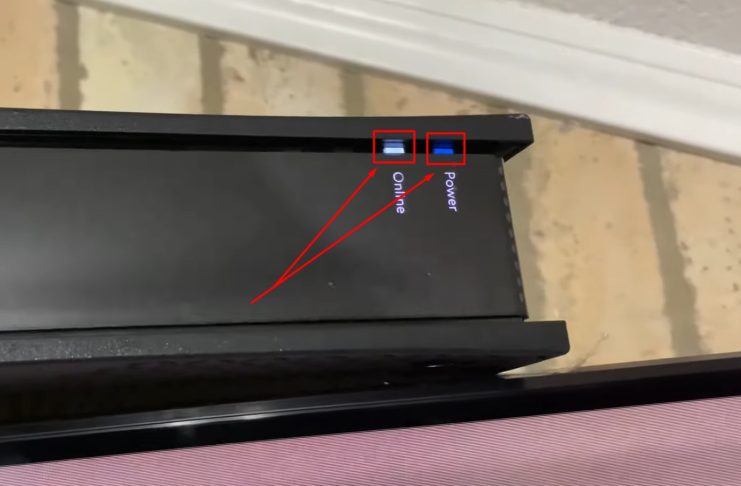
If the Spectrum modem has a white light, it indicates that the internet connection is working fine. However, if the router has a white light but no internet, it might be due to an outage, and you will need to wait for the service to be restored.
Understanding The Spectrum Modem White Light
The white light on your Spectrum modem indicates that your internet connection is working properly. However, if your modem has a white light but no internet access, there may be an outage. In this case, you’ll need to wait for the service to be restored.
The white light on a Spectrum modem indicates the status of your internet connection. It is important to understand what it signifies and how to identify if it is indicating an issue with your internet connection. Let’s delve into the details:
What Does A White Light On A Spectrum Modem Signify?
- A white light on a Spectrum modem typically indicates that your internet connection is working fine and everything is operating as it should.
Common Reasons For The White Light To Appear On The Modem:
- No issue: If the white light is steady, it means that there are no problems with your internet connection.
- Outage: If your router has a white light but there is no internet access, it could be due to a temporary outage. In such cases, wait for some time for the internet service to restore.
- Reboot needed: Sometimes, a simple reboot can fix the issue. Unplug the modem or router power cord (or remove its battery), wait for sixty seconds, and then restore power.
How To Identify If The White Light Is Indicating An Issue With The Internet Connection:
- Check other devices: If only one device is experiencing internet issues, it may not be a problem with the modem. Check other devices to determine if the issue persists.
- Test the connection: Try connecting a device directly to the modem via an Ethernet cable to see if the issue is with the Wi-Fi signal.
- Contact customer support: If the white light persists and you are unable to resolve the issue, reach out to Spectrum customer support for further assistance.
Remember, a white light on your Spectrum modem is generally a positive indication of a functional internet connection. However, if you experience ongoing issues, don’t hesitate to seek further support.

Credit: www.amazon.com
Steps To Troubleshoot A Spectrum Modem With A White Light
If your Spectrum modem has a white light and you’re experiencing connectivity issues, you can troubleshoot the problem by rebooting the modem or router. Unplug the power cord or remove the battery, wait for sixty seconds, then restore power. This simple step may help resolve the issue and restore a stable internet connection.
If you’re experiencing a white light on your Spectrum modem, it indicates that there may be an issue with your internet connection. To help you troubleshoot and resolve this problem, follow the steps below:
Step 1: Power Cycling The Modem And Router
- Power cycling is often the first troubleshooting step recommended for resolving various modem issues.
- To properly power cycle your modem and router, follow these steps:
- Unplug the power cord from both the modem and the router.
- Wait for about 30 seconds.
- Plug the power cord back into the modem.
- Wait for the modem lights to stabilize.
- Plug the power cord back into the router.
- Allow the router to fully power up.
- Power cycling can help refresh the modem’s connection and resolve minor technical glitches.
Step 2: Checking The Coaxial Cable Connection
- A secure and properly connected coaxial cable is essential for a stable internet connection.
- To ensure a stable connection, consider the following tips:
- Make sure the coaxial cable is tightly connected to both the modem and the wall outlet.
- Check for any signs of damage on the cable, such as bent pins or frayed wires.
- If you notice any damage, replace the cable with a new one.
- Avoid using splitters or adapters that may degrade the signal quality.
Step 3: Verifying The Internet Service Status
- Before troubleshooting further, it’s important to check if there are any reported outages in your area.
- To check for reported outages:
- Visit your internet service provider’s website or use their mobile app.
- Look for a service outage or status page.
- Enter your ZIP code or address to view any reported issues.
- If there are no reported outages, proceed to contact Spectrum customer support for further assistance.
Step 4: Resetting The Modem To Factory Settings
- Performing a factory reset on the Spectrum modem can help resolve persistent issues.
- Before resetting, keep in mind the potential consequences:
- All personalized settings, including Wi-Fi network names and passwords, will be reset to their default values.
- Make note of any custom configurations before proceeding.
- To perform a factory reset:
- Locate the reset button on the back of the modem.
- Use a paperclip or a small, pointed object to press and hold the reset button for about 10 seconds.
- Release the button and allow the modem to reset itself.
- Wait for the lights on the modem to stabilize.
Step 5: Updating Modem Firmware And Drivers
- Keeping your modem’s firmware and drivers up to date is crucial for optimal performance and security.
- To check for updates and perform necessary updates:
- Access the modem’s web-based administration interface.
- Look for the firmware or software update section.
- Check if there are any available updates.
- Follow the instructions provided to download and install the updates.
- After updating, restart the modem for the changes to take effect.
Advanced Troubleshooting Techniques For Spectrum Modem White Light
Learn advanced troubleshooting techniques for resolving the Spectrum Modem white light issue. Discover solutions to fix connectivity problems and get your internet connection back up and running smoothly.
If you’re experiencing a white light issue on your Spectrum modem, don’t worry. There are several advanced troubleshooting techniques that you can try to resolve this problem. In this section, we will explore these techniques and guide you through the process.
Troubleshooting Network Settings On Connected Devices:
- Check network settings on computers, phones, and other devices to ensure they are properly configured.
- Verify that the devices are connected to the correct network and have the correct security settings.
- Ensure that the devices are not experiencing any conflicts or misconfigurations that may contribute to the white light issue.
Resolving Conflicts Or Misconfigurations That May Contribute To The White Light Issue:
- Identify any conflicts or misconfigurations that might be causing the white light problem.
- Adjust the network settings accordingly to address these conflicts or misconfigurations.
- Reset the network settings if necessary to resolve the issue.
Analyzing Signal Levels And Troubleshooting Signal Strength:
- Understand the significance of signal levels in modem troubleshooting.
- Analyze the signal levels on your modem and identify any abnormalities.
- Troubleshoot signal strength issues by adjusting the placement of your modem or eliminating any interference.
Understanding The Significance Of Signal Levels In Modem Troubleshooting:
- Learn about the different signal levels and their impact on your modem’s performance.
- Understand how to interpret signal levels to diagnose potential issues.
- Use signal levels as a tool to troubleshoot and improve your modem’s performance.
Tools And Techniques For Analyzing And Improving Signal Strength:
- Utilize signal strength testing tools to determine the current signal strength of your modem.
- Use Wi-Fi analyzers to identify any signal interference or obstacles that might affect your modem’s performance.
- Explore techniques such as channel optimization and antenna positioning to enhance signal strength.
Troubleshooting Modem Hardware Issues:
- Identify any potential hardware malfunctions in your modem.
- Look for any visible damage or loose connections that may be causing the white light issue.
- Follow specific steps to diagnose and resolve hardware-related problems.
Identifying Potential Hardware Malfunctions In The Modem:
- Check for any indicators of hardware malfunctions, such as overheating or unusual noises.
- Inspect the power supply and other components for any signs of damage.
- Consider consulting the modem’s user manual for guidance on identifying hardware issues.
Steps To Diagnose And Resolve Hardware-Related Problems:
- Follow a step-by-step troubleshooting process to diagnose hardware issues.
- Reset the modem to its factory settings to rule out software-related problems.
- Contact the modem manufacturer or Spectrum’s customer support for further assistance, if needed.
Seeking Professional Assistance For Persistent White Light Issues:
- Determine when it is necessary to involve a professional technician.
- Consider seeking professional help if you have exhausted all troubleshooting options or if the white light issue persists.
- Contact Spectrum’s customer support for additional support and guidance on resolving the white light issue.
Remember, troubleshooting your Spectrum modem’s white light issue can often be resolved by following these advanced techniques. By understanding your network settings, analyzing signal levels, and addressing any hardware malfunctions, you can successfully identify and resolve the problem.
Tips For Preventing Future White Light Issues On Spectrum Modems
To prevent future white light issues on Spectrum modems, follow these tips: check for internet connectivity outages, reboot the modem or router, ensure all cables are securely connected, update firmware and software regularly, and contact Spectrum customer support if the issue persists.
Regularly performing maintenance tasks on the modem:
- Restart the modem at regular intervals to refresh the connection and clear any temporary issues.
- Update the modem’s firmware to ensure it has the latest bug fixes and security patches.
- Check for any pending updates for connected devices and install them promptly.
Cleaning and inspecting the modem for physical issues:
- Keep the modem clean from dust and debris by gently wiping it with a soft cloth.
- Ensure that the modem is positioned in a well-ventilated area, away from direct sunlight and heat sources.
- Inspect the modem’s cables and connectors regularly for any signs of wear or damage and replace them if necessary.
Ensuring proper ventilation and avoiding overheating:
- Provide adequate airflow around the modem by avoiding obstructing objects or stacking other electronic devices on top of it.
- Use a cooling pad or fan to prevent overheating, especially during extended usage periods.
Monitoring internet usage and network activity:
- Keep an eye on your internet usage to identify any sudden spikes or abnormalities that could indicate a potential issue.
- Monitor the network activity to detect any unauthorized access or excessive bandwidth consumption.
Tools and methods for tracking bandwidth usage:
- Utilize network monitoring tools like NetFlow or SNMP to track the bandwidth usage of individual devices connected to the modem.
- Set up usage alerts or notifications to receive updates when certain bandwidth thresholds are reached.
Identifying abnormal behavior and addressing it promptly:
- Pay attention to any unusual behavior of the modem, such as frequent disconnects or slow speeds, and investigate the cause promptly.
- Contact your internet service provider for assistance if you suspect any technical issues that require their expertise.
Implementing network security measures:
- Change the default username and password of the modem to prevent unauthorized access.
- Enable firewall protection to filter out potential threats and block malicious traffic.
Tips for securing the modem and network against potential threats:
- Use strong and unique passwords for your Wi-Fi network to prevent unauthorized access.
- Enable WPA2 or WPA3 encryption to secure your wireless network.
Steps to follow for setting up a secure network configuration:
- Disable remote management access to the modem to prevent unauthorized changes.
- Enable MAC address filtering to only allow trusted devices to connect to the network.
- Enable guest network access to isolate guest devices from your main network.
By following these tips, you can prevent future white light issues on your Spectrum modem and ensure a smooth and secure internet experience. Stay proactive and vigilant in maintaining your modem and network for optimal performance.
Frequently Asked Questions For Spectrum Modem White Light
Why Does My Spectrum Modem Have A White Light?
If your Spectrum modem has a white light, it means your internet connection is working fine.
Why Is My Modem Light White But No Internet?
If your modem light is white but you have no internet, it could mean there is an outage. Wait for the internet service to restore.
Why Is My Spectrum Modem Not Connecting?
If your Spectrum modem is not connecting, try rebooting the equipment by unplugging the power cord or removing the battery for 60 seconds, then restoring power. If the white light on your modem is on but you have no internet, it may be due to an outage.
Wait for the internet service to restore.
How Do I Know If My Spectrum Modem Is Bad?
If your Spectrum modem has a white light, it means there may be an issue with your internet connection. Try rebooting the modem by unplugging it for a minute and plugging it back in. If the problem persists, check your Ethernet cables and try using a different outlet for your coax cable.
Conclusion
Having a white light on your Spectrum modem can indicate different things, but if it’s a solid white light, it generally means that your internet connection is working fine. In this case, there is no need to worry as everything is functioning as it should.
However, if you have a white light but no internet, it could be due to an outage, and you may have to wait for the service to be restored. When troubleshooting the issue, you can try rebooting your modem by unplugging it for about a minute and then plugging it back in.
Additionally, you can check your Ethernet cables and try using a different outlet for your coax cable. These simple fixes might help resolve any connectivity issues you’re experiencing. Remember, a solid white light on your Spectrum modem is a positive indication that your internet connection is working fine.
So, if you encounter this, you can rest assured that everything is functioning as it should be.