

Ensure the Spectrum router is properly connected and powered on. Restart the modem and router to resolve setup issues.
Setting up a Spectrum router can sometimes be tricky, but it should be straightforward with the right steps. Many users encounter problems due to improper connections or device settings. Ensuring that all cables are securely connected and the modem is correctly powered on can often solve most setup issues.
Restarting both the router and modem can refresh the network and resolve temporary glitches. Always check that your devices are updated with the latest firmware. If problems persist, consulting the Spectrum support team or referring to the user manual can provide additional guidance. Proper setup ensures a stable and fast internet connection for all your devices.
Credit: www.youtube.com
Common Setup Issues
Setting up a Spectrum router can be challenging. Many users face common issues that hinder a smooth setup process. Understanding these problems can save time and frustration. Here are some frequent setup issues users encounter:
Incorrect Cables
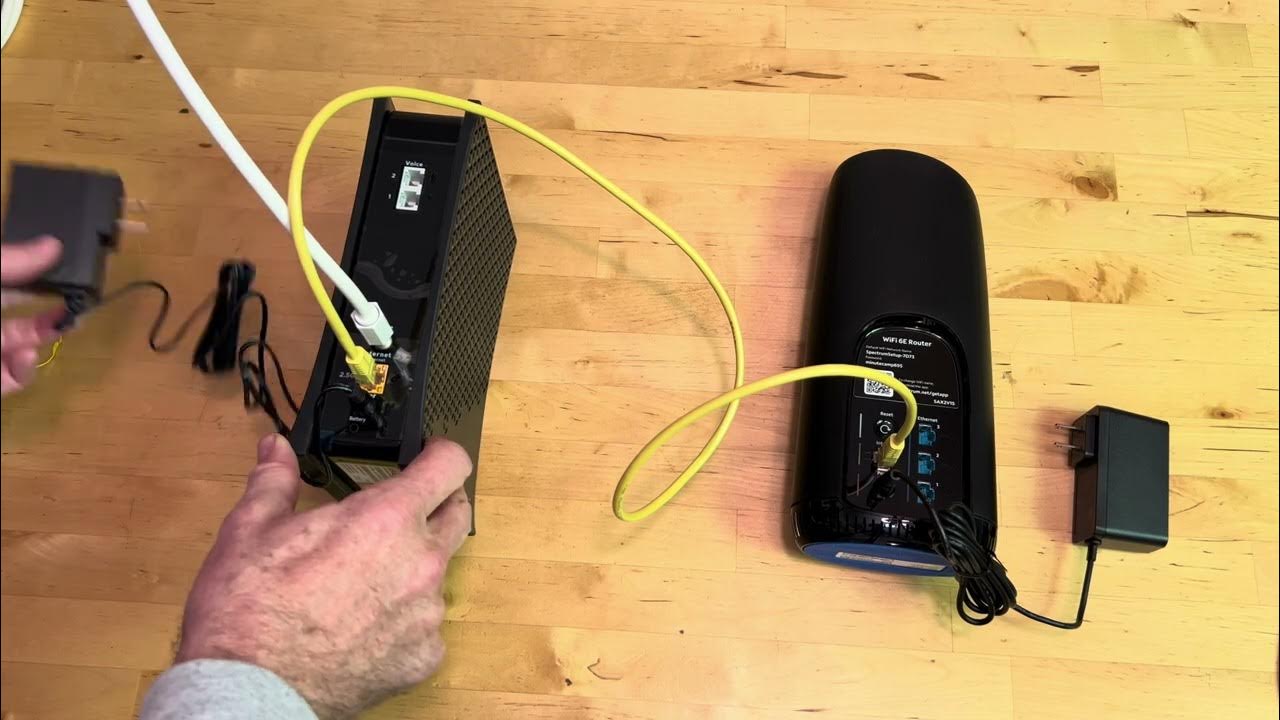
Using the wrong cables is a common mistake. Spectrum routers require specific cables to function properly. Ensure you use the correct Ethernet cable to connect your router to the modem.
Avoid using old or damaged cables. They can cause connectivity issues. Check that each cable is securely plugged in. Loose connections can disrupt the setup process.
| Cable Type | Usage |
|---|---|
| Ethernet Cable | Connects router to modem |
| Power Cable | Powers the router |
| Coaxial Cable | Connects modem to wall outlet |
Power Supply Problems
Power supply issues can prevent your router from working. Ensure the router is plugged into a working power outlet. Check that the power cable is not damaged or frayed.
Verify that the router’s power light is on. If not, try a different outlet. Using a surge protector can help avoid power issues.
- Check the power outlet.
- Inspect the power cable.
- Use a surge protector.
Sometimes, the power adapter may be faulty. Consider replacing the adapter if the router still doesn’t power on.
Checking Internet Connection
Experiencing issues with your Spectrum Router setup can be frustrating. One common cause is a poor internet connection. Ensuring your internet connection is stable can often resolve setup problems. Here are key areas to check.
Modem Status
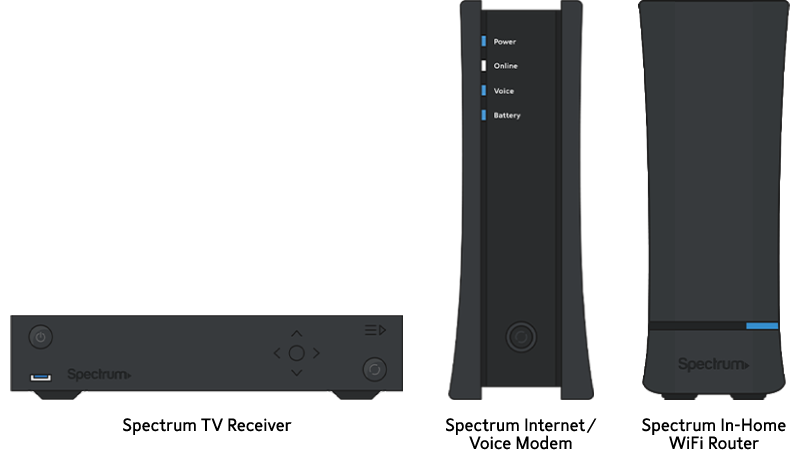
First, verify the modem status. A modem connects your home to the internet. Check the LED lights on your modem. They should be solid or blinking green. If any lights are off or red, there could be an issue.
Here’s a quick guide to modem lights:
| Light | Status | Meaning |
|---|---|---|
| Power | Solid Green | Modem is on and receiving power |
| Internet | Blinking Green | Modem is connecting to the internet |
| Internet | Solid Green | Modem is connected to the internet |
| Internet | Red | Modem is not connected to the internet |
Isp Outages
ISP outages can also cause setup issues. Check if your Internet Service Provider (ISP) is experiencing any outages. Visit your ISP’s website or use an outage map service.
Follow these steps to check for outages:
- Visit the ISP’s website.
- Look for an outage map or service status page.
- Enter your zip code to see if your area is affected.
If there is an outage, wait for service to be restored before retrying the setup.
Router Placement Tips
Setting up your Spectrum router can be challenging, especially if the placement isn’t right. Proper router placement can improve your internet speed and connectivity. Here are some essential tips to help you find the best spot for your router.
Avoid Obstructions
Obstructions can severely impact your router’s performance. Ensure your router is not behind walls, furniture, or appliances. These objects can block Wi-Fi signals, reducing internet speed.
- Place your router on a table or shelf.
- Avoid placing it inside a cabinet.
- Keep it away from metal objects.
- Ensure the router is not near water sources.
Central Location
A central location ensures even signal distribution. Placing your router in the center of your home can provide better coverage.
| Location | Benefits |
|---|---|
| Living Room | Central to most devices |
| Hallway | Fewer obstructions |
Elevate the router for better signal. Place it on a higher shelf to avoid ground-level interference.
- Choose a central, elevated spot.
- Avoid corners and enclosed spaces.
- Ensure it’s easily accessible for troubleshooting.
These simple tips can help improve your router’s performance. Proper placement is key for an optimal internet experience.
Firmware Updates
Ensuring your Spectrum router has the latest firmware is crucial. Firmware updates can fix bugs, improve performance, and enhance security. Outdated firmware may cause your router setup to fail. Follow these steps to check and update your router’s firmware.
Checking Current Version
First, log in to your router’s web interface. Open your browser and type http://192.168.1.1 into the address bar. Enter your username and password. Once logged in, navigate to the Status or System section. Here, you will find the current firmware version.
| Step | Action |
|---|---|
| 1 | Open browser and go to http://192.168.1.1 |
| 2 | Enter username and password |
| 3 | Navigate to Status or System |
| 4 | Check firmware version |
Updating Firmware
If your firmware is outdated, updating it is necessary. Go to the Support section of the Spectrum website. Download the latest firmware file for your router model. Save this file on your computer.
Next, return to your router’s web interface. Navigate to the Firmware Update section. Click on Choose File or Browse. Select the firmware file you downloaded. Click Upload or Update. The router will start updating the firmware.
During this process, do not turn off the router. This could cause permanent damage. Wait until the update completes. Your router will restart automatically.
- Go to Spectrum website
- Download latest firmware
- Save file on computer
- Log in to router interface
- Navigate to Firmware Update
- Select and upload file
- Wait for the update to complete
After updating, check the firmware version again. It should match the latest version. Your router setup should now work smoothly.
Resetting The Router
If your Spectrum router setup isn’t working, resetting the router can help. There are two main ways to reset your router: a soft reset and a factory reset. Each method has its own steps and uses. Let’s explore both methods to get your router back on track.
Soft Reset
A soft reset is the easiest way to resolve minor issues. It doesn’t erase any settings or data. Follow these simple steps:
- Unplug the router’s power cord from the outlet.
- Wait for at least 30 seconds.
- Plug the power cord back into the outlet.
- Wait for the router to fully restart.
A soft reset can fix slow speeds, connection drops, and minor glitches. Try it before moving to a factory reset.
Factory Reset
A factory reset restores the router to its original settings. This means all custom settings will be erased. Use this method only if a soft reset doesn’t work. Here’s how:
- Locate the reset button on the back of the router.
- Use a paperclip or pin to press and hold the reset button.
- Hold the button for about 10-15 seconds.
- Release the button and wait for the router to restart.
A factory reset can solve persistent issues, but you will need to reconfigure your settings. Make sure you have your Wi-Fi name and password handy.
Here’s a quick comparison of the two methods:
| Reset Type | Steps | Best For |
|---|---|---|
| Soft Reset | Unplug and Replug Power | Minor Glitches |
| Factory Reset | Press and Hold Reset Button | Persistent Issues |
Credit: www.reddit.com
Configuring Router Settings
Setting up your Spectrum router might feel tricky. This guide will help. Follow these steps to configure your router settings easily.
Accessing The Router
First, you need to access your router. Open a web browser on your computer. Type 192.168.1.1 in the address bar. Press Enter.
A login page will appear. Enter the default username and password. Usually, both are admin. Check your router manual if this doesn’t work.
Adjusting Settings
Once logged in, you’ll see the router’s dashboard. Here, you can adjust various settings.
- Network Name (SSID): Change it to something unique.
- Password: Set a strong password for your Wi-Fi.
- Security Settings: Choose WPA2 for the best security.
Save your changes after adjusting settings. This ensures your network is secure and personalized.
| Setting | Recommended Value |
|---|---|
| Network Name (SSID) | YourUniqueSSID |
| Password | StrongPassword123 |
| Security | WPA2 |
If your Spectrum router setup is still not working, restart the router. Unplug it, wait 10 seconds, and plug it back in.
Wi-fi Interference
Wi-Fi interference can make your Spectrum router setup not work. Multiple factors can cause this issue. Understanding these factors can help you fix it. Let’s explore two main causes: other devices and channel selection.
Other Devices
Other devices in your home can cause Wi-Fi interference. Common culprits include:
- Microwaves
- Baby monitors
- Bluetooth devices
- Cordless phones
These devices operate on the same frequency as Wi-Fi. This can disrupt your router’s signal.
To reduce interference, keep your router away from these devices. Place it in a central, elevated location. Use dual-band routers to switch between 2.4 GHz and 5 GHz frequencies.
Channel Selection
Your router broadcasts Wi-Fi on specific channels. Overlapping channels can cause interference. Most routers use the 2.4 GHz band. This band has 11 channels, but only three are non-overlapping: 1, 6, and 11.
Use these non-overlapping channels for better performance. Most modern routers can auto-select the best channel. You can also manually set the channel in your router’s settings.
Follow these steps to change your channel:
- Log in to your router’s admin panel.
- Navigate to the wireless settings section.
- Select a non-overlapping channel (1, 6, or 11).
- Save the changes and restart your router.
For dual-band routers, use the 5 GHz band. It has more channels and less interference.
Contacting Support
Experiencing trouble with your Spectrum router setup? Contacting support can help resolve the issue. Let’s dive into the steps for making this process smooth and effective.
Gathering Information
Before reaching out to support, gather essential details. This will speed up the process.
- Account Number: Find this on your Spectrum bill or account page.
- Router Model: Check the label on your router for this info.
- Error Messages: Note any error codes or messages you see.
- Connection Status: Know if your router is showing any lights.
Customer Service Options
Spectrum offers several ways to contact support. Choose the one that suits you best.
| Method | Details |
|---|---|
| Phone Support | Call Spectrum at their customer service number. Available 24/7. |
| Live Chat | Visit the Spectrum website and start a live chat with an agent. |
| Email Support | Send an email detailing your issue. Include the gathered information. |
| Support Forums | Check Spectrum’s community forums for similar issues and solutions. |
Using the right support option can save you time and effort. Make sure to have all the necessary information at hand to ensure a smooth interaction with the support team.
Credit: www.spectrum.net
Frequently Asked Questions
Why Is My Spectrum Router Not Connecting?
Your Spectrum router may not connect due to incorrect settings or faulty cables. Verify your connections and reset the router.
How Do I Reset My Spectrum Router?
To reset your Spectrum router, press the reset button for 10 seconds. This will restore default settings.
Why Does My Spectrum Router Keep Dropping Connection?
Connection drops can be due to interference or outdated firmware. Ensure your router firmware is up-to-date and reposition it.
How To Troubleshoot Spectrum Router Issues?
To troubleshoot Spectrum router issues, restart the router, check cable connections, and update the firmware.
Conclusion
Troubleshooting a Spectrum router can seem challenging, but solutions are often straightforward. Follow the steps outlined in this guide to resolve issues. Ensure connections are secure and settings are correct. If problems persist, contacting Spectrum support might be necessary. Your internet experience should improve with these tips.