
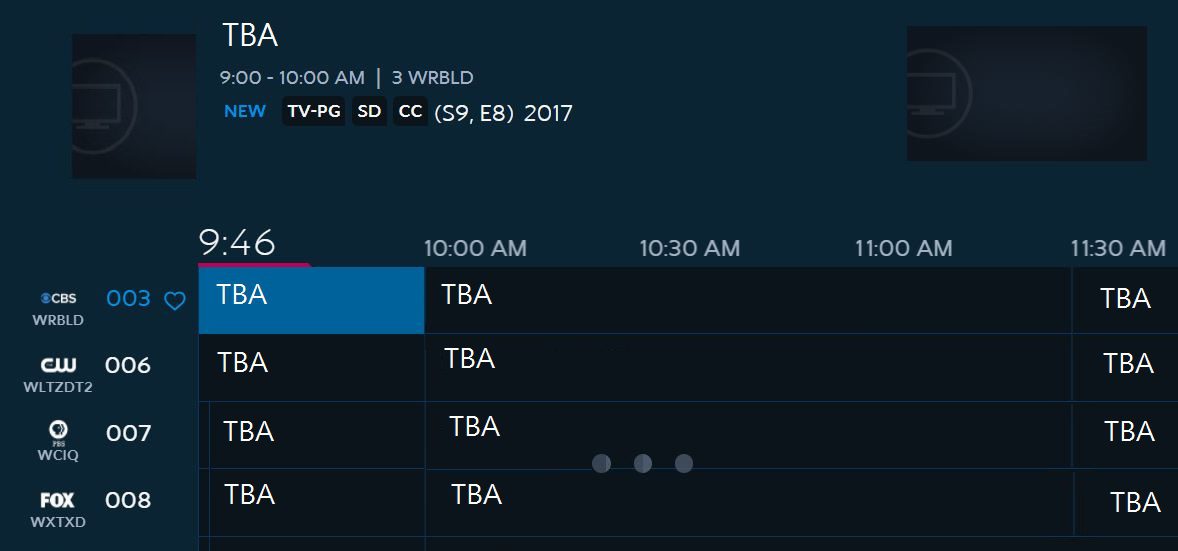
Spectrum TV app has poor picture quality, causing blurry and pixelated images. Troubleshoot the issue by updating your network connection, hardwiring your Roku, or troubleshooting your WiFi network.
The Spectrum TV app is known for its low streaming quality and blurry images on various platforms, including Android, iPhone, Roku, and Samsung TVs. Users have reported frequent issues with picture quality, such as motion blur and pixelation. However, there are steps you can take to improve the quality, such as optimizing your network connection or updating your streaming device’s software.
Despite these challenges, Spectrum TV remains a popular choice for live television streaming.
Understanding The Spectrum Tv App Picture Quality
The Spectrum TV app may have poor picture quality due to various factors such as low resolution or network issues. Troubleshooting steps can be taken to improve the image quality, such as updating the connection or hardwiring the device to the router.
The Spectrum TV app allows you to enjoy your favorite shows and movies on various devices. However, you may notice that the picture quality on this app is not up to your expectations. In this section, we will explore the reasons behind the poor picture quality of the Spectrum TV app and how you can improve it.
How The Spectrum Tv App Streams Content In Hd:
- The Spectrum TV app offers high definition (HD) streaming to provide you with a crystal-clear viewing experience.
- The app uses advanced technology to deliver HD content directly to your device, ensuring sharp and vibrant visuals.
- To enjoy HD streaming on the Spectrum TV app, ensure that your internet connection is strong and your device meets the necessary compatibility requirements.
Factors That Can Affect Picture Quality:
- Internet connection: If your internet connection is slow or unstable, it can result in poor picture quality on the Spectrum TV app. Make sure you have a reliable and high-speed internet connection for optimal streaming.
- Device compatibility: Different devices have varying capabilities when it comes to displaying HD content. Ensure that your device is compatible with HD streaming and meets the minimum requirements for the Spectrum TV app.
- Bandwidth limitations: If multiple devices are connected to your home network and using a significant amount of bandwidth, it can affect the picture quality of the Spectrum TV app. Consider limiting the number of devices using the internet during your streaming sessions.
- Signal interference: If you’re using a wireless connection, signal interference can impact the streaming quality. Keep your device in close proximity to the Wi-Fi router or consider using a wired connection for a more stable signal.
The Impact Of Resolution And Streaming Quality Settings:
- Resolution settings: The resolution you select on the Spectrum TV app can affect picture quality. Higher resolutions, such as 1080p or 4K, provide sharper images but require a stronger internet connection. Adjust the resolution setting based on your device’s capabilities and your internet speed.
- Streaming quality settings: The streaming quality setting on the Spectrum TV app determines the overall performance and picture quality. Adjusting the streaming quality can help improve the app’s performance on slower internet connections or older devices.
Remember, ensuring a strong internet connection, using a compatible device, and adjusting the resolution and streaming quality settings can significantly enhance the picture quality on the Spectrum TV app. Experiment with these settings to find the most suitable options for your viewing pleasure.
Troubleshooting Steps For Spectrum Tv App Picture Quality Issues
Having trouble with poor picture quality on the Spectrum TV app? Follow these troubleshooting steps to fix the issue and enjoy a better viewing experience. Update your network connection, try hardwiring your device to the router, and check for any WiFi network issues.
If you’re experiencing poor picture quality on the Spectrum TV app, there are several troubleshooting steps you can take to improve your viewing experience. Follow these steps to address and resolve any picture quality issues you may be encountering.
Step 1: Check Internet Connection
- Ensure that you have a stable and fast internet connection, as a weak or slow connection can affect picture quality.
- Test the speed and reliability of your internet connection using an online speed test tool.
- Consider upgrading your internet package if you consistently experience buffering or slow streaming speeds.
Step 2: Update Spectrum Tv App And Device Software
- Make sure that both the Spectrum TV app and your device’s software are up to date. Outdated software can sometimes lead to picture quality issues.
- Check for any available updates for the Spectrum TV app in your device’s app store or marketplace.
- Look for any known issues or bug fixes related to picture quality in the app’s release notes or software update descriptions.
Step 3: Adjust Streaming Quality Settings
- Understand the different streaming quality options available in the Spectrum TV app.
- Optimize the settings for the best picture quality based on your internet speed and device capabilities.
- Adjusting the streaming quality settings may help to reduce buffering and improve the clarity of the picture.
Step 4: Hardwire Device To Router (If Applicable)
- Consider connecting your streaming device directly to your router using an Ethernet cable instead of relying on a wireless connection.
- A hardwired connection can provide a more stable and reliable internet connection, which can positively impact picture quality.
- Check if your streaming device has an Ethernet port and follow the manufacturer’s instructions to make the connection.
Step 5: Restart The Device And App
- Power-cycle your streaming device by turning it off, unplugging it from the power source, and waiting for a few minutes before plugging it back in and turning it on again.
- Close and reopen the Spectrum TV app to resolve any temporary glitches or issues that may be affecting picture quality.
- Restarting the device and app can often be an effective troubleshooting step for various technical issues.
Step 6: Reset Router/Modem (If Necessary)
- If you’re still experiencing picture quality issues after trying the above steps, consider resetting your router or modem.
- Follow the troubleshooting steps provided by your internet service provider to reset your router or modem.
- Resetting the router or modem can help resolve network-related issues that may be impacting the quality of your Spectrum TV app’s picture.
Step 7: Contact Spectrum Customer Support
- If you’ve tried all the troubleshooting steps above and are still experiencing poor picture quality on the Spectrum TV app, it may be time to reach out to Spectrum’s customer support for further assistance.
- Contact Spectrum customer support via phone, online chat, or email and explain the issue you’re facing.
- Spectrum’s customer support team has specialized knowledge and tools to help troubleshoot and resolve picture quality issues, ensuring optimal viewing experience.
By following these troubleshooting steps, you should be able to address and resolve any picture quality issues you may encounter while using the Spectrum TV app. Remember to check your internet connection, update app and device software, adjust streaming quality settings, consider a wired connection, restart your devices, reset your router or modem if necessary, and reach out to Spectrum customer support for further assistance if needed.
Additional Tips For Optimal Spectrum Tv App Picture Quality
To ensure optimal picture quality on the Spectrum TV app, follow these additional tips. Check your network connection, update the app, and consider hardwiring your device to the router for a more stable connection. Troubleshooting your WiFi network can also help improve picture quality.
:
- Placement of the router for better Wi-Fi signal: Make sure that your router is placed in a central location, away from walls and obstructions. This will help improve the Wi-Fi signal strength and reduce potential interference.
- Limiting other devices or activities that may be causing network congestion: Disconnect or pause any other devices that may be using a significant amount of bandwidth while streaming on the Spectrum TV app. This includes activities like large file downloads or video conferencing, which can impact the overall network performance.
- Checking for any interference from nearby electronic devices: Move any electronic devices or appliances that may be causing interference with the Wi-Fi signal away from your router. Examples include cordless phones, microwaves, baby monitors, and wireless speakers.
- Ensuring the device is updated with the latest firmware and drivers: Regularly check for and install any available updates for your streaming device, such as your smartphone, tablet, or smart TV. These updates often include improvements to performance and picture quality.
Remember, optimizing the picture quality of the Spectrum TV app involves improving the overall network conditions and ensuring your streaming device is up to date. By following these additional tips, you can enhance your viewing experience and enjoy better picture quality.
Credit: www.amazon.com
Frequently Asked Questions Of Spectrum Tv App Poor Picture Quality
Why Does My Spectrum Tv Look Blurry?
If your Spectrum TV looks blurry, try troubleshooting the issue by checking your network connection and updating your device.
Does The Spectrum Tv App Stream In Hd?
Yes, the Spectrum TV app streams in HD for a high-quality viewing experience.
Why Is Roku Spectrum Blurry?
The Roku Spectrum may appear blurry due to a low picture quality. To fix it, update your network connection or try hardwiring your Roku to your router.
Does Spectrum Stream In 1080P?
Yes, Spectrum streams in 1080p for a high-definition viewing experience.
Conclusion
The Spectrum TV app poor picture quality can be frustrating for users who expect a high-definition viewing experience. The blurry and pixelated images can make it difficult to enjoy their favorite shows and movies. However, there are steps that can be taken to troubleshoot the issue.
Users can try updating their network connection or hardwiring their device to the router. It is also recommended to check for any system updates or app updates that may improve picture quality. Despite these efforts, some users may still experience poor picture quality due to limitations with the app or their internet connection.
In such cases, it may be worth considering alternative streaming options or contacting Spectrum customer support for further assistance. Overall, the Spectrum TV app can provide a convenient way to access content, but the poor picture quality can be a drawback for users seeking an optimal viewing experience.