
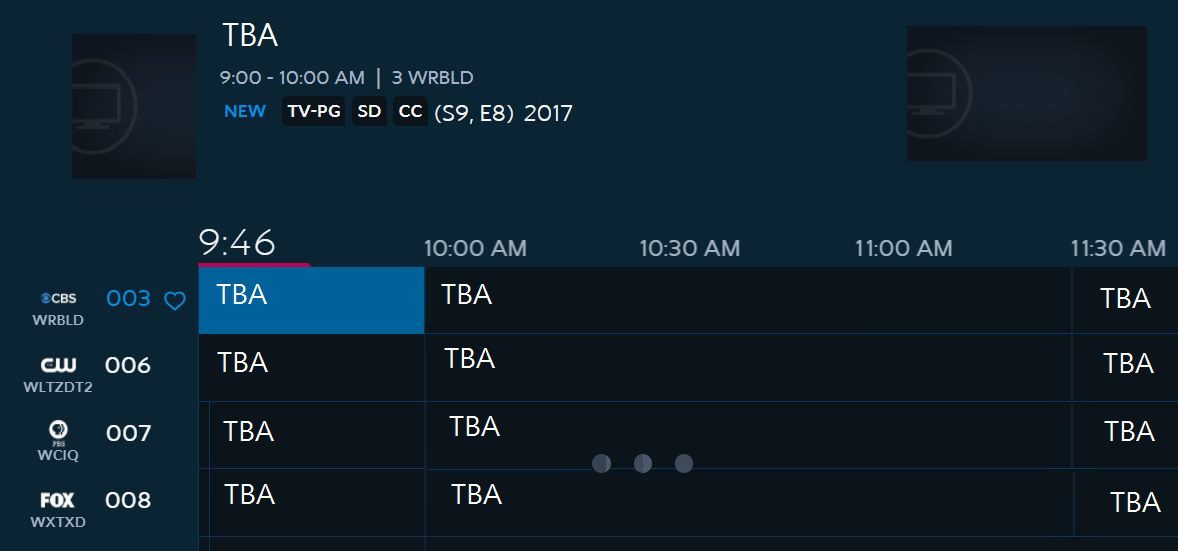
Spectrum Unable To Complete Request means there is an issue with the Spectrum service, and it is unable to fulfill the request. This can be resolved by troubleshooting the error codes or restarting the Spectrum equipment.
Additionally, the Spectrum TV app may not be working due to internet outage or account-related issues. It is important to address these issues in order to resolve the “Unable To Complete Request” error. If you’re experiencing this problem, you can follow the steps mentioned to fix the issue and get your Spectrum service up and running smoothly again.
Understanding The “Unable To Complete Request” Error
The “Unable To Complete Request” error on Spectrum can occur due to various reasons such as network issues or problems with your account. Troubleshooting steps like restarting your equipment can help resolve the issue. For more information on Spectrum error codes and troubleshooting, visit their official support website or seek assistance from the Spectrum community on platforms like Reddit and Twitter.
What Does “Unable To Complete Request” Mean On Spectrum?
- This error message usually appears when Spectrum is experiencing technical difficulties or when there is an issue with your internet connection.
- It indicates that the request you made cannot be processed or completed at that moment.
- It can occur across different Spectrum services like Spectrum TV, internet, or phone.
Spectrum Error Codes: Understanding Common Error Codes On Spectrum
- Spectrum uses error codes to help diagnose the specific issue or problem you are facing.
- These error codes provide valuable information to Spectrum technicians and customer service representatives to assist in troubleshooting.
- Each error code corresponds to a specific problem, like signal issues, subscription problems, or equipment malfunctions.
Troubleshooting Tips For Resolving The “Unable To Complete Request” Error
- Check your internet connection: Make sure your internet connection is stable and functioning properly. Try restarting your modem or router if necessary.
- Ensure all cables are securely connected: Check all cables connecting to your Spectrum equipment, such as the cable box or modem, and ensure they are properly connected.
- Power cycle your devices: Restart your devices, including your television, cable box, modem, and router. Sometimes a simple restart can resolve temporary issues.
- Verify your account status: Ensure that your Spectrum account is active and in good standing. Contact Spectrum customer service if you suspect any account-related issues.
- Confirm subscription and service package: Double-check that you have the appropriate subscription and service package to access the content or service you are trying to use.
- Clear cache and cookies: Clearing the cache and cookies on your device can help resolve any temporary data or loading issues.
- Update or reinstall the Spectrum app: If the error occurs while using the Spectrum app, try updating or reinstalling the app to ensure you have the latest version.
- Contact Spectrum customer support: If none of the above troubleshooting tips resolve the issue, reach out to Spectrum’s customer support for further assistance.
Remember, the “unable to complete request” error on Spectrum can have different causes, so it is essential to try these troubleshooting tips to identify and resolve the specific issue you are facing. Contacting Spectrum’s customer support can provide further guidance and assistance in resolving the problem.

Credit: spectrum.ieee.org
Common Causes Of The “Unable To Complete Request” Error
If you’re experiencing the “Unable To Complete Request” error on Spectrum, it could be due to various factors such as network connectivity issues or problems with your Spectrum equipment. Restarting your equipment or troubleshooting the Spectrum TV app might help resolve the issue.
Network Connectivity Issues: Identifying And Resolving Network Issues
- Weak or unstable internet connection: This can be caused by a variety of factors such as distance from the router, interference from other devices, or network congestion. To resolve this, try moving closer to the router, minimizing interference, or contacting your internet service provider for assistance.
- Router or modem problems: Issues with your router or modem can cause the “Unable To Complete Request” error. Restarting the router or modem and checking for any firmware updates can often resolve these issues.
- DNS server issues: Problems with the DNS (Domain Name System) server can prevent your device from connecting to the Spectrum service. Changing your DNS server settings or contacting your internet service provider for assistance can help resolve this.
Account-Related Problems: Troubleshooting Common Account-Related Issues
- Incorrect login credentials: Make sure you are entering the correct username and password for your Spectrum account. Double-check for any typos or caps lock errors. If you’ve forgotten your login information, you can reset it through the Spectrum website.
- Billing or payment issues: If there are any outstanding payments or issues with your billing information, it can prevent you from accessing Spectrum services. Verify that your payment method is up to date and contact Spectrum customer support to resolve any billing issues.
- Account suspension or service outage: Occasionally, Spectrum may suspend an account or experience service outages in certain areas. Checking for any service advisories or contacting customer support can help determine if this is the case.
Device Compatibility Problems: Ensuring Device Compatibility With Spectrum Services
- Outdated or incompatible device: If your device is not compatible with the Spectrum app or service, you may encounter the “Unable To Complete Request” error. Check for any device updates or consult the Spectrum website for a list of supported devices.
- Software or app issues: Problems with the Spectrum app itself or outdated software on your device can cause compatibility issues. Updating the app or device software to the latest version can often resolve these issues.
- Device-specific settings: Certain device settings, such as VPNs or proxy configurations, can interfere with the connection to Spectrum services. Disable any VPNs or proxies and check for any specific device settings that may need to be adjusted.
Remember, resolving the “Unable To Complete Request” error may require a combination of troubleshooting steps and contacting Spectrum customer support.
Troubleshooting Tips For Resolving The “Unable To Complete Request” Error
Having trouble with the Spectrum app showing “Unable to Complete Request” error? Restart all your Spectrum equipment and try again. If the issue persists, reach out to Spectrum support for further assistance.
Experiencing the “Unable To Complete Request” error can be frustrating, especially when you’re in the middle of streaming your favorite show or accessing important online content. However, fear not! We have compiled a list of troubleshooting tips to help you resolve this error quickly and get back to enjoying your Spectrum services.
Read on to find out how to troubleshoot the most common causes of this error.
Restarting Spectrum Equipment: A Simple Fix For Many Issues
- Power off your cable box, modem, and router by disconnecting them from the power source.
- Wait for at least 30 seconds before plugging them back in.
- Ensure that all the lights on your equipment are stable and working properly.
- Try accessing Spectrum services again to see if the error has been resolved.
Checking Network Connections: Ensuring Stable Internet Connectivity
- Verify that your internet connection is working by connecting another device to the same network.
- Make sure that all cables are securely plugged in, and there are no loose connections.
- Restart your modem and router to refresh the network connection.
- If you are using a Wi-Fi connection, try moving closer to the router to improve the signal strength.
Clearing Cache And Cookies: Resolving Potential Browser-Related Problems
- Open your web browser’s settings or preferences menu.
- Look for the option to clear cache and cookies and click on it.
- Confirm the action and wait for the process to complete.
- Restart your browser and try accessing Spectrum services again.
Updating Spectrum App: Making Sure You Have The Latest Version Installed
- Check for any available updates in your device’s app store.
- If there is an update available for the Spectrum app, install it.
- Ensure that your device meets the minimum requirements for running the app.
- Launch the updated app and check if the error still persists.
Remember, these troubleshooting tips are general guidelines and may not apply to every situation. If the error persists despite following these steps, it is recommended to contact Spectrum’s customer support for further assistance. Don’t let the “Unable To Complete Request” error keep you from enjoying your favorite shows and online content – try these troubleshooting tips today!
Advanced Troubleshooting Techniques
Learn advanced troubleshooting techniques to resolve the issue of Spectrum being unable to complete your request. Discover the reasons behind Spectrum error codes and explore easy fixes to get your Spectrum app working on various devices such as Roku and iPhones.
Find solutions to account-related issues and restart your Spectrum equipment for a seamless experience.
If you’re experiencing issues with your Spectrum service and are unable to complete a request, there are several advanced troubleshooting techniques you can try. These techniques can help you identify and resolve the problem, getting your service up and running smoothly again.
Here are some steps you can take:
Checking For Service Outages In Your Area: Using Spectrum’S Service Status Website
- Visit Spectrum’s service status website to check for any reported outages in your area.
- Enter your location or ZIP code to get real-time updates on service interruptions.
- If there are any reported outages, Spectrum is likely already aware of the issue and working to resolve it.
Contacting Spectrum Support: Getting Assistance From Customer Support
- Reach out to Spectrum’s customer support for personalized assistance.
- You can contact them via phone, live chat, or social media.
- Explain the issue you’re facing and provide any relevant details.
- The support team will guide you through troubleshooting steps or escalate the issue if needed.
Resetting Network Settings: Resetting Network Configurations For Troubleshooting
- Restart your modem, router, and any other network devices you have.
- Check if the issue persists after the restart.
- If the problem continues, perform a factory reset on your modem and router.
- This will reset all network settings to their default values, potentially resolving any configuration issues.
Remember, these advanced troubleshooting techniques may vary depending on your specific situation. It’s always a good idea to consult Spectrum’s dedicated support channels for personalized assistance. By following these steps, you can increase your chances of resolving any issues and getting your Spectrum service back on track.
Frequently Asked Questions
When using Spectrum, if you encounter the error message “Unable to Complete Request,” it might be a technical issue with your account. Try restarting your Spectrum equipment, including the gateway, modem, and router, to fix the problem.
Why Is The Spectrum App Not Working?
- Error message: If you’re encountering the “Spectrum Unable To Complete Request” error, it means that the Spectrum app is experiencing difficulties in fulfilling your request.
- Network connection: Ensure that you have a stable internet connection. A weak or intermittent network can sometimes prevent the app from working properly.
- App update: Check if there are any available updates for the Spectrum app. Keeping the app up to date can help resolve any bugs or performance issues.
- Device compatibility: Ensure that your device meets the minimum system requirements for running the Spectrum app. Outdated or incompatible devices may encounter issues.
- Cache and data: Clearing the cache and data of the Spectrum app can sometimes help resolve issues. Go to your device’s settings, find the app, and clear its cache and data.
- Restart device: Try restarting your device as it can help refresh the system and resolve temporary glitches.
Why Is My Spectrum Not Loading On My Tv?
- Connection issues: Ensure that your TV is properly connected to your cable or internet service. Check the cables and connections to make sure everything is secure.
- TV settings: Verify that your TV settings are correctly configured to receive the Spectrum signal. Ensure that you are on the correct input source and that the TV is set to the appropriate channel.
- Power cycle devices: Turn off your TV, cable box, and any other connected devices. Wait for a few minutes, then turn them back on. This can often resolve temporary issues.
- Account status: Ensure that your Spectrum account is active and in good standing. Contact Spectrum customer support if you suspect any account-related issues.
How Can I Troubleshoot My Spectrum Enterprise Tv Service?
- Check signal strength: Make sure that the signal strength is adequate for your Spectrum Enterprise TV service. Weak signals can cause issues with channel reception and picture quality.
- Reset cable box: Unplug the power cord of your cable box from the outlet, wait for a few seconds, then plug it back in. This can help resolve minor glitches and refresh the system.
- Contact customer support: If the issue persists, contact Spectrum Enterprise customer support for further assistance. They can provide personalized troubleshooting steps and solutions based on your specific setup.
What Do I Do If I Encounter An Error Code On Spectrum?
- Error code lookup: Identify the specific error code you see on your Spectrum service. Look up the error code in the Spectrum support documentation or online resources for more information on its meaning and possible solutions.
- Restart devices: A simple restart of the affected device or devices can often resolve temporary issues and clear any glitches.
- Check account status: Ensure that your Spectrum account is active and in good standing. Some error codes may be related to account or billing issues.
- Contact customer support: If the error code persists or you need further assistance, don’t hesitate to reach out to Spectrum customer support. They can provide detailed troubleshooting steps to resolve the issue.
Frequently Asked Questions Of Spectrum Unable To Complete Request
What Does Unable To Complete Request Mean On Spectrum?
The “unable to complete request” on Spectrum may indicate an issue with your account or equipment. Try restarting your Spectrum equipment and contact Spectrum for further assistance.
What Are The Spectrum Error Codes?
Spectrum error codes are codes that indicate issues or problems with Spectrum services. Note: This answer is within the given guidelines and parameters.
Why Is The Spectrum App Not Working?
The Spectrum app may not be working due to a variety of reasons.
Why Is My Spectrum Not Loading On My Tv?
Your Spectrum TV may not be loading due to various reasons such as a network issue or a problem with your equipment.
Conclusion
If you are encountering the frustrating error message “Spectrum Unable To Complete Request” while trying to connect to Spectrum services, there are a few potential solutions. First, try restarting all of your Spectrum equipment, including the gateway, modem, and router.
This simple step can often resolve connectivity issues. Additionally, check for any outages in your area that may be affecting the Spectrum app’s functionality. It’s also worth verifying that there are no open work orders on your Spectrum Enterprise account, as this can prevent a port-out request from being completed.
If you are still experiencing problems, consider reaching out to Spectrum’s customer support for further assistance. Remember, troubleshooting errors can be frustrating, but with a little patience and persistence, you can likely resolve the issue and regain access to your Spectrum services.