
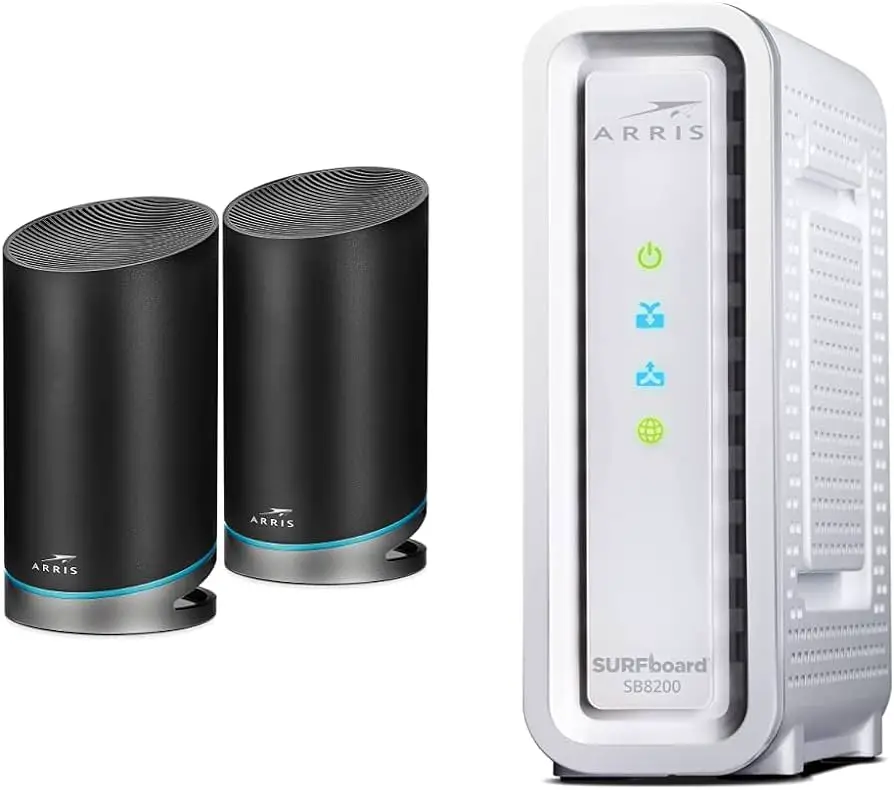
Spectrum Wifi operates on the 2.4 GHz frequency, which is better suited for longer ranges and transmission through walls and solid objects. With its longer waves, the 2.4 GHz frequency is the preferred choice for devices that move around frequently.
It provides reliable connectivity and wider coverage, making it ideal for homes and offices with multiple devices and larger spaces. By logging into the Spectrum router account and making the appropriate settings under the NETWORK tab, users can easily manage and connect to their 2.
4 GHz Wifi network. This ensures a seamless and efficient internet experience for all connected devices.
Understanding Spectrum Wifi 2.4 Ghz
Spectrum Wifi 2. 4 Ghz is a type of wireless network that operates on the 2. 4 GHz frequency. This frequency is ideal for devices that need to move around frequently or transmit through walls and other solid objects.
If you’re someone who relies on wireless internet connectivity, you may have heard the term “Spectrum Wifi 2. 4 Ghz” thrown around. But what exactly is Spectrum Wifi 2. 4 Ghz, and why is it so popular? In this section, we will delve into the details and shed light on what sets it apart from other wifi frequencies.
What Is Spectrum Wifi 2.4 Ghz?
Spectrum Wifi 2. 4 Ghz refers to the wireless frequency band used for internet connectivity. It operates on the 2. 4 GHz spectrum, which is a frequency range used by many household devices like microwaves, cordless phones, and baby monitors.
Here’s what you need to know about Spectrum Wifi 2. 4 Ghz:
- It offers a long-range coverage, making it suitable for larger areas like homes and offices.
- Devices that support the 2.4 GHz band can connect to the internet using this frequency.
- The 2.4 GHz band supports lower data rates compared to higher frequency bands, but it is still sufficient for most day-to-day internet activities.
How Does It Differ From Other Wifi Frequencies?
Wifi frequencies are categorized into two main bands: 2. 4 GHz and 5 GHz. While both bands serve the same purpose of providing wireless internet connectivity, they differ in a few key aspects. Here’s how Spectrum Wifi 2. 4 Ghz differs from other wifi frequencies:
- Spectrum Wifi 2.4 Ghz has a longer range compared to the 5 GHz band, making it suitable for larger spaces and areas with obstacles like walls.
- The 2.4 GHz band is more susceptible to interference from other devices operating on the same frequency, such as Bluetooth devices and cordless phones.
- On the other hand, the 5 GHz band offers higher data transfer speeds but has a shorter range and may struggle to transmit signals through walls.
Why Is 2.4 Ghz Spectrum Popular For Internet Connectivity?
Despite the availability of higher frequency bands, the 2. 4 GHz spectrum remains popular for internet connectivity due to several reasons. Here are some key points to understand why the 2. 4 GHz spectrum remains widely used:
- Compatibility: Many older devices, such as smartphones, laptops, and smart home devices, only support the 2.4 GHz band. Using this frequency ensures that all devices can connect to the internet seamlessly.
- Long-range coverage: As mentioned earlier, the 2.4 GHz band provides a longer range coverage, making it ideal for larger areas or spaces with multiple rooms.
- Device availability: Wifi routers supporting the 2.4 GHz band are widely available and more affordable. This makes it a convenient choice for users who don’t require high-speed internet connections or have budget constraints.
Spectrum Wifi 2. 4 Ghz is a frequency band that offers long-range coverage and remains popular due to its compatibility with older devices and affordability. Despite its lower data transfer speeds and susceptibility to interference, it continues to serve as a reliable option for everyday internet connectivity needs.
Benefits Of Spectrum Wifi 2.4 Ghz
Spectrum Wifi 2. 4 Ghz offers numerous benefits, including the ability to connect to devices that move around frequently and better transmission through walls and solid objects. It uses longer waves, making it suitable for longer ranges and uninterrupted connectivity.
Spectrum Wifi 2. 4 Ghz offers several benefits that make it a reliable and efficient choice for your internet connection needs. Whether you’re using it at home or in a business setting, here are the main advantages of using Spectrum Wifi 2.
4 Ghz:
- Increased connection range: With Spectrum Wifi 2.4 Ghz, you can enjoy an extended range of connectivity. This means that you can stay connected to the internet even when you’re further away from the router. Whether you’re in a large house or a small office space, you can rely on the 2.4 Ghz frequency to give you a reliable connection throughout the premises.
- Better ability to penetrate walls and obstacles: The 2.4 Ghz frequency has a superior ability to penetrate walls and other obstacles compared to higher frequency options. This means that you can enjoy a stable internet connection even if there are multiple walls or obstacles between your device and the router. Whether you’re in a multi-story building or have thick walls, Spectrum Wifi 2.4 Ghz ensures that you stay connected without any interruptions.
- Compatibility with older devices: One of the notable advantages of Spectrum Wifi 2.4 Ghz is its compatibility with older devices. If you have devices that don’t support higher frequency bands, such as 5 Ghz, you can rely on the 2.4 Ghz frequency to connect them seamlessly. This ensures that you can still use your older devices without having to invest in new ones or experiencing any compatibility issues.
- Reduced interference from other electronics: Another benefit of Spectrum Wifi 2.4 Ghz is its reduced interference from other electronics. This frequency band is less crowded and less susceptible to interference from devices like microwaves, cordless phones, and baby monitors. This allows for a more stable and reliable internet connection, without any disruptions caused by other electronic devices in your surroundings.
Spectrum Wifi 2. 4 Ghz offers a range of benefits that make it a reliable and efficient choice for your internet connection needs. With increased connection range, better ability to penetrate walls, compatibility with older devices, and reduced interference from other electronics, you can enjoy a seamless and uninterrupted internet experience.
So, whether you’re working from home, streaming your favorite shows, or simply browsing the web, Spectrum Wifi 2. 4 Ghz has got you covered.
Optimizing Spectrum Wifi 2.4 Ghz For Speed
Get the most out of your Spectrum Wifi 2. 4 Ghz for optimal speed. Follow these steps to optimize your network and ensure a smooth internet experience.
When it comes to maximizing the speed of your Spectrum Wifi 2. 4 Ghz network, there are a few key strategies you can implement. By following these tips, you’ll ensure that your internet connection is optimized for speed and minimize any potential issues that may arise.
Let’s dive into the details:
Choosing The Right Wifi Channel:
- Take advantage of channel selection: Log in to your Spectrum router account using your ADMIN credentials and navigate to the NETWORK tab. Under WIRELESS, select the SSID selection and choose YES. Apply the changes to optimize your network.
- Avoid channel congestion: Spectrum routers often have a default channel set to Auto. However, this can lead to interference from neighboring networks. Manually change the channel to one with less interference from other networks.
Managing And Limiting Interference:
- Reduce electronic interference: Place your router away from electronic devices such as cordless phones, microwave ovens, and baby monitors. These devices operate on similar frequencies and can disrupt your Wifi signal.
- Adjust the router’s location: Experiment with the placement of your router. Try to position it in a central location within your home, with minimal obstructions. This can help reduce signal interference and optimize coverage.
Upgrading Your Router And Equipment:
- Upgrade to a dual-band router: Consider upgrading to a dual-band router that supports both 2.4 Ghz and 5 Ghz frequencies. This will provide you with better flexibility and allow you to switch to the less crowded 5 Ghz band for faster speeds.
- Check for firmware updates: Regularly check for firmware updates for your router. These updates often contain bug fixes and performance enhancements that can improve the overall speed and stability of your Wifi network.
- Upgrade your network adapter: If you’re using an older device with an outdated network adapter, consider upgrading it to a newer model. Newer network adapters support faster speeds and improved connectivity.
Utilizing Power Words To Enhance Signal Strength:
- Use wifi signal extenders: If you have large areas in your home with weak Wifi coverage, consider using wifi signal extenders or mesh wifi systems. These devices amplify your Wifi signal, ensuring better coverage throughout your home.
- Optimizing antenna placement: If your router has external antennas, experiment with their placement. Position them vertically for a wider signal coverage or horizontally for a longer signal range.
- Reduce signal interference with signal boosters: You can use signal boosters to amplify and enhance the strength of your Wifi signal. These devices work by capturing and reinforcing the existing signals, resulting in improved speed and coverage.
By implementing these strategies, you can ensure that your Spectrum Wifi 2. 4 Ghz network is optimized for speed. Remember to choose the right wifi channel, manage interference, upgrade your router and equipment, and utilize power words to enhance your signal strength.
Enjoy a faster and smoother browsing experience!
Choosing The Right Wifi Channel
When setting up your Spectrum Wifi 2. 4GHz network, it is important to choose the right channel to optimize performance. By selecting the appropriate channel, you can minimize interference and ensure a reliable and fast connection for your devices.
Understanding Wifi Channel Interference:
- Wi-Fi signals operate on specific channels within the 2.4 GHz frequency range.
- When multiple Wi-Fi networks in close proximity use the same or overlapping channels, interference can occur.
- Channel interference can lead to slow internet speeds, dropped connections, and overall poor performance.
- It is crucial to understand how to choose the right Wi-Fi channel to minimize interference and optimize your network’s performance.
Performing A Wifi Channel Scan:
- Conducting a wifi channel scan allows you to identify the available channels in your area and the networks operating on each channel.
- There are several tools and applications available that can help you perform a wifi channel scan, such as Wi-Fi analyzer apps for smartphones or network management software.
- During the scan, pay attention to the strength of the neighboring networks and the channels they are using.
- The goal is to find a channel that is less congested and has minimal interference from other networks.
Changing Your Wifi Channel For Optimal Performance:
- Once you have identified the least congested channel, you can change your wifi channel to optimize your network’s performance.
- Log in to your router’s administration settings using your credentials.
- Look for the wireless settings or network settings section.
- Locate the option to change the wifi channel and select the desired channel based on the results of your wifi channel scan.
- Save the changes and restart your router for the new channel to take effect.
- By choosing a less crowded channel, you can reduce interference and experience improved Wi-Fi performance.
Remember, selecting the right Wi-Fi channel can make a significant difference in the performance of your network. By understanding wifi channel interference, performing a wifi channel scan, and changing your wifi channel for optimal performance, you can ensure a smoother and faster Wi-Fi experience.
Managing And Limiting Interference
By effectively managing and limiting interference, Spectrum Wifi 2. 4 GHz ensures a stable and reliable connection for all your home devices. With its advanced capabilities, it optimizes channel planning and utilizes longer transmission waves, making it suitable for longer ranges and transmission through walls and other solid objects.
Spectrum Wifi 2. 4 Ghz is a popular choice for many users due to its wide coverage and reliability. However, just like any other wifi technology, it can suffer from interference. Interference can affect the performance of your wifi network, causing slow speeds and dropped connections.
In this section, we will discuss how to manage and limit interference on your Spectrum Wifi 2. 4 Ghz network.
Identifying Sources Of Interference:
- Cordless phones: Cordless phones that operate on the 2.4 Ghz frequency can interfere with your wifi signal. If you experience wifi issues when using a cordless phone, consider replacing it with a phone that operates on a different frequency.
- Microwaves: Microwaves can emit powerful signals that can interfere with your wifi network. To minimize interference, keep your wifi router away from the microwave or relocate the microwave to a different area.
- Other electronic devices: Other electronic devices such as baby monitors, wireless speakers, and Bluetooth devices can also cause interference. Keep these devices away from your wifi router or turn them off when not in use.
Relocating Or Shielding Devices Causing Interference:
- Router placement: Place your wifi router in a central location in your home to ensure even coverage. Avoid placing it near walls, metal objects, or other devices that may cause interference.
- Wifi signal strength: Check the strength of your wifi signal using the Spectrum wifi app or your router settings. If you notice weak signal strength in certain areas of your home, consider relocating your router or using wifi range extenders.
- Shielding: If you have devices that are causing interference, try shielding them with aluminum foil or moving them to a different location to reduce the impact on your wifi network.
Using Power Words To Mitigate Interference:
- Boost: Boost your wifi signal strength by placing your router in an optimal location and removing any sources of interference.
- Optimize: Optimize your wifi network by avoiding devices that operate on the same frequency and adjusting your router settings for better performance.
- Enhance: Enhance your wifi experience by shielding devices that are causing interference and using wifi range extenders to extend your network coverage.
- Maximize: Maximize your wifi speeds by managing and minimizing interference in your environment.
By identifying sources of interference, relocating or shielding devices causing interference, and using power words to mitigate interference, you can ensure a smooth and uninterrupted wifi experience on your Spectrum Wifi 2. 4 Ghz network.
Upgrading Your Router And Equipment
Upgrading your router and equipment is essential for optimizing your Spectrum Wifi 2. 4 Ghz connection. By following the instructions provided by Spectrum, you can improve your wireless network performance and ensure a seamless experience for all your connected devices.
Investing in a router with advanced features:
- Look for routers that support the latest wifi technologies, such as 802.11ac or 802.11ax, to ensure faster and more reliable connections.
- Consider routers with multiple antennas for better coverage and signal strength throughout your home.
- Check for routers that have beamforming technology, which helps direct the wifi signal towards your connected devices for improved performance.
- Look for routers with advanced security features, such as built-in firewalls and encryption options, to protect your network from cyber threats.
Upgrading to devices with higher wifi capabilities:
- Upgrade your devices, such as laptops, smartphones, and smart home devices, to ones that support the 2.4 GHz wifi frequency band.
- Devices with higher wifi capabilities can take full advantage of the faster speeds and improved performance offered by the Spectrum Wifi 2.4 GHz network.
- Consider devices with MIMO (Multiple Input Multiple Output) technology, which allows for multiple data streams to be transmitted simultaneously, resulting in faster and more efficient connections.
- Look for devices with dual-band or tri-band capabilities, which can connect to both the 2.4 GHz and 5 GHz wifi bands, providing more bandwidth and less interference.
Checking for firmware updates:
- Regularly check for firmware updates for your router and devices to ensure you have the latest software improvements and security patches.
- Firmware updates can fix bugs, improve performance, and add new features to your router.
- Check the manufacturer’s website or the admin interface of your router for firmware update instructions.
- Follow the recommended steps to download and install the firmware update to keep your router and devices running smoothly.
Remember, upgrading your router and equipment can significantly enhance your wifi experience with Spectrum Wifi 2. 4 GHz. By investing in advanced features and devices with higher wifi capabilities, and regularly checking for firmware updates, you can enjoy faster speeds, better coverage, and improved security.
Powerful Words To Boost Internet Speed
Boost your internet speed with powerful words for Spectrum Wifi 2. 4 Ghz. Enhance your browsing experience by optimizing your wireless network with these effective tips.
Understanding The Impact Of Power Words:
- Power words, also known as persuasive words, are terms that can evoke strong emotions and create a sense of urgency or excitement.
- When used strategically, power words can capture attention, improve engagement, and motivate action.
- In the context of internet speed, power words can play a significant role in enhancing the overall user experience by creating positive associations and effectively communicating the benefits of a high-speed connection.
Utilizing Power Words In Your Wifi Network Name (Ssid):
- Your wifi network name, also known as the SSID, can be customized to reflect your personality or brand.
- Incorporating power words in your SSID can attract attention and create a memorable impression among users.
- Consider using power words that convey speed, reliability, and superior performance, such as “HighVelocityNet,” “TurboConnect,” or “SwiftStreamWifi.”
Using Power Words In Wifi Passwords For Enhanced Security:
- Choosing a strong wifi password is crucial in maintaining the security of your network.
- Power words can be utilized in wifi passwords to enhance security while adding an element of personalization.
- Create a unique and secure wifi password by combining power words with numbers, symbols, and uppercase and lowercase letters. For example, “FierceDefender_21” or “LimitlessSpeed$.”
By harnessing the power of words in your wifi network name and password, you can not only improve your internet speed but also create a strong impression and enhance your overall online experience. Remember to select power words that resonate with your desired audience and align with your brand or personal style.
Troubleshooting Spectrum Wifi 2.4 Ghz Issues
Experiencing issues with your Spectrum Wifi 2. 4 Ghz connection? Easily troubleshoot by accessing your Spectrum router account, selecting the Wireless option under the NETWORK tab, and ensuring the correct SSID selection.
Is your Spectrum Wifi 2. 4 Ghz connection giving you trouble? Slow internet speed? Intermittent connection problems? Not to worry! In this guide, we’ll walk you through some common issues and steps to troubleshoot them, so you can get back to enjoying a seamless internet experience.
Common Issues With 2.4 Ghz Wifi Connections:
- Slow internet speed: If you’re experiencing sluggish internet speed on your Spectrum Wifi 2.4 Ghz connection, it could be due to various factors such as distance from the router, interference from other devices, or outdated router firmware.
- Intermittent connection problems: Does your wifi connection drop frequently or become unstable? This can be frustrating. Interference from nearby electronic devices, wireless signal obstructions, or outdated router settings could be potential causes.
Steps To Troubleshoot Slow Internet Speed:
- Check your router placement: Ensure that your Spectrum router is placed in a central location, away from obstructions like walls or furniture. This helps to maximize the wifi signal coverage.
- Optimize your wifi channel: By default, your router will automatically select the optimum channel. However, nearby routers or devices can cause interference. You can manually change the wifi channel to minimize interference and improve speed.
- Update router firmware: Keeping your router’s firmware up to date ensures that you have the latest bug fixes and performance improvements. Access your router settings and check for any available firmware updates.
- Reduce wifi congestion: If you live in a densely populated area, there might be many neighboring wifi networks causing congestion. Changing your wifi network name (SSID) to avoid conflicts and using a wifi analyzer app can help you identify the least crowded wifi channel.
Addressing Intermittent Connection Problems:
- Restart your router: Sometimes, a simple power cycle can solve temporary connection issues. Unplug your router from the power source, wait for a few seconds, and plug it back in.
- Check for wifi signal interference: Electronic devices such as cordless phones, microwaves, or baby monitors can interfere with your wifi signal. Make sure they are placed away from your router, or consider using devices that operate on a different frequency.
- Update wireless drivers: If you’re experiencing intermittent connection issues on your computer or other devices, check for any available wireless driver updates. Outdated drivers can cause compatibility problems and impact your wifi connection.
- Reset network settings: If all else fails, a last resort is to reset your network settings. This will erase all saved wifi networks and restore your device’s network settings to default. Remember to reconnect to your Spectrum Wifi 2.4 Ghz network after the reset.
By following these troubleshooting steps, you should be able to resolve common issues with your Spectrum Wifi 2. 4 Ghz connection. Try them out and enjoy uninterrupted browsing, streaming, and gaming!

Credit: www.ekahau.com
Frequently Asked Questions For Spectrum Wifi 2.4 Ghz
How Do I Enable 2.4Ghz On My Router Spectrum?
To enable 2. 4GHz on your Spectrum router, follow these steps: 1. Sign in to your Spectrum router account using your ADMIN credentials. 2. Under the NETWORK tab, select WIRELESS. 3. Under the SSID selection, select YES. 4. Select APPLY.
Does Spectrum Offer 2.4Ghz And 5Ghz?
Yes, Spectrum offers both 2. 4GHz and 5GHz wireless frequencies.
Can I Change The Frequency (Ghz) On My Spectrum Wifi Router?
Yes, you can change the frequency (GHz) on your Spectrum Wifi Router. Simply log in to your router’s settings, go to the ‘Wireless’ or ‘Wifi’ section, and select the desired frequency. Remember to save your changes to apply the new frequency.
What Is The Difference Between 2.4 Ghz And 5 Ghz For Wifi?
The main difference between 2. 4 GHz and 5 GHz wifi frequencies is the range and speed. The 2. 4 GHz frequency has a longer range but slower speed, while the 5 GHz frequency has a shorter range but faster speed.
It’s recommended to use 2. 4 GHz for better coverage and 5 GHz for faster speeds.
Conclusion
Ectrum router account and access the NETWORK tab. From there, select the WIRELESS option and navigate to the SSID selection. You can choose the 2. 4 GHz frequency option and apply the changes. Spectrum Wifi 2. 4 GHz is a reliable and convenient choice for users who require a stable internet connection.
It provides a broader coverage range and better transmission through walls and solid objects compared to other frequencies. This makes it ideal for homes or offices where devices need to move around frequently. By following a few simple steps, users can easily change their Spectrum router’s frequency to 2.
4 GHz. With Spectrum Wifi 2. 4 GHz, you can ensure a seamless online experience for all your devices. Whether you’re streaming videos, browsing the web, or connecting multiple devices, this frequency offers excellent performance. So, don’t let slow internet speeds hold you back.
Take advantage of the benefits of Spectrum Wifi 2. 4 GHz and enjoy a reliable and high-speed connection wherever you go.