
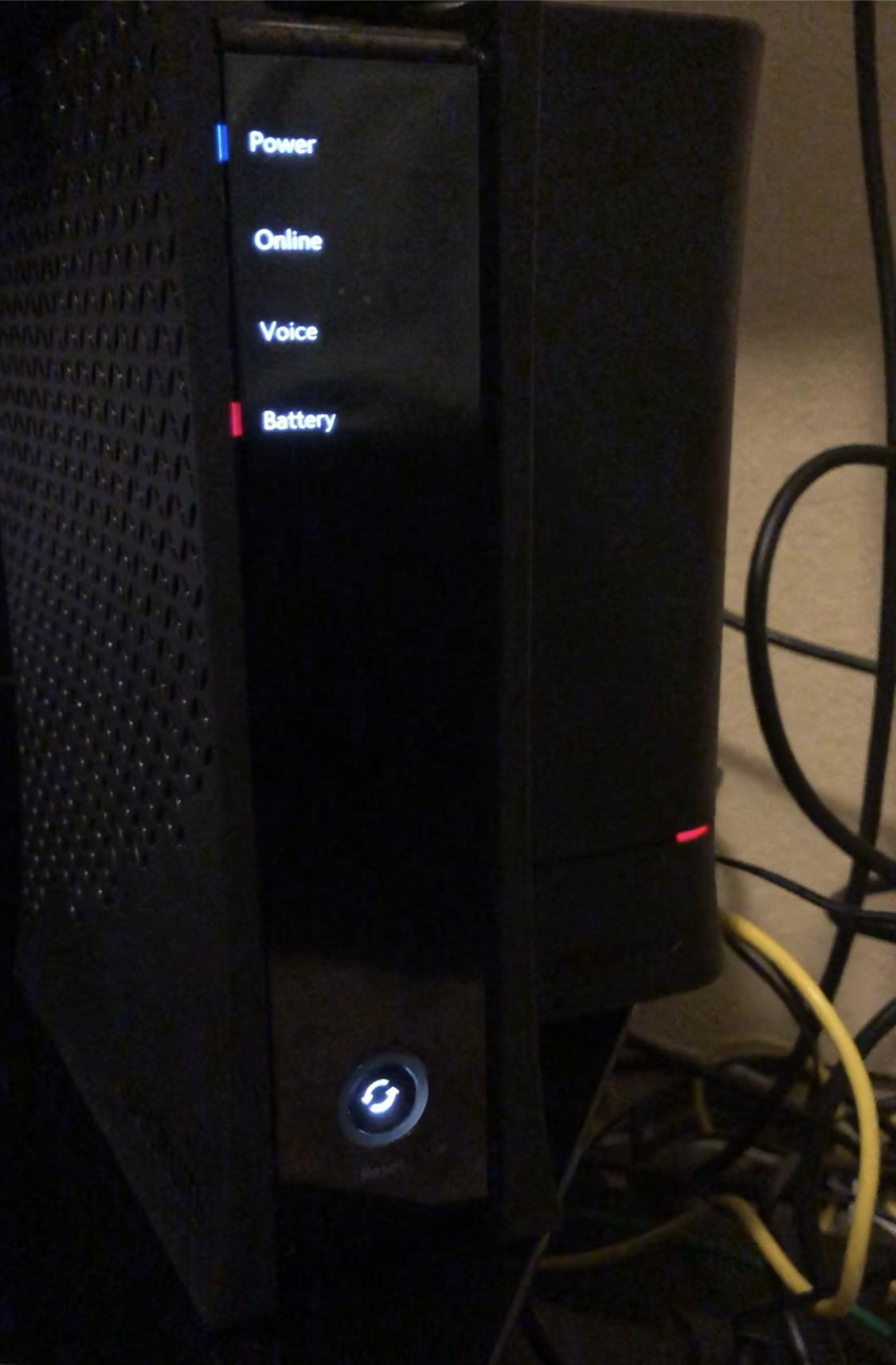
If you notice a red light on your Spectrum wifi router, it typically means that the router is having difficulty connecting. This can be resolved by simply resetting the router.
Spectrum wifi routers are a common choice for internet connectivity in many households. However, sometimes users may encounter issues with their routers, such as a red light. When the red light appears on your Spectrum wifi router, it indicates that the router is having trouble connecting to the internet.
This can be a frustrating problem, but fortunately, it can usually be easily resolved by resetting the router. We will explore why the red light appears on Spectrum wifi routers and provide step-by-step instructions on how to fix it. By following these troubleshooting steps, you can have your Spectrum wifi router up and running again in no time.

Credit: www.wikihow.com
Understanding The Flashing Indicator
If you notice a flashing red light on your Spectrum WiFi router, it typically indicates a firmware or connection issue. To fix this, try resetting the router, which should resolve the problem and restore your connection.
What Does A Flashing Red Light On A Spectrum Wifi Router Indicate?
A flashing red light on your Spectrum Wifi router can be an indicator of an underlying issue that needs attention. This blinking light can serve as a warning sign and understanding its meaning is crucial in troubleshooting and resolving the problem.
Let’s take a closer look at why your Spectrum Wifi router might have a flashing red light.
Differentiating Between Solid And Flashing Red Lights:
When it comes to the indicator lights on your Spectrum Wifi router, it’s essential to differentiate between solid and flashing red lights. Each type of red light signifies a specific problem or issue. Here’s what you need to know:
- Solid Red Light: A solid red light indicates that your router is experiencing a connectivity issue. This could be due to a problem with your Spectrum service, a network outage, faulty wiring in your home, or a malfunctioning router.
- Flashing Red Light: On the other hand, a flashing red light indicates a firmware or connection issue. This means that the router is having trouble establishing a stable connection with the internet.
Understanding the difference between these two types of red lights will help you identify the nature of the problem and take appropriate actions to resolve it.
Importance Of Addressing The Flashing Indicator:
Addressing the flashing red light on your Spectrum Wifi router is crucial because it signifies an issue that needs attention. Ignoring the blinking light can lead to further connectivity problems or even a complete loss of internet access. Here’s why it’s important to take the flashing indicator seriously:
- Stable Internet Connection: Resolving the flashing red light will ensure a stable internet connection. By addressing the issue promptly, you can maintain uninterrupted access to the internet for both work and leisure activities.
- Troubleshooting Potential Problems: Fixing the flashing indicator allows you to identify and troubleshoot potential problems within your network. It provides an opportunity to rectify any underlying issues affecting your router’s connectivity.
- Preventing Further Outages: Taking action to resolve the flashing red light can help prevent further outages or interruptions in your internet service. This proactive approach ensures a smooth browsing experience for all users connected to the network.
Understanding the meaning of a flashing red light on your Spectrum Wifi router is essential for troubleshooting and resolving any connectivity issues. By responding promptly to the flashing indicator, you can ensure a stable internet connection and prevent future disruptions.
So, if you notice a blinking red light on your Spectrum Wifi router, it’s important to take immediate action to address the issue.
Resetting The Spectrum Wifi Router
If you notice a red light on your Spectrum Wifi Router, it indicates difficulty connecting. Resetting the router is a simple solution to fix this common issue with wifi routers.
Step-By-Step Guide For To Fix Red Light Issues
If you encounter a red light on your Spectrum wifi router, it usually indicates a connectivity problem. Luckily, this is a common issue that can be easily resolved by resetting the router. Follow these simple steps to reset your Spectrum wifi router and get rid of the red light:
Power Cycling The Router:
To power cycle the router, follow these steps:
- Unplug the power cord from the back of the router.
- Wait for about 30 seconds to 1 minute.
- Plug the power cord back into the router.
- Wait for the router to fully power up and connect to the internet.
- Check if the red light issue has been resolved.
Factory Resetting The Router:
If power cycling the router doesn’t fix the red light issue, you may need to perform a factory reset. Here’s how to do it:
- Find the reset button on the back or bottom of the router.
- Press and hold the reset button using a paperclip or a small pin for about 10-15 seconds.
- Release the button once the lights on the router start flashing or the router restarts.
- Wait for the router to complete the reset process, which may take a few minutes.
- Once the reset is complete, you’ll need to reconfigure your wifi network settings, including the network name and password.
By following these step-by-step instructions for resetting your Spectrum wifi router, you should be able to fix the red light issue and restore a stable connection. Remember to power cycle the router first and resort to a factory reset if necessary.
It’s important to note that if you’re unsure about performing a factory reset, you can contact your Spectrum internet service provider or consult the router’s user manual for further assistance.
Checking Connectivity And Firmware Issues
If you notice a red light on your Spectrum WiFi router, it typically indicates a connectivity or firmware issue. To fix this, try resetting the router, which usually resolves the problem.
Troubleshooting Steps For Connectivity Issues:
If you’re seeing a red light on your Spectrum WiFi router, it could indicate a connectivity problem. Here are some troubleshooting steps you can take to resolve the issue:
- Verify Internet Connection:
- Check if other devices connected to the same network are experiencing the same issue.
- If all devices are unable to connect, it could be a problem with your Spectrum service or an outage in your area.
- Ensure that all cables are securely connected to your router and modem.
- Check Firmware Updates for the Router:
- Access the router’s settings by typing “192.168.1.1” or “192.168.0.1” in your web browser’s address bar.
- Login to your router using the default username and password or the credentials provided by your Spectrum service.
- Look for the firmware update section in the settings menu.
- If an update is available, follow the on-screen instructions to download and install it.
- Firmware updates can resolve connectivity issues and improve the overall performance of your router.
By following these troubleshooting steps, you can identify and address the connectivity problems indicated by the red light on your Spectrum WiFi router. Remember to check for firmware updates regularly to ensure optimal router performance.
Contacting Spectrum Customer Support
If you notice a red light on your Spectrum WiFi router, it usually indicates a connection issue. Resetting the router is often the simple solution to fix this common problem.
When To Reach Out To Spectrum’S Customer Support:
- If you notice a red light on your Spectrum wifi router, it typically indicates that the router is having difficulty connecting. This is a common issue with wifi routers, but the solution is simple.
- In most cases, the wifi router can be fixed by resetting the router. However, if the red light persists, it’s time to reach out to Spectrum’s customer support for further assistance.
- If you experience frequent disconnections or slow internet speeds, it’s a sign that there might be an underlying issue with your Spectrum wifi router. Customer support can help diagnose and resolve these issues.
- When you encounter firmware or connection issues, such as a blinking red light, it’s best to contact Spectrum’s customer support for guidance on troubleshooting steps or potential fixes.
- If you recently set up your Spectrum wifi router and are experiencing difficulties during the installation process, don’t hesitate to reach out to customer support for guidance and assistance.
- It’s also worth contacting Spectrum’s customer support if you encounter any error messages or unusual behavior from your wifi router, as they can provide specific instructions tailored to your situation.
Contact Information For Spectrum Support:
- Phone: To contact Spectrum’s customer support via phone, dial [insert phone number here].
- Live Chat: You can also reach out to Spectrum’s customer support team through their live chat feature on their website. Visit [insert website URL here] and look for the live chat option to get connected to a support representative.
- Email: If you prefer to communicate through email, you can send a message to [insert email address here] with your concerns and questions. Remember to provide all necessary details, including your account information, to receive a timely response.
Troubleshooting Tips Provided By Spectrum’S Support Team:
- When contacting Spectrum’s customer support, they may ask you to perform certain troubleshooting steps. Here are some common tips that they might provide:
- Power cycle your router by unplugging it from the power source, waiting for a few seconds, and then plugging it back in.
- Check the cables and connections to ensure everything is securely connected.
- Reset your wifi router to its factory settings, if necessary.
- Update the firmware of your wifi router to the latest version.
- Conduct a speed test to determine the actual speed of your internet connection.
- Verify that your Spectrum account is active and in good standing.
Remember, Spectrum’s customer support team is there to assist you in resolving any issues you encounter with your wifi router. Don’t hesitate to reach out to them for guidance and support.
Frequently Asked Questions Of Spectrum Wifi Router Red Light
How Do I Fix The Red Light On My Router?
To fix the red light on your router, try resetting the router. This is a common issue and usually resolves the connection problem.
Why Is The Red Light On My Spectrum Wifi Router Blinking?
The red light on a Spectrum wifi router blinks when there is a firmware or connection issue. It indicates that the router is unable to reconnect to the internet. This is a common problem that can be fixed by troubleshooting the router.
What Does A Solid Red Light On My Spectrum Wifi Router Mean?
A solid red light on your Spectrum wifi router indicates that there is no internet connection. This could be due to a problem with your Spectrum service, the wiring in your home, or an issue with the router itself. Troubleshooting the router and checking your internet connection can help resolve this problem.
How Can I Fix The Red Light Issue On My Spectrum Wifi Router?
If you notice a red light on your Spectrum wifi router, the solution is often as simple as resetting the router. By unplugging the router, waiting a few seconds, and then plugging it back in, you can often resolve the red light issue and restore your internet connection.
Conclusion
If you notice a red light on your Spectrum WiFi router, it typically indicates a connection issue. This is a common problem, but fortunately, the solution is simple. In most cases, resetting the router will fix the issue. A solid red light might mean that you don’t have an internet connection, which could be due to a problem with your Spectrum service, the wiring in your home, or an issue with your router.
On the other hand, a blinking red light could indicate a firmware or connection problem. If you’re experiencing a blinking red light, it means that your router is struggling to reconnect to the internet. This is a common issue after power outages or network disruptions.
However, by following the steps to reset your Spectrum WiFi router, you should be able to resolve the problem and get your internet connection back up and running smoothly.