
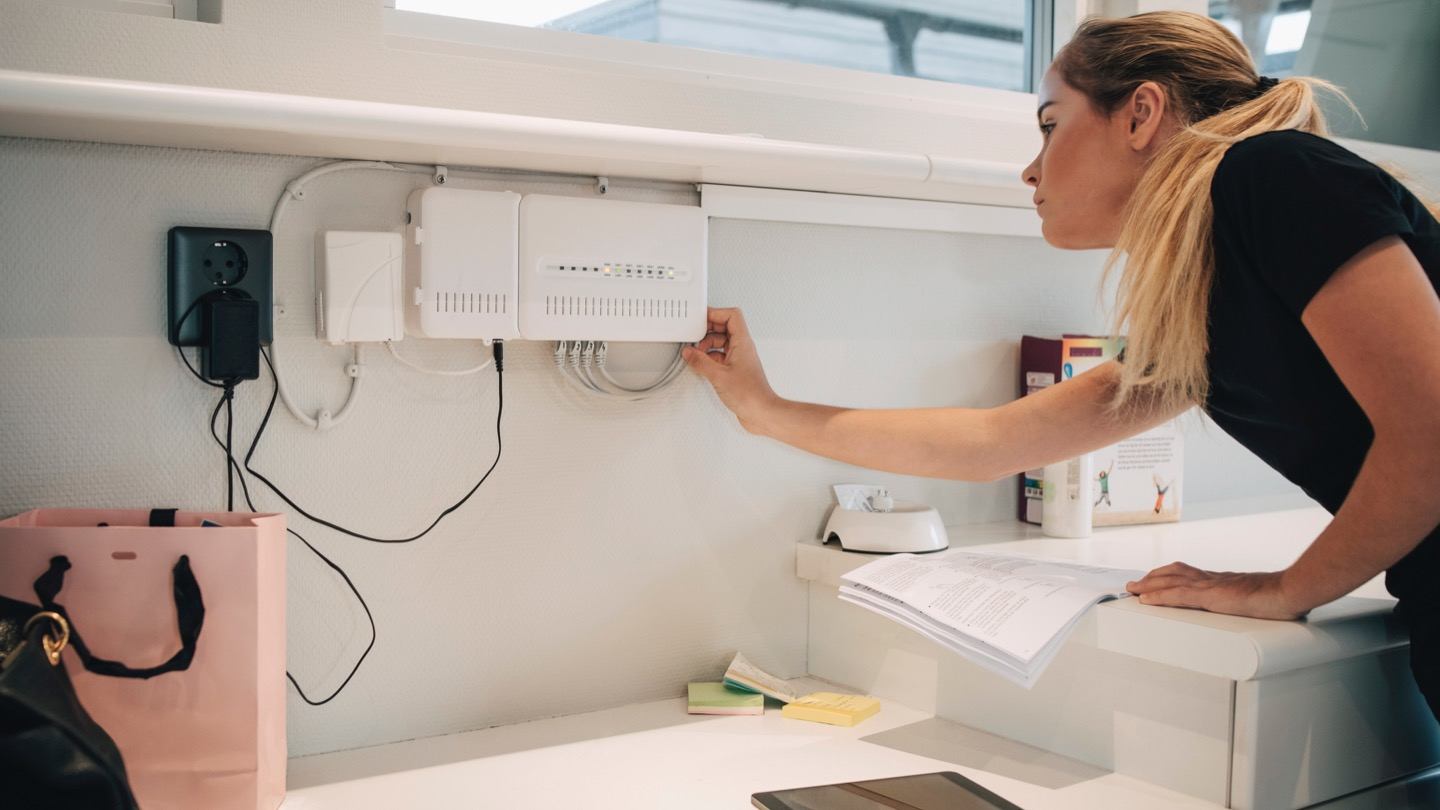
Your Spectrum WiFi may be slow due to physical obstructions such as walls or large furniture, which can negatively affect the router’s coverage. Avoid placing your router in a closet, cabinet, or behind objects like a TV or aquarium.
Additionally, keeping the router on the floor or low to the ground can also hinder its performance. To improve your WiFi connection, try restarting your equipment by unplugging the modem, turning off the router and devices, and then plugging in the modem and turning everything back on.
If these steps don’t help, it could be due to too many clients connecting to the internet simultaneously or limitations in the router’s capacity.
Common Problems With Spectrum Wifi
If you’re wondering why your Spectrum Wifi is performing poorly, there are a few common problems to consider. Physical obstructions like walls or furniture can weaken the signal, and having too many devices connected at once can also slow things down.
Restarting your equipment and conducting a speed test may help improve the connection.
:
Slow Internet Speed Compared To Usual:
- Numerous devices connected to the network: Having multiple devices connected to your Spectrum WIFI can slow down the internet speed. Consider disconnecting unused devices or upgrading your plan to accommodate more devices.
- Physical obstructions and distance: Physical objects like walls and floors can weaken your router’s signal, resulting in slower internet speed. Ensure that your WIFI router is placed in an open area and away from obstacles.
- Outdated equipment: An outdated router or modem might not be able to handle the current internet speeds. Consider upgrading to a newer model to improve internet speed.
- Network congestion: During peak usage hours, internet speed can be slower due to increased traffic on the network. If this is a recurring issue, consider upgrading your plan with Spectrum to ensure faster speeds during peak hours.
Intermittent Connection Drops:
- Router placement: Poor router placement can lead to intermittent connection drops. Make sure your router is placed in a central location within your home and away from interference-causing devices like microwaves and cordless phones.
- Router firmware updates: Outdated router firmware can cause frequent connection drops. Check for firmware updates on your router’s manufacturer website or contact Spectrum support for assistance.
- Interference from other devices: Other electronic devices like cordless phones and baby monitors can interfere with your WIFI signal, leading to connection drops. Keep WIFI routers away from these devices or switch to a different WIFI channel to reduce interference.
Buffering While Streaming Or Downloading:
- Insufficient bandwidth: If multiple devices are using the internet simultaneously, it might not be able to handle the demand, resulting in buffering. Consider upgrading to a higher bandwidth plan with Spectrum to avoid buffering issues.
- Slow DNS servers: If DNS servers are slow, it can cause buffering while streaming or downloading. Change your DNS server settings to a faster and more reliable option such as Google DNS or Cloudflare DNS.
- Outdated devices: Older devices might not be able to handle high-quality streaming or downloading, resulting in buffering issues. Consider updating your device or connecting it directly to the router via Ethernet for a more stable connection.
By addressing these common problems with Spectrum wifi, you can improve your internet speed, reduce connection drops, and enjoy seamless streaming and downloading experiences. Remember to optimize your router placement, upgrade outdated equipment, and manage network congestion for a better WIFI experience.

Credit: www.reviews.org
Factors Affecting Spectrum Wifi Performance
Factors impacting Spectrum WiFi performance include physical obstructions like walls and furniture, too many devices connecting to the network simultaneously, and a weak WiFi signal from the router. To improve performance, avoid blocking the router’s signal and consider restarting your equipment.
Physical Obstacles Impacting Signal Strength:
- Walls, floors, and large furniture can negatively affect your router’s WiFi coverage.
- Placing your router or device in a closet, cabinet, or behind objects like a TV, aquarium, or staircase can block the WiFi signal.
- Keeping the router on the floor or low to the ground can also hinder signal strength.
Interference From Nearby Devices:
- Other electronic devices such as cordless phones, microwaves, baby monitors, or neighboring WiFi networks can cause interference.
- The interference can disrupt the WiFi signal and result in poor performance.
Overload Of Connected Devices:
- Having too many devices connected to your WiFi network simultaneously can overload the router.
- When the router is overwhelmed with traffic, it may struggle to provide sufficient bandwidth to each device, leading to slow connection speeds.
- Disconnecting unused devices or limiting the number of devices connected at the same time can help improve performance.
To improve your Spectrum WiFi connection, consider following these steps:
- Restart your equipment by unplugging the modem, turning off the router, and all connected devices. After a couple of minutes, plug in the modem, wait for two minutes, and then turn on the router and all devices.
- Ensure that your router is placed in a central location, away from potential physical obstacles. Avoid placing it near other electronic devices that can cause interference.
- Reduce the number of connected devices if you experience slow WiFi. Disconnect devices that are not actively in use.
- Consider upgrading to a higher-tier internet plan that offers faster speeds and more bandwidth to accommodate your needs.
- Contact Spectrum support for further assistance if the above steps do not resolve the WiFi issues.
By understanding the factors that can impact Spectrum WiFi performance and taking appropriate steps to mitigate them, you can enjoy a better and more reliable internet experience.
Tip 1: Optimize Router Placement
Optimize the placement of your router to improve your Spectrum WiFi. Avoid placing it in a closet, behind furniture, or on the floor, as these obstacles can weaken the signal. Instead, position it in an open area for better coverage.
Optimize Router Placement
Avoid Placing Router In A Closet Or Cabinet:
- Placing your router inside a closet or cabinet can hinder its signal strength and coverage.
- Make sure to position your router in an open area to allow for better WiFi performance.
Keep Router Away From Large Furniture And Walls:
- Large furniture and walls can weaken the WiFi signal emitted by your router.
- Keep your router away from obstacles like these to optimize its coverage and ensure a stronger connection.
Don’T Obstruct The Router’S Signal With Objects Like Tvs Or Aquariums:
- Obstructions like TVs, aquariums, or even staircases can interfere with your WiFi signal.
- Position your router in a way that avoids any objects that may block or hinder its signal transmission.
Tip 2: Restart Your Equipment
To improve your Spectrum WiFi signal, try restarting your equipment. Unplug the modem, turn off the router and devices, then plug in the modem and wait. Finally, turn on the router and devices. This simple fix can help resolve any issues and improve your WiFi speed.
If you’re experiencing a slow Spectrum WiFi connection, one of the first troubleshooting steps you should try is restarting your equipment. Restarting your modem and router can help reset the network connection and clear any temporary issues that may be causing a slowdown.
Follow these steps to restart your equipment:
- Unplug the modem: Locate the power cord of your modem and unplug it from the power source. This will completely power off the modem and disconnect it from the internet.
- Turn off the router and connected devices: Once the modem is unplugged, find the power button on your router and turn it off. Additionally, make sure to turn off any devices connected to your WiFi network, such as computers, smartphones, or smart home devices.
- Wait a few minutes, then plug in the modem and turn on the router: After turning off the router and connected devices, wait for a few minutes. This break will allow all the devices to fully power down. After the waiting period, plug in the modem and wait for it to establish a connection with your internet service provider. Once the connection is established, you can turn on the router.
By following these steps and restarting your equipment, you are giving your WiFi network a fresh start and a chance to resolve any underlying issues that may be affecting its performance. Restarting your equipment is often an effective and simple solution to improve your Spectrum WiFi connection speed.
Tip 3: Reduce Interference
To improve your Spectrum WiFi signal, reduce interference by avoiding placing your router behind objects like TVs or furniture, and keeping it away from walls. Additionally, you can restart your equipment and close any background programs to troubleshoot slow internet connections.
Is your Spectrum WiFi performing poorly? Reduce interference to improve your WiFi connection. Here are some effective tips:
- Use a different wireless channel: Change the channel on your router to minimize interference from other WiFi networks in the area. A crowded channel can result in slower speeds and a weak connection. Access your router’s settings and select a less congested channel to optimize your WiFi performance.
- Keep devices that can cause interference away from the router: Certain electronic devices, such as cordless phones, microwave ovens, and baby monitors, can interfere with WiFi signals. Keep these devices away from your router to avoid slowing down your WiFi speed. Place your router in a central location, away from obstructions, and ensure there is enough space around it to prevent interference.
- Update the router’s firmware: Regularly update your router’s firmware to ensure optimal performance. New firmware versions often include bug fixes and security updates that can improve WiFi speed and stability. Check the manufacturer’s website for firmware updates and follow the instructions to update your router’s firmware.
Reducing interference is crucial in improving your Spectrum WiFi connection. By following these tips, you can minimize interference and enjoy a faster and more reliable WiFi experience.
Tip 4: Manage Connected Devices
One way to improve your Spectrum WiFi connection is by managing connected devices. Ensure that your router is not obstructed by physical objects like walls, floors, or furniture, and avoid placing it behind items like TVs or aquariums. Additionally, you can restart your equipment and limit the number of devices connected to the internet at the same time to optimize your WiFi speed.
Limit The Number Of Devices Connected To The Wifi Network:
- Keep the number of devices connected to your Spectrum WiFi network to a minimum to ensure better performance and speed.
- When there are too many devices connected to the network, it can put a strain on the available bandwidth, resulting in slower speeds for all devices.
- Limiting the number of connected devices will help ensure that each device receives sufficient bandwidth for optimal performance.
Prioritize Essential Devices For Better Performance:
- Prioritize the devices that require a stable and fast internet connection, such as gaming consoles, smart TVs, or work devices, to ensure they get the most reliable and consistent performance.
- By prioritizing essential devices, you can ensure that they receive a higher share of the available bandwidth, allowing them to function smoothly without interruptions.
- This can help improve the overall online experience for those devices that are critical to your daily activities.
Disconnect Unused Devices:
- Disconnect any unused devices from your Spectrum WiFi network to free up bandwidth and improve overall network performance.
- Many devices may remain connected to the network even when not actively in use, consuming bandwidth that could be used by other devices.
- Make it a habit to periodically review the connected devices list and disconnect any devices that are no longer needed or in use.
- This will ensure that the available bandwidth is distributed more effectively among the active devices, resulting in improved internet speeds for all.
Tip 5: Upgrade Your Router
Upgrading your router can significantly improve your Spectrum WiFi connection. Avoid placing your router in areas with obstructions like closets or behind furniture, and consider restarting your equipment to optimize your WiFi signal.
Is My Spectrum Wifi So Bad
Is your Spectrum Wifi connection acting up and giving you a hard time? Are you experiencing constant buffering, slow browsing, or intermittent connection drops? Don’t worry, you’re not alone. Many Spectrum customers face similar issues with their Wifi connections.
In this blog post, we will explore some possible reasons why your Spectrum Wifi might be performing poorly and provide you with tips to improve your Wifi experience. So, let’s dive in!
Investing in a router with better range and speed capabilities is an effective way to improve your Spectrum Wifi connection. A more powerful router can provide a stronger and more stable signal, resulting in faster speeds and better coverage throughout your home or office.
Consider the following when upgrading your router:
- Dual-band or tri-band router: Opt for a router that operates on multiple bands, such as 2.4 GHz and 5 GHz. Dual-band or tri-band routers offer improved performance, as they can handle more devices simultaneously and provide better coverage for both short and long-range connections.
- Research and compare: Before making a purchase decision, take the time to research and compare different router models. Look for routers that are highly rated for their range and speed capabilities. Read customer reviews and consider the features that best suit your needs.
Remember, upgrading your router is an investment that can greatly enhance your Wifi experience. By choosing a router with better range and speed capabilities, you can say goodbye to slow browsing and streaming issues.
Improving your Spectrum Wifi connection doesn’t have to be complicated. By following the tips in this blog post, you can significantly enhance your Wifi experience and enjoy fast and reliable internet speeds. Stay tuned for more tips and tricks to get the most out of your Spectrum Wifi!
*Remember, always follow the manufacturer’s instructions when setting up and configuring your router for optimal performance. *
Tip 6: Use Wifi Extenders
If you’re experiencing slow wifi with Spectrum, try using wifi extenders. These devices can help improve your wifi coverage by eliminating dead zones and extending the range of your wifi signal.
Extend The Reach Of Your Wifi Signal In Larger Spaces:
In larger buildings or spaces, it’s common for wifi signals to weaken or become inconsistent. To improve the signal and ensure better coverage, consider using wifi extenders. Here’s how they can help:
- Extend your wifi range: Wifi extenders, also known as wifi boosters or repeaters, amplify your existing wifi signal and extend its reach to cover larger areas. This can help eliminate dead zones and ensure that you have a strong and reliable wifi connection throughout your space.
- Easy installation: Wifi extenders are relatively easy to set up and install. They typically require minimal configuration and can be simply plugged into an electrical outlet. Once connected, they amplify the existing wifi signal and rebroadcast it, extending the coverage range.
- Improved signal strength: By using wifi extenders strategically placed throughout your space, you can improve the strength and stability of your wifi signal. This is especially useful in areas that are farther away from the router or experience interference from physical obstacles such as walls or large furniture.
- Cost-effective solution: Investing in wifi extenders is a cost-effective way to improve your wifi signal. Instead of purchasing additional routers or expensive networking equipment, extenders offer a more affordable option for enhancing your wifi coverage.
- Enhanced wifi performance: With extended coverage, you can enjoy better wifi performance, whether you’re streaming HD videos, playing online games, or conducting video conferences. Wifi extenders help ensure a seamless and uninterrupted connection, even in large spaces.
Place Wifi Extenders Strategically For Optimal Coverage:
To maximize the effectiveness of wifi extenders, it’s important to place them strategically. Here are some tips to ensure optimal coverage:
- Determine dead zones: Identify areas in your space where the wifi signal is weak or nonexistent. These are commonly referred to as dead zones. By locating these areas, you’ll know where to place wifi extenders to improve coverage.
- Positioning: Place wifi extenders between your wifi router and the dead zones. This helps extend the signal range and improve connectivity. It’s best to position the extender closer to the dead zone rather than the router, as this ensures a stronger signal strength.
- Obstacles: Take note of any physical obstacles, such as walls, furniture, or appliances, that may interfere with the wifi signal. Avoid placing wifi extenders behind these obstacles as they can hinder the extender’s ability to rebroadcast the signal effectively.
- Optimal distance: The ideal distance between your wifi extender and the router should be within the range of the existing wifi signal. Placing the extender too far away from the router may result in a weaker signal extension.
- Experiment and test: After installing the wifi extenders, test the signal strength and connectivity in different areas of your space. Make adjustments to the positioning if needed to achieve optimal coverage and performance.
Remember to choose wifi extenders that are compatible with your router to ensure seamless integration and functionality. With strategic placement and proper configuration, wifi extenders can effectively extend your wifi coverage and improve your overall internet experience.
Tip 7: Contact Spectrum Support
If you’re experiencing bad Spectrum WiFi, it’s a good idea to contact Spectrum Support for assistance. They can help troubleshoot the issue and provide solutions to improve your WiFi connection.
Seek Assistance From Spectrum’S Technical Support Team:
If you’re experiencing ongoing issues with your Spectrum WiFi, it’s essential to reach out to Spectrum’s technical support team for assistance. They have the expertise and resources to help you troubleshoot and resolve any internet connection problems you may be facing.
Here’s how you can seek their assistance:
- Contact Spectrum Support: You can reach out to Spectrum’s technical support team by phone or through their online customer support portal. Provide them with all the necessary details regarding your WiFi issues, such as slow speeds, intermittent connectivity, or any error messages you’re encountering.
- Describe the problem: When speaking with the technical support representative, explain your specific WiFi issues in detail. This will help them better understand the problem and provide you with accurate solutions.
- Report persistent issues: If you’ve been facing the same WiFi problems consistently, make it clear to the support team. Inform them about the duration of the issue and any troubleshooting steps you’ve already taken. This will give them a better understanding of the situation and allow them to provide more targeted assistance.
- Request a technician visit if necessary: In some cases, persistent WiFi issues may require a technician to visit your home or office. If the support representative suggests this course of action, make sure to schedule a convenient appointment.
- Record the reference number: Whenever you contact Spectrum’s technical support team, they should provide you with a reference number for the issue. Make sure to write it down or keep it handy for future reference.
Take Advantage Of Available Troubleshooting Resources And Information Provided By Spectrum:
Spectrum offers a range of troubleshooting resources and information that can help you resolve common WiFi issues. By taking advantage of these resources, you may be able to solve the problem without contacting technical support. Here’s how you can make the most of these resources:
- Visit Spectrum’s support website: Spectrum has a dedicated support website where you can find a wealth of information related to internet connectivity problems. On this website, you can access step-by-step guides, FAQs, and troubleshooting tips for common WiFi issues.
- Check for service alerts: Spectrum often provides service alerts on their website or through their customer support portal. These alerts inform users about any ongoing maintenance or outages that may be affecting their internet service. Checking for service alerts can give you insight into whether the WiFi issues you’re experiencing are related to broader network problems.
- Utilize online resources and forums: Spectrum’s support website may also include user forums or online communities where you can find solutions shared by other customers. These resources can be valuable for troubleshooting specific WiFi problems and learning from others’ experiences.
- Follow Spectrum on social media: Spectrum may occasionally share updates, tips, and solutions on their social media platforms. By following them on platforms like Facebook or Twitter, you may come across helpful information that can assist you in resolving your WiFi issues.
Remember, before seeking technical support, it’s worth exploring Spectrum’s troubleshooting resources to see if you can fix the problem independently. However, if the issue persists or requires professional assistance, don’t hesitate to contact Spectrum’s support team. They are there to help you get your WiFi functioning optimally.
Frequently Asked Questions Of Why Is My Spectrum Wifi So Bad
Why Is My Spectrum Wifi Signal So Weak?
Your Spectrum WiFi signal may be weak due to physical objects like walls, floors, and furniture obstructing the signal. Avoid placing your router in closets, cabinets, or behind TV, aquarium, or staircase. Keep it off the floor and away from obstructions.
To improve your WiFi connection, try to restart your equipment by unplugging the modem, turning off the router, waiting for two minutes, then turning everything back on. Additionally, too many clients connecting to the internet at the same time can cause slower WiFi speeds.
How Can I Fix My Spectrum Wifi?
To fix your Spectrum WiFi, follow these steps: 1. Restart your equipment: Unplug the modem, turn off the router and devices, plug in the modem, wait two minutes, then turn on the router and devices. 2. Avoid obstructions: Ensure your router is not blocked by physical objects like walls or furniture.
3. Check for too many connected devices: If there are too many devices connected, it may slow down your WiFi. 4. Conduct a Spectrum speed test: Use an online profile or the My Spectrum app to reset your modem and router and run a speed test.
By following these steps, you can improve your Spectrum WiFi connection.
Why Is My Wifi Worse Than Usual?
There are a few reasons why your WiFi may be worse than usual: – Physical objects like walls and furniture can block the WiFi signal. – Too many devices connected to the WiFi can overwhelm the router’s capacity. – There may be obstructions like elevators or walls interfering with the signal.
Why Is My Spectrum Wifi Signal So Weak?
Physical objects such as walls, floors, and large furniture can negatively affect your router’s WiFi coverage. To avoid blocking your WiFi router’s signal, don’t place your router or device in a closet or cabinet, or behind something such as a TV, aquarium, or staircase.
Also, avoid placing it on the floor or low to the ground. [[source]](https://www. spectrum. net/support/internet/how-improve-your-advanced-wifi-connection/)
Conclusion
If you’re experiencing slow Spectrum WiFi, there are several factors that could be at play. Physical obstructions such as walls, floors, and large furniture can weaken your router’s signal. Make sure to position your router in an open and elevated area for optimal coverage.
Additionally, too many devices connected to the internet simultaneously can overwhelm your router’s capacity. Consider disconnecting unnecessary devices or upgrading to a higher bandwidth plan. If you’re still having issues, a simple restart of your modem and router can often do the trick.
Unplug the modem, turn off the router and devices, then plug in the modem and wait a few minutes before turning everything back on. Remember that WiFi signal strength can vary throughout your home, so try relocating your router to a more centralized location.
By following these steps and troubleshooting methods, you can improve the performance of your Spectrum WiFi and enjoy a faster, more reliable internet connection.