
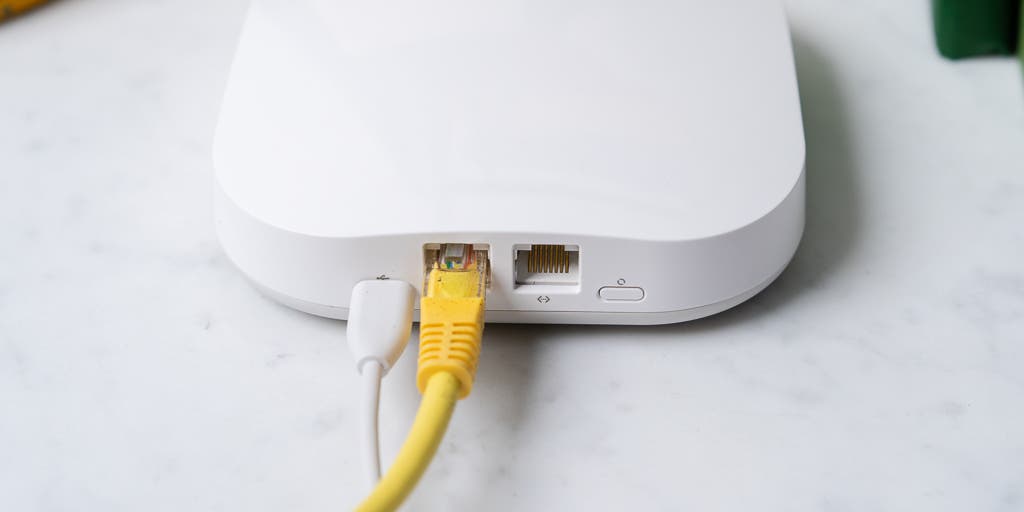
If you are experiencing slow Spectrum WiFi, there are a few potential reasons why. It could be due to data overuse, congested WiFi networks, network outage, routine maintenance, or issues with the cables and connections.
To improve your WiFi speed, try placing your modem and router in a central location, away from signal blockers and obstructions. Rebooting your modem and router periodically can also help. Troubleshoot any loose or damaged cables, and consider upgrading outdated hardware if necessary.
By addressing these potential issues, you can enhance your internet experience.
Common Causes Of Slow Spectrum Wifi
Is your Spectrum WiFi running slower than usual? There are several common causes for slow WiFi, including data overuse, congested networks, network outages, or routine maintenance. To improve your WiFi speed, try relocating your modem and router to a central location, minimizing signal blockers, such as baby monitors or wireless headphones, and periodically rebooting your equipment.
Slow WiFi can be frustrating, especially when you rely on a fast internet connection for work, entertainment, or staying connected with loved ones. Several factors can contribute to slow Spectrum WiFi speeds. Below are the most common causes:
- Outdated hardware:
- Using outdated modem or router: Older devices may not support the latest WiFi standards, leading to slower speeds.
- Incompatible devices: Certain devices may not work well with your Spectrum WiFi system, causing a decrease in overall performance.
- Signal interference from neighboring devices:
- Overlapping WiFi channels: If your neighbor’s WiFi networks operate on the same or nearby channels, it can lead to signal interference and slower speeds.
- Electronic devices: Household appliances, cordless phones, and other electronic devices emitting wireless signals can interfere with your WiFi connection.
- Distance from the router:
- WiFi signal strength diminishes the farther you are from the router. Thick walls, multiple floors, and large spaces can all impact the strength and reach of your WiFi signal, resulting in slower speeds.
To ensure that your Spectrum WiFi performs optimally, consider the following tips:
- Place your modem and router in a central location to ensure better coverage throughout your home or office.
- Avoid signal blockers such as baby monitors, wireless headphones, and microwaves in close proximity to your router.
- Make sure your router is not obstructed by cabinets, windows, or other physical barriers.
- Periodically reboot your modem and router to clear any temporary glitches that may affect speed.
By addressing these common issues, you can improve your Spectrum WiFi speeds and enjoy a smoother browsing experience. Make sure to stay up to date with the latest hardware and optimize your network environment for the best performance.
Maximizing Your Wifi Speeds
To maximize your WiFi speeds and address the issue of your Spectrum WiFi being slow in Austin, Texas, try these tips: place your modem and router in a central location, avoid signal blockers, and keep your router away from obstructions.
Additionally, periodic reboots of your modem and router can help improve your internet speed.
Is your Spectrum wifi running slower than usual? Slow internet speeds can be frustrating, especially when you’re trying to stream your favorite shows or play online games. Fortunately, there are several steps you can take to maximize your wifi speeds and ensure a smoother online experience.
Below are some tips to help you get the most out of your Spectrum wifi:
Optimal Router Placement:
- Place your modem and wifi router in a central location in your home. This will ensure that the wifi signal is evenly distributed throughout your space.
- Avoid signal blockers, such as baby monitors, wireless headphones, microwaves, and cordless phones. These devices can interfere with your wifi signal and slow down your internet speeds.
Avoiding Signal Blockers:
- Keep your router away from other electronic devices that may cause interference, such as cordless phones, Bluetooth devices, and microwave ovens.
- Ensure that your router is placed at least three feet away from walls and other obstructions. This will help minimize signal loss and maximize the strength of your wifi signal.
Placing Router Away From Obstructions:
- Place your router in a location where it’s not obstructed by walls or large furniture. This will allow the wifi signal to travel more freely and provide better coverage throughout your home.
- Avoid placing your router near windows or mirrors, as these can reflect the wifi signal and cause interference.
Periodically Rebooting Modem And Router:
- Rebooting your modem and router can help refresh the connection and improve wifi speeds. Simply unplug both devices from the power source, wait for a few seconds, and then plug them back in. This simple step can often resolve slow wifi issues.
By following these tips, you can optimize your wifi speeds and enjoy a faster and more reliable internet connection with Spectrum. Remember, a well-placed router, free from signal blockers and obstructions, along with periodic reboots, can go a long way in enhancing your wifi experience.
Identifying And Resolving Network Outages
If you’re wondering why your Spectrum WiFi is slow, there could be several reasons for it. It could be due to signal blockers, obstructions, data overuse, congested networks, or routine maintenance. To improve your WiFi speed, try placing your modem and router in a central location, away from obstructions, and periodically reboot them.
:
If you’re experiencing slow Spectrum WiFi, it could be due to a network outage. Here are some steps you can take to identify and resolve network outages:
Checking For Network Outage Notifications:
- Visit the Spectrum website or customer portal to check for any network outage notifications.
- Keep an eye out for any service interruptions in your area.
- Spectrum often updates customers about outages on their website or through their mobile app.
- By checking for outage notifications, you can determine if the slow internet speed is due to an outage in your area.
Resetting The Modem And Router:
- Start by turning off both your modem and router.
- Unplug them from the power source and wait for about 30 seconds.
- Plug them back in and turn them on.
- Allow a few minutes for the devices to reboot and establish a connection.
- Sometimes a simple reboot can resolve connectivity issues and improve internet speed.
Contacting Spectrum Customer Support:
- If the above steps don’t resolve the slow WiFi issue, it’s recommended to contact Spectrum customer support.
- Use the contact information provided by Spectrum, such as their helpline number or online chat support.
- Explain your issue and provide any relevant details, such as your account information and the troubleshooting steps you’ve already taken.
- The customer support team will assist you further, troubleshoot the problem, and guide you through the necessary steps to resolve the slow WiFi speed.
By following these steps, you can identify and resolve network outages that may be causing your Spectrum WiFi to run slow. Checking for outage notifications, resetting your modem and router, and contacting Spectrum customer support are all essential in troubleshooting and improving your internet speed.
Resolving Wifi Congestion
To resolve WiFi congestion and improve the speed of your Spectrum WiFi, try placing your modem and router in a central location, away from signal blockers and obstructions. Additionally, reboot your modem and router periodically to ensure optimal performance.
Wifi congestion can significantly slow down your Spectrum wifi connection. When multiple devices are connected to the same network, it can put a strain on bandwidth and decrease the overall speed. To resolve wifi congestion and boost your internet speed, try the following steps:
Checking For Other Devices On The Same Network
- Identify all the devices that are connected to your Spectrum wifi network.
- Check if any devices that are no longer in use are still connected.
- Determine if any devices are consuming a large amount of bandwidth, such as streaming videos or downloading large files.
- Disconnect any unnecessary devices to free up bandwidth for other devices.
Disconnecting Unwanted Devices
- Once you have identified unnecessary devices, disconnect them from your wifi network.
- This can be done by accessing your router’s settings and removing the devices from the network.
- By reducing the number of connected devices, you can optimize the available bandwidth for the remaining devices, resulting in faster internet speeds.
Using A Wifi Analyzer To Identify Interference
- Utilize a wifi analyzer app or software to identify possible sources of interference.
- This tool will help you identify other wifi networks, Bluetooth devices, or electronic appliances that may be causing interference with your Spectrum wifi signal.
- By pinpointing the sources of interference, you can adjust your router’s channel settings to minimize signal interference and improve your wifi speed.
Remember, resolving wifi congestion requires regular monitoring and optimization. By implementing these steps, you can optimize your Spectrum wifi network and enjoy faster internet speeds.
Updating Network Hardware
If you’re wondering why your Spectrum WiFi is so slow, it could be due to outdated network hardware or signal obstructions. To improve your WiFi speeds, consider placing your modem and router in a central location, away from any obstacles, and periodically rebooting them.
Is your Spectrum WiFi running slower than usual? One possible reason for this is outdated network hardware. Upgrading your modem and router firmware or even investing in a more powerful router can make a significant difference in your internet speed.
Here are some steps you can take to ensure your network hardware is up to date:
- Checking for firmware updates for modem and router: Firmware updates are essential as they often include bug fixes and performance enhancements. To check for updates, follow these steps:
- Access your modem or router’s web interface by typing its IP address into your browser’s address bar.
- Look for the “Firmware” or “Software Update” section in the settings menu.
- If an update is available, download and install it according to the manufacturer’s instructions.
- Upgrading to a more powerful router if necessary: If your current router is outdated or doesn’t offer adequate coverage for your home, it might be time to consider upgrading to a more powerful one. Look for routers with features like higher data transfer speeds, multiple antennas for better signal strength, and support for the latest WiFi standards like 802.11ac or 802.11ax.
Remember, keeping your network hardware up to date is crucial for optimal WiFi performance. By following these steps, you can ensure that your Spectrum WiFi runs as fast as possible, providing you with a seamless online experience.

Credit: www.allconnect.com
Optimizing Wifi Settings
Looking to optimize your Spectrum WiFi settings? If you’re wondering why your Spectrum WiFi is slow, try placing your modem and router in a central location, avoiding signal blockers, and periodically rebooting your devices. Find out more tips for maximizing your WiFi speeds on the Spectrum support website.
To ensure that your Spectrum Wi-Fi is performing at its best, it’s essential to optimize your Wi-Fi settings. Here are some effective strategies to improve your Wi-Fi speed:
Changing Wi-Fi Channel:
- Access your router’s admin settings by entering the router’s IP address into the web browser.
- Navigate to the wireless settings section and select the channel option.
- Choose a less congested channel by using Wi-Fi analyzing tools to identify which channels have less interference.
- Change the channel to the one with less congestion to potentially improve your Wi-Fi speed and reduce interference.
Adjusting Wi-Fi Transmit Power:
- Access your router’s admin settings by entering the router’s IP address into the web browser.
- Locate the transmit power settings in the wireless settings section.
- Reduce the transmit power to a lower level to decrease interference caused by neighboring Wi-Fi networks.
- Keep in mind that reducing transmit power might also reduce the coverage area of your Wi-Fi network.
Enabling Quality Of Service (Qos) Settings:
- Access your router’s admin settings by entering the router’s IP address into the web browser.
- Look for the QoS or Traffic Prioritization settings in the router’s settings.
- Enable QoS to prioritize certain types of network traffic, such as video streaming or online gaming, to ensure a better overall Wi-Fi experience.
- Set the priority for specific devices or applications to optimize network performance.
By implementing these optimizations, you can maximize your Spectrum Wi-Fi speeds and enjoy a smoother and faster online experience. Remember to save any changes made to your router’s settings and restart the router for the adjustments to take effect.
Frequently Asked Questions On Why Is My Spectrum Wifi So Slow
How Can I Make My Spectrum Wifi Faster?
To make your Spectrum WiFi faster, follow these steps: 1. Place your modem and WiFi router in a central location. 2. Avoid signal blockers like baby monitors, wireless headphones, and microwaves. 3. Keep your router away from obstructions such as cabinets and windows.
4. Restart your modem and router periodically.
Why Is My Spectrum Wifi So Slow Now?
Possible answer: A slow Spectrum WiFi connection can be due to data overuse, congested networks, network outage, or routine maintenance. To boost your WiFi speed, place your modem and router in a central location, avoid signal blockers, and periodically reboot your devices.
Why Is My Spectrum Internet Unstable?
Your Spectrum Internet may be unstable due to loose connections or visible damage to your cables. Even if you don’t see any issues, the cables could still be at fault. Try using spare cables to see if the problem persists.
Why Is My Internet Slower Than Usual?
There are several reasons why your internet may be slower than usual. Outdated hardware, distance from the router, and interference from other devices can all contribute to slower internet speeds. Troubleshoot these issues to improve your internet speed.
Conclusion
If you’ve been experiencing slow Spectrum WiFi, you’re not alone. There can be several reasons behind this frustrating issue, but there are steps you can take to improve your internet speeds. Firstly, make sure your modem and WiFi router are in a central location and away from signal blockers like baby monitors or microwaves.
Additionally, placing your router away from obstructions such as cabinets or windows can help improve the signal strength. Periodically rebooting your modem and router can also help resolve any temporary issues. It’s important to be aware that a slow internet connection can be caused by data overuse, congested WiFi networks, network outage, or routine maintenance.
By following the tips mentioned above and troubleshooting any potential hardware or software issues, you can significantly improve your Spectrum WiFi speed. Remember, optimizing your internet speed will enhance your online experience, allowing you to browse, stream, and work seamlessly.
Stay connected with Spectrum by taking proactive steps to troubleshoot and resolve any WiFi slowdown issues you may encounter.