
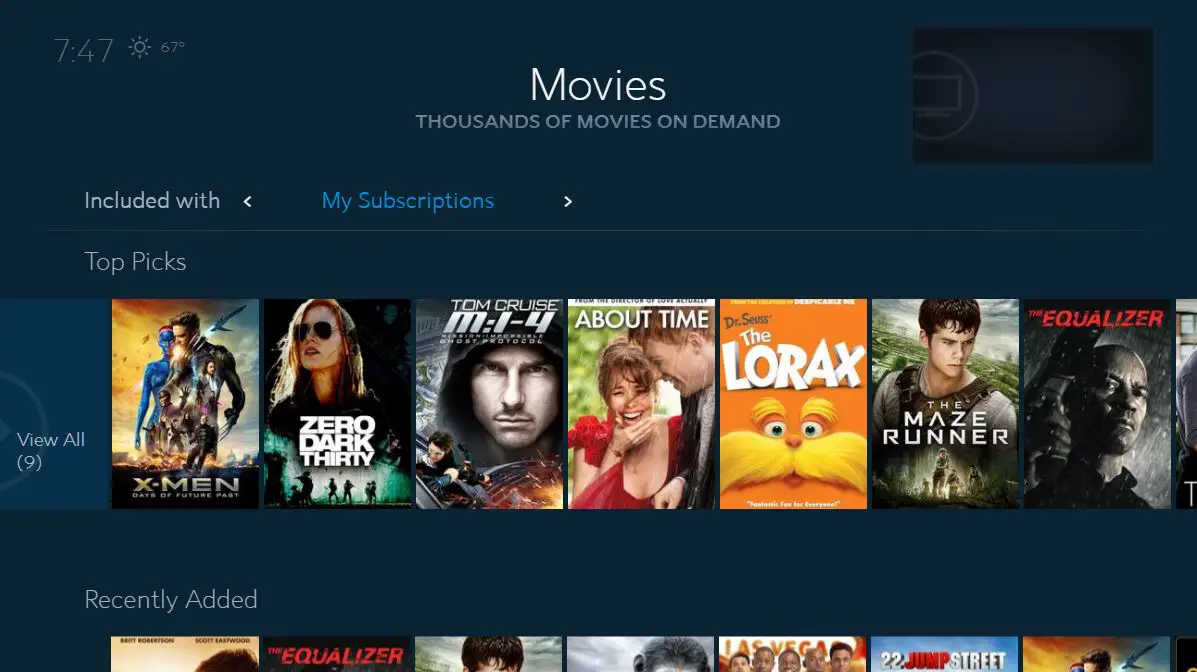
If your Spectrum app isn’t working, first ensure your internet connection is stable. Check for any app updates or server issues, then restart your device to resolve the problem.
Need help with your Spectrum app? Here’s what you should know. The Spectrum app offers a convenient way to access your favorite shows and movies, but when it stops working, it can be frustrating. Many users face issues such as freezing, crashing, or playback errors which can disrupt their viewing experience.
In this guide, we’ll explore common reasons why the Spectrum app might not be working and provide simple solutions to troubleshoot the problem. By following these steps, you can quickly get your Spectrum app back up and running smoothly.
Spectrum App Issues Explained
The Spectrum app is a convenient way to access cable TV, internet, and phone services on the go. However, users may encounter various issues that can disrupt their viewing experience. Understanding the different types of common Spectrum app problems and the factors affecting app performance and reliability can help pinpoint and resolve issues efficiently.
Different Types Of Common Spectrum App Problems
When using the Spectrum app, users may experience a range of issues that impact usability and functionality. Some common problems include:
- Video playback freezing or buffering
- Error messages when launching the app
- Inability to log in to the app
- Missing channels or content
- Poor audio or video quality
Factors Affecting App Performance And Reliability
Several factors can contribute to the performance and reliability of the Spectrum app. These include:
- Internet connection speed and stability
- Device compatibility and system requirements
- App updates and software glitches
- Network congestion and server issues
- User account authentication and permissions
Identify Your Spectrum App Problem
Identifying the issues with your Spectrum app is the first step in resolving any problems you may be experiencing. Whether it’s streaming, login, crashes, or freezing, understanding the root cause of the problem will help you troubleshoot effectively. Let’s dive into some common issues and how to identify them.
Checking If The Issue Is With Streaming Or Login
When the Spectrum app is not working, it’s essential to pinpoint whether the problem lies in streaming content or logging into your account. Is the app failing to load any content, or are you encountering difficulties logging in? Understanding the specific area of concern will help you narrow down the potential causes and find a solution.
Signs Of App Crashes Or Freezing
App crashes or freezing can disrupt your viewing experience. Look out for any indications of the app unexpectedly shutting down or becoming unresponsive. These signs point towards a potential issue with the app’s stability, and identifying them early can help in diagnosing and resolving the problem.
Troubleshooting Spectrum App Glitches
Having trouble with your Spectrum app? Don’t worry, we’ve got you covered. Let’s walk through some common troubleshooting methods to get your app up and running smoothly again. From verifying your internet connection strength and stability to updating the app to the latest version, we’ll cover the essentials to help you resolve those pesky glitches.
Verifying Your Internet Connection Strength And Stability
First things first, it’s important to ensure that your internet connection is strong and stable. A poor connection can often lead to issues with streaming and using the Spectrum app. Here are a few steps to help you verify your internet connection:
- Check your Wi-Fi signal strength on your device.
- Restart your modem and router.
- Consider using an Ethernet cable for a more stable connection.
- Run a speed test to check your internet’s download and upload speeds.
Updating The App To The Latest Version
Outdated app versions can often cause compatibility issues and glitches. To ensure the smooth functioning of your Spectrum app, follow these steps to update it to the latest version:
- Go to the app store on your device (Google Play Store or Apple App Store).
- Search for the Spectrum TV app.
- If an update is available, click on the “Update” button.
- Once the update is complete, open the app and check if the issue has been resolved.
By following these troubleshooting methods, you can work towards resolving glitches with your Spectrum app, ensuring a seamless streaming experience. If you continue to experience issues, don’t hesitate to reach out to Spectrum customer support for further assistance.
Why Isn’t My Spectrum App Working? Steps To Diagnose
When you encounter issues with the Spectrum app, it can be frustrating and disruptive to your entertainment experience. To help you get back to enjoying your favorite shows and movies, let’s explore the steps to diagnose the problem and find solutions to get your Spectrum app up and running smoothly.
Using Spectrum’s Official Resources For Troubleshooting
One of the most efficient ways to troubleshoot the Spectrum app is to leverage the official resources provided by Spectrum. Their comprehensive guides and support channels can help you identify and resolve common issues quickly.
Analyzing Error Messages For Quick Solutions
When the Spectrum app encounters problems, error messages can provide valuable clues to the root cause. By analyzing these messages, you can pinpoint specific issues and apply targeted solutions to address them efficiently.
Optimizing Device For Spectrum App
If you are encountering issues with your Spectrum app, optimizing your device can help resolve many underlying problems. Here are some essential steps to optimize your device for the Spectrum app:
Clearing cache and data for the appClearing Cache And Data For The App
Clearing the cache and data for the Spectrum app can help in resolving issues related to app performance and functionality. Follow the steps below to clear cache and data:
- Go to your device’s Settings.
- Find and select Apps or Applications.
- Locate and tap on the Spectrum app.
- Tap on Storage.
- Choose Clear Cache and Clear Data.
Ensuring Device Compatibility And Requirements
It’s crucial to ensure that your device meets the minimum compatibility and system requirements for running the Spectrum app smoothly. Refer to the table below to check the compatibility and requirements:
| Device Compatibility | System Requirements |
|---|---|
| Android or iOS devices | Minimum Android OS version 5.0 or iOS version 11.0 |
| Smart TVs | Support for Spectrum TV app |
Resolve Spectrum App Issues Now
Resolving Spectrum app issues is crucial to ensure uninterrupted streaming and access to your favorite content. If you’re experiencing difficulties with your Spectrum app, it’s essential to address them promptly to get back to enjoying your entertainment. In this guide, we’ll provide a step-by-step approach to common fixes, empowering you to resolve Spectrum app issues on your own. Additionally, we’ll highlight when it’s necessary to seek assistance from Spectrum support. Let’s get your Spectrum app back up and running smoothly.
Step-by-step Guide To Common Fixes
When encountering issues with your Spectrum app, it can be frustrating. However, there are simple steps you can take to address common problems and get your app working again. Here’s a step-by-step guide to resolve common Spectrum app issues:
- Check your internet connection to ensure it’s stable and strong.
- Force close the app and relaunch it to refresh the application.
- Clear the app cache and data to resolve any glitches.
- Update the Spectrum app to the latest version for bug fixes and performance improvements.
- Restart your device to resolve any underlying issues affecting the app.
When To Contact Spectrum Support For Help
While these steps can resolve many Spectrum app issues, there are instances when it’s necessary to reach out to Spectrum support for assistance. Consider contacting Spectrum support if:
- You have tried all common fixes, but the issue persists.
- The problem appears to be related to your Spectrum account or subscription.
- You require technical support for more complex app issues.
Credit: signalhound.com
Frequently Asked Questions For Why Isn’t My Spectrum App Working
Why Is My Spectrum App Not Working?
The Spectrum app may encounter connectivity issues due to a poor internet connection or server problems. Restart your device, check for updates, and ensure a strong internet connection to resolve the issue. If problems persist, contact Spectrum customer support for further assistance.
How Can I Fix The Spectrum App Not Loading?
If the Spectrum app fails to load, try clearing the app’s cache or reinstalling the app. Ensure that your device meets the app’s system requirements and is running the latest software updates. Additionally, check for any service outages in your area that may be affecting the app’s functionality.
What Should I Do If The Spectrum App Is Frozen?
If the Spectrum app becomes unresponsive or frozen, try force closing the app and relaunching it. Restart your device and ensure that no other applications are causing interference. If the issue continues, consider uninstalling and reinstalling the app to resolve any potential software conflicts.
Conclusion
Having trouble with your Spectrum app? Don’t panic. There can be various reasons why it’s not working. Check your internet connection, update the app, and clear the cache. If issues persist, reaching out to customer support can provide further assistance.
Remember, troubleshooting might solve your problems. Stay updated, keep patient, and enjoy Spectrum services hassle-free.